🌟 A Complete Guide to Soft Glow
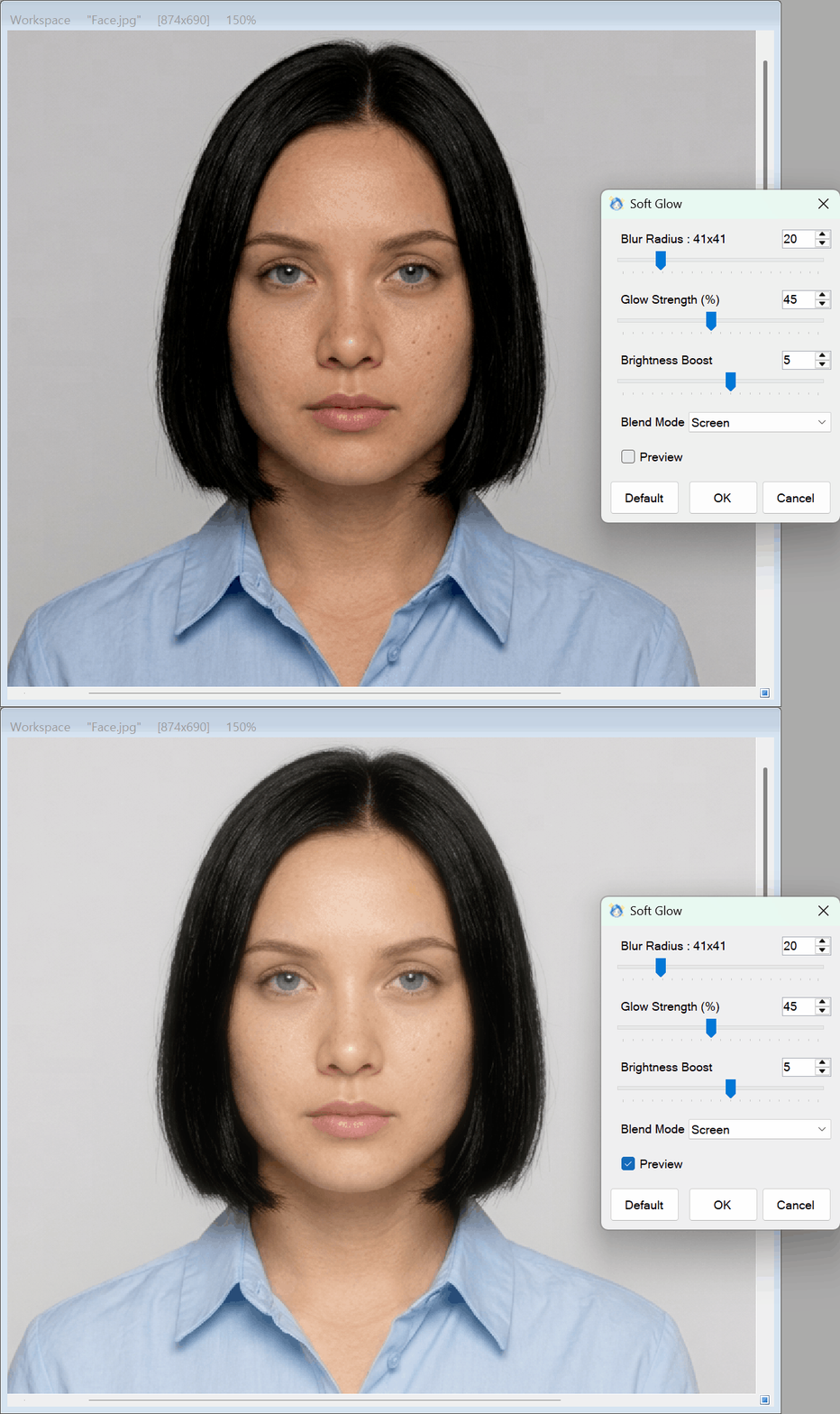
PhenoCapture AI’s Soft Glow feature is a professional-grade aesthetic filter designed to add a dreamy, radiant, and cinematic luminescence to your images. Whether you are retouching portraits to achieve flawless, glowing skin, or enhancing landscape photography with a magical, ethereal atmosphere, this intelligent tool diffuses harsh lighting while preserving the underlying sharpness and delicate details of your subject.
Here is everything you need to know about using this feature to bring a warm, studio-quality brilliance to your photos.
💡 Key Features
- Dreamy Highlight Diffusion: By intelligently blending a softly blurred luminance layer with your original image, Soft Glow creates a natural, radiant halo around bright areas—smoothing out skin imperfections and harsh shadows without making the photo look out of focus.
- Detail-Preserving Blending: Unlike standard blur tools that flatten textures, Soft Glow enhances highlights and midtones while keeping essential facial features, hair strands, and fine edges crisp and clear.
- Customizable Glow Parameters: Take full creative control with intuitive sliders for Radius (how far the glow spreads), Brightness (the intensity of the radiance), and Contrast (maintaining deep shadows and rich tones).
- Zoom-Aware Real-Time Preview: Thanks to high-speed parallel processing, every slider adjustment is rendered instantly on your canvas with zero lag, dynamically scaling to match your current zoom level for an accurate preview.
- Smart Regional Masking: Want to apply a gentle glow only to a portrait subject while keeping the background untouched? Simply draw a selection on your workspace, and Soft Glow will seamlessly process only the targeted area without boundary artifacts.
- Seamless Undo & Reset Integration: Experiment freely with extreme lighting effects. You can instantly revert your adjustments using the Default button or PhenoCapture AI’s standard Undo engine.
🛠️ How to Use the Soft Glow Tool
Creating a radiant, magazine-ready look takes just a few simple steps:
Step 1: Select Your Target Area (Optional)
If you wish to apply the glow effect to a specific region (such as a person’s face or a bright sky), use any of the selection tools to highlight the area first. If no selection is active, the Soft Glow effect will be applied across the entire image.
Step 2: Enable the Live Preview
Open the Soft Glow tool from the menu and ensure the Preview checkbox is ticked. This allows you to observe the luminous transformation in real time as you fine-tune the parameters.
Step 3: Dial in the Glow Sliders
Adjust the sliders to craft the exact mood and lighting balance you want:
- Radius: Controls the spread of the light diffusion. A lower radius creates a tight, subtle sheen around bright edges, while a higher radius produces a broad, dreamy, and atmospheric wash of light.
- Brightness (Intensity): Controls the strength of the glow. Gently increase this value to brighten skin tones and make highlights pop.
- Contrast (Sharpness): Balances the diffused light against your original image tones. Increasing the contrast prevents the glow from washing out your dark areas, keeping your subject’s eyes, hair, and key contours sharp and vivid.
(Tip: If the highlights become too blown out or overly bright, click the Default button to instantly reset all sliders and start fresh!)
Step 4: Apply Your Changes
Once you have found the perfect balance of softness and clarity in the preview, click OK. The optimized engine will immediately process and commit the final high-resolution result to your workspace.
With the Soft Glow tool, transforming dimly lit portraits or ordinary scenes into radiant, captivating works of art is completely effortless!