✨ A Complete Guide to the Subtract Binary Image from Selection Tool
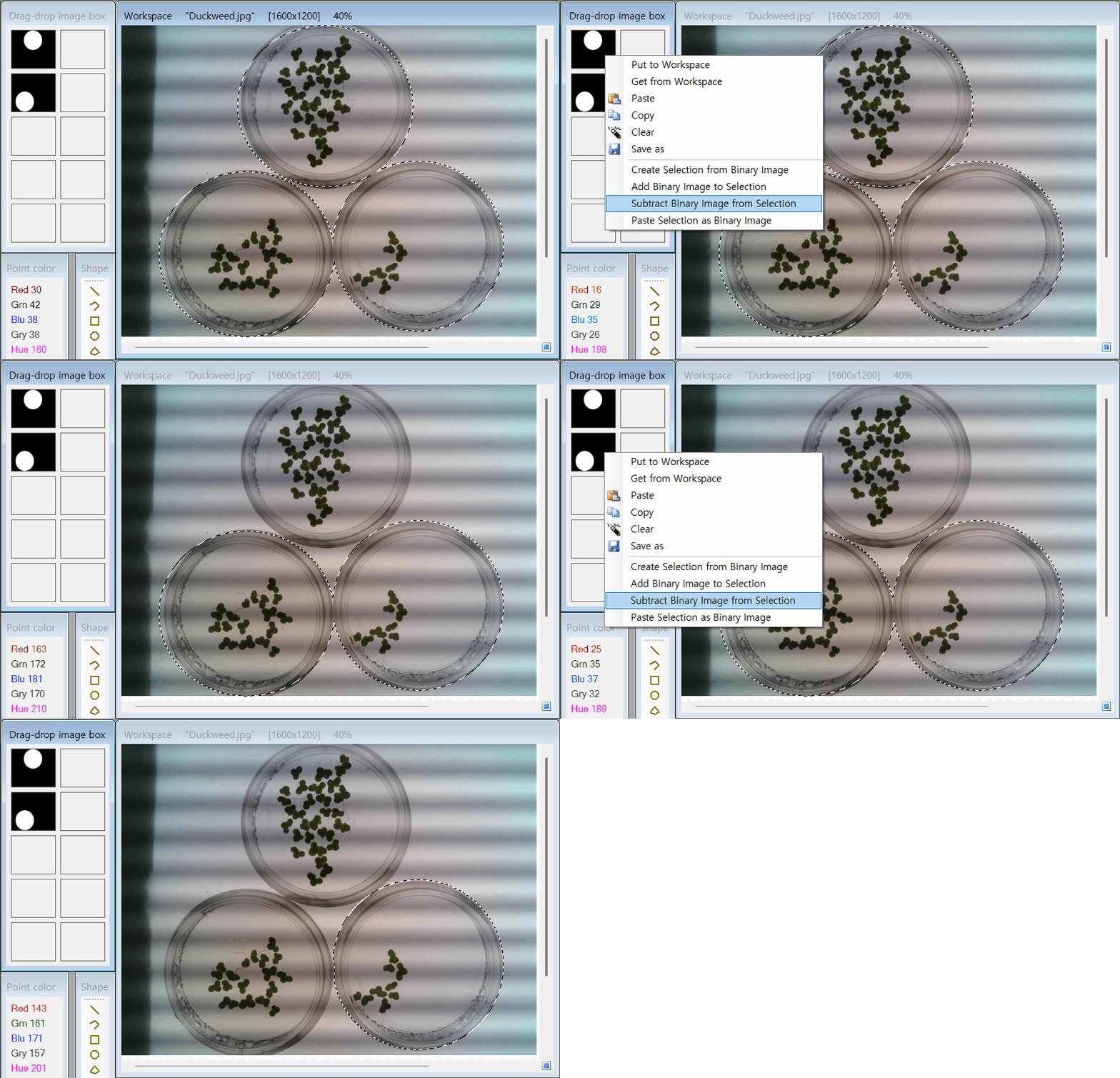
PhenoCapture AI’s Subtract Binary Image from Selection tool is a powerful precision eraser for your active masks. While the “Add” tool merges new shapes into your selection, this tool does the exact opposite: it uses the white areas of a black-and-white (binary) image as a stencil to “cut out” or remove those specific regions from your currently active selection.
This is exceptionally useful when you need to subtract complex, pre-calculated shapes, holes, or exclusion zones from a larger selected area.
💡 Key Features
- Precision Subtraction: The algorithm takes the white pixels from your target binary image and actively subtracts them from your current selection. The black areas of the binary image are completely ignored, leaving the rest of your selection perfectly intact.
- Multiple Image Sources: You can use the main workspace image as your subtraction stencil, or conveniently pull a binary image from any of your Drag & Drop Image Box slots (slots 1 through 10).
- Smart Binary Validation: The tool intelligently checks if your target image is a strict binary image before processing. If it detects grayscale or color data, it provides a helpful warning to prevent accidental selection errors—but still gives you the control to proceed if desired.
- High-Speed Processing: The engine quickly isolates the boundaries of your active selection and the binary image, applying the subtraction mathematics rapidly to keep your workflow perfectly smooth and responsive.
- Seamless Undo Integration: Just like all selection modifiers in PhenoCapture AI, the newly refined mask is safely recorded in the undo engine. If you accidentally subtract the wrong shape, a single undo click will restore your previous selection boundaries.
🛠️ How to Use the Tool
Step 1: Ensure You Have an Active Selection
Before using this tool, make sure you already have an active selection mask on your canvas (created via drawing tools, magic wand, AI selection, etc.).
Step 2: Prepare Your Binary Stencil
Have your binary (black-and-white) image ready. You can load this into the main workspace, or keep it stored in one of the numbered slots in your Drag & Drop Image Box.
Step 3: Execute the Subtraction
Navigate to your selection menu and click Subtract Binary Image from Selection (or choose the specific Drag & Drop slot containing your binary stencil).
Note: If the software detects that your stencil image isn’t perfectly black and white, it will prompt you with a warning. You can click “Yes” to force the subtraction anyway.
Step 4: Utilize Your Refined Selection
The software will instantly carve out the white shapes of the binary image from your active selection. You are now left with a highly refined mask, ready for your next analysis, composite, or editing step!