📋 A Complete Guide to Paste and Fit to Rectangle Selection
In PhenoCapture AI, precisely positioning and resizing a copied image can sometimes disrupt your workflow. To solve this, we have introduced the Paste and Fit to Rectangle Selection feature.
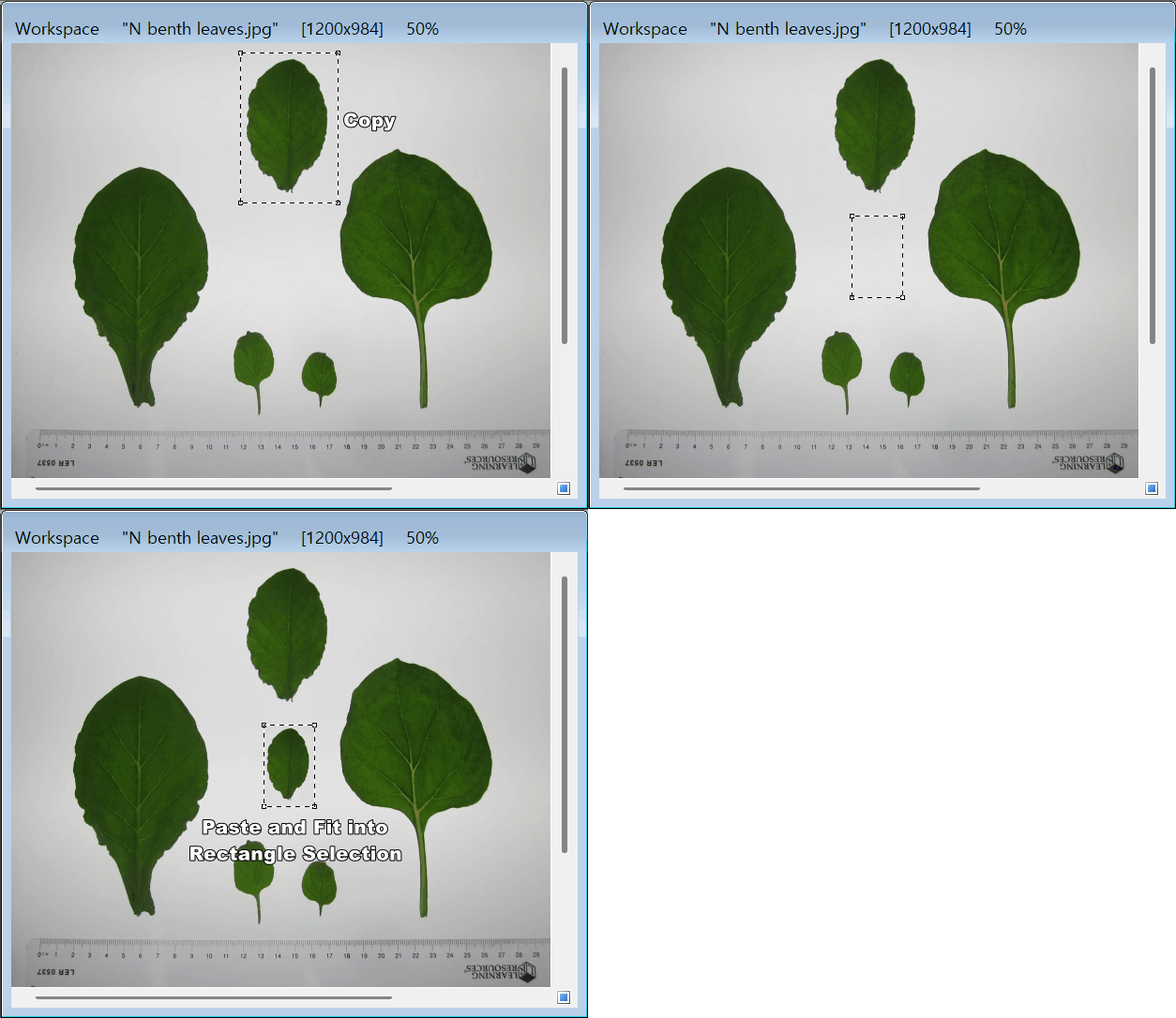
Instead of pasting an image and manually dragging its corners to fit a specific area, you can now simply draw a box and instantly snap your copied image perfectly into that exact space.
Whether you are creating precise composites, replacing specific regions of an image, or building side-by-side comparisons, this tool handles the complex resizing and rendering automatically.
💡 Key Features
Our advanced pasting engine goes beyond simple resizing. It includes several hidden rendering optimizations to ensure your pasted image looks absolutely flawless.
- Targeted Placement: Paste clipboard data directly into a user-defined area. The image will perfectly stretch or shrink to fill your drawn rectangle, completely automating the layout process.
- High-Quality Resizing: When auto-resizing, the engine utilizes a High-Quality Bicubic interpolation algorithm, ensuring that even heavily stretched or shrunk images retain maximum detail without severe pixelation.
- Anti-Edge Bleeding Technology: A common issue in image editing is “ghost borders” or dithering along the edges of a resized pasted image. PhenoCapture AI employs advanced boundary-reflection rendering (TileFlipXY) to completely eliminate these transparent edge artifacts, guaranteeing a crisp, clean cut.
- Pixel-Perfect Preservation: If the software detects that your clipboard image and your rectangle selection are the exact same size, it intelligently disables interpolation. This 1:1 pixel mapping preserves the original image data perfectly without any artificial blurring.
- Smart Fallback: If you accidentally click this feature without an active rectangle selection, the software will seamlessly fall back to the standard Smart Paste function, preventing unnecessary errors.
🛠️ How to Use Paste and Fit
Dropping an image perfectly into place takes just three simple steps:
Step 1: Copy Your Source Image
Copy any image data to your system clipboard (e.g., from a web browser, another document, or a different region within PhenoCapture AI using Ctrl + C).
Step 2: Draw Your Target Box
Select the Rectangle Selection Tool from the toolbar and draw a box on your main workspace. The size and position of this box will dictate exactly where and how large your pasted image will be.
Step 3: Paste and Fit
Navigate to the menu and click Edit > Paste and Fit to Rectangle Selection.
- The software will instantly calculate the dimensions, apply the necessary high-quality scaling, and flawlessly embed the image inside your selection boundary.
- The selection frame will automatically hide after a successful paste, leaving you with a clean workspace.
🔗 Image Stamp vs. Paste and Fit
You might notice that Paste and Fit to Rectangle Selection acts as a streamlined, quick-action version of our Image Stamp tool.
Why use Paste and Fit instead of Image Stamp?
Imagine this workflow: You copy a specific region from an image in your workspace, change the workspace to a completely different image, and then want to paste that copied region into the exact same rectangular coordinates (or a quickly modified selection).
While you can achieve this using the Image Stamp tool, it requires you to manually click and position the image using the [Set Location] button. Achieving pixel-perfect alignment with the mouse can be quite difficult and time-consuming. Paste and Fit solves this by instantly snapping the clipboard image right into your active selection frame.
If you need more advanced blending options like Chroma Key background removal, rotation, or opacity adjustments, be sure to check out our comprehensive guide on the Image Stamp Tool!
With the Paste and Fit to Rectangle Selection tool, you can build complex image layouts and composites in seconds, completely eliminating the guesswork of manual resizing!