📷 A Complete Guide to the ESP32-CAM Remote Time-Lapse Acquisition Tool
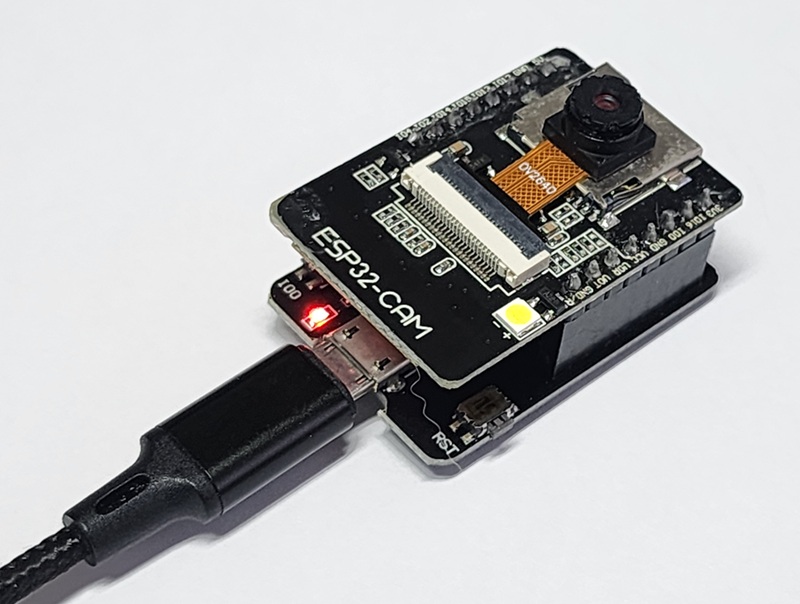
PhenoCapture AI’s ESP32-CAM Remote Time-Lapse Acquisition Tool is a specialized, high-performance hub designed to wirelessly capture and manage time-lapse feeds from multiple ESP32-CAM modules. Whether you are conducting large-scale plant phenotyping in a greenhouse, monitoring dozens of 3D printers, or running distributed laboratory experiments, this feature handles massive multi-camera remote acquisition effortlessly in the background.
Here is everything you need to know about setting up and scaling your wireless ESP32-CAM network with precision and reliability.
💡 Key Features
- Massive Multi-Camera Array Support: Monitor a single module or scale up to hundreds of ESP32-CAM devices at once. Simply enter multiple IP addresses or URLs (one per line), and the tool automatically formats the
/captureendpoints and assigns unique camera tags (e.g.,cam101,cam102) based on the IP address. - Smart Sequential Staggering & Timeout Protection: Instead of flooding your Wi-Fi router by requesting images from all cameras at the exact same instant, PhenoCapture AI triggers cameras one by one using a customizable Sequential Delay (e.g., 1 second). Combined with an automatic Abort Timeout, even a massive camera array operates with minimal concurrent network traffic.
- Precision Intervals & Custom Schedules: Capture images every few seconds, minutes, or hours, or build a custom User-Defined Schedule. Using a simple
HH:MM:SS-HH:MM:SS(HH:MM:SS)format, you can program exact active time windows and intervals for specific times of the day. - Auto-Organized Folders & Millisecond Naming: Every captured frame is saved asynchronously in the background without slowing down the interface. Files are neatly sorted into camera-specific subfolders (such as
/cam101) and named with both the exact request and completion timestamps down to the millisecond:YYYY-MM-DD (HH-MM-SS-fff)-(HH-MM-SS-fff).jpg. - Direct Drag-and-Drop to Workspace: Want to inspect or analyze a newly captured frame right away? Simply drag the live preview image directly into the PhenoCapture AI Workspace (or click Copy to send it to your clipboard) without interrupting your ongoing background time-lapse!
⚡ How Sequential Multi-Camera Acquisition Works (Scalability Guide)
When operating dozens or even hundreds of wireless cameras, understanding how PhenoCapture AI handles network traffic is essential.
When a time-lapse capture event is triggered, the software does not request images from all ESP32-CAM modules simultaneously. Simultaneous requests would immediately overwhelm standard Wi-Fi routers, causing packet loss and dropped connections. Instead, PhenoCapture AI uses a Sequential Staggered Acquisition mechanism:
- Ordered, Staggered Requests: The tool contacts each ESP32-CAM in the exact order listed, waiting for the user-defined Sequential Delay (for example, 1 second) before moving to the next camera in the list.
- Ultra-Low Concurrent Traffic: Because an ESP32-CAM typically completes image capture and Wi-Fi transmission within just 1 to 2 seconds, no matter how many cameras are registered in your list, fewer than 3 images are ever being transmitted over the network at the exact same time.
- Massive Array Capacity: This sequential pipeline allows you to scale your camera count based on your time-lapse interval (assuming a 1-second sequential delay):
- 1-Minute Capture Interval: You can sequentially capture from up to ~60 ESP32-CAM modules within every 1-minute cycle.
- 5-Minute Capture Interval: With 300 seconds available between cycles (
5 × 60 seconds), you can reliably operate and collect images from roughly ~300 ESP32-CAM modules on a single system!
🛠️ How to Use the ESP32-CAM Acquisition Tool
Setting up your wireless multi-camera time-lapse is intuitive and fast. Just follow these simple steps:
Step 1: Enter Your ESP32-CAM IP Addresses
In the camera URL text box, enter the IP address or URL of your ESP32-CAM module (for example, 192.168.0.101). You don’t need to type http:// or /capture—PhenoCapture AI automatically formats the full capture address for you!
- Using Multiple Cameras: Enter one IP address per line. Set a Sequential Delay (e.g.,
1second) so the tool triggers each camera in order without overloading your Wi-Fi, and choose an Abort After timeout limit (e.g.,10seconds) to safely skip any offline modules.
Step 2: Configure the Capture Interval or Schedule
Decide how often you want your cameras to take a picture (making sure your overall interval is longer than the total time needed to step through your camera list):
- Standard Intervals: Select Seconds, Minutes, or Hours and choose your desired step value from the dropdown menu.
- Custom Schedule: Select Schedule to define specific time blocks using the 27-character format
Start-End(Interval). For example, entering08:00:00-18:00:00(00:15:00)will capture an image every 15 minutes exclusively between 8:00 AM and 6:00 PM. - Duration Control: Leave Continuous checked for 24/7 operation, or uncheck it to specify an exact recording duration in minutes before the tool stops automatically.
Step 3: Set Your Destination Folder
Click the folder selection button to choose where your captured images will be stored, and make sure the Save checkbox is enabled. The tool will automatically create dedicated subfolders for each camera (based on the last number of its IP address) to keep thousands of time-lapse photos cleanly separated.
Step 4: Start Capturing & Monitor Live Status
Click Start to begin the automated acquisition process (or click Save Now at any time to trigger an immediate manual sequential snapshot across all listed cameras).
You can monitor every download request and file save in real-time through the Status Log, while any network drops or corrupted frames are tracked separately in the Download Failure Log for easy diagnostics.
(Tip: Need to run a quick measurement or filter on the latest frame? Just click and drag the image from the preview box directly onto your active Workspace canvas!)
🔌 Preparing Your ESP32-CAM: Arduino Firmware & Network Setup
To allow PhenoCapture AI to communicate reliably with your ESP32-CAM modules, each board needs to be flashed with a camera web server sketch configured with a Static IP address. Using a static IP ensures that your camera’s address never changes even if the power or Wi-Fi router restarts.
1. How to Find Your Network Settings (Gateway & Subnet) on Windows
Because network settings like the Default Gateway and Subnet Mask depend entirely on your specific Wi-Fi router or mobile hotspot environment, you must check your computer’s network configuration first and enter the matching values into the Arduino code:
- Press Win + R on your keyboard, type
cmd, and press Enter to open the Windows Command Prompt. - Type
ipconfigand press Enter. - Look for the Wireless LAN adapter Wi-Fi section in the results and note the following three values:
- IPv4 Address: (e.g.,
192.168.0.15) — Your ESP32-CAM’slocal_IPStrmust share the same first three numbers (e.g.,192.168.0.XXX), while the last number must be a unique value (between 2 and 254) not currently used by another device, such as192.168.0.101. - Subnet Mask: (e.g.,
255.255.255.0) — Enter this exact value intosubnetStr. - Default Gateway: (e.g.,
192.168.0.1) — Enter this exact value intogatewayStr.
- IPv4 Address: (e.g.,
C:\Users\User>ipconfig

Wireless LAN adapter Wi-Fi:

   IPv4 Address. . . . . . . . . . . : 192.168.0.15
   Subnet Mask . . . . . . . . . . . : 255.255.255.0
   Default Gateway . . . . . . . . . : 192.168.0.1
2. Arduino Sketch for ESP32-CAM
Copy and upload the following sketch to your ESP32-CAM using the Arduino IDE (make sure the standard app_httpd.cpp camera server file from the ESP32 CameraWebServer example is present in your sketch folder).
⚠️ Important: Before uploading, replace YOUR_WIFI_SSID and YOUR_WIFI_PASSWORD with your actual Wi-Fi credentials, and update local_IPStr, gatewayStr, and subnetStr with the network values you found using ipconfig. (If you are setting up multiple cameras, assign a different last digit to local_IPStr for each board, such as .101, .102, .103).
#include "Arduino.h"
#include "esp_camera.h"
#include <WiFi.h>

//-----------------------------------------------------
const String programLabel = "ESP32Cam_SIPEREA";
const String programDate  = "2026-10-24b";

const int pinRelay = 12;
const int pinLED = 4;

// Replace with your actual Wi-Fi credentials
const char* ssid = "YOUR_WIFI_SSID";
const char* password = "YOUR_WIFI_PASSWORD";

// Set your Static IP address using simple strings (Check via 'ipconfig' in Windows CMD)
const String local_IPStr = "192.168.0.101";
const String gatewayStr  = "192.168.0.1";
const String subnetStr   = "255.255.255.0";

//const char* ssid = "YOUR_HOTSPOT_SSID";
//const char* password = "YOUR_HOTSPOT_PASSWORD";
//// Set your Static IP address for Mobile Hotspot
//const String local_IPStr = "192.168.137.100";
//const String gatewayStr  = "192.168.137.1";
//const String subnetStr   = "255.255.255.0";

IPAddress local_IP;
IPAddress gateway;
IPAddress subnet;

//-----------------------------------------------------
#define PWDN_GPIO_NUM     32
#define RESET_GPIO_NUM    -1
#define XCLK_GPIO_NUM      0
#define SIOD_GPIO_NUM     26
#define SIOC_GPIO_NUM     27

#define Y9_GPIO_NUM       35
#define Y8_GPIO_NUM       34
#define Y7_GPIO_NUM       39
#define Y6_GPIO_NUM       36
#define Y5_GPIO_NUM       21
#define Y4_GPIO_NUM       19
#define Y3_GPIO_NUM       18
#define Y2_GPIO_NUM        5
#define VSYNC_GPIO_NUM    25
#define HREF_GPIO_NUM     23
#define PCLK_GPIO_NUM     22

#include "esp_system.h"

const int wdtTimeout = 30000;  // time in ms to trigger the watchdog
hw_timer_t *timer = NULL;

void IRAM_ATTR resetModule() {
    ets_printf("reboot\n");
    esp_restart();
}

#include "soc/soc.h"           // Disable brownout problems
#include "soc/rtc_cntl_reg.h"  // Disable brownout problems

void startCameraServer();
void connectToWifi();
void blinkLED(int count);

void setup() {
      setCpuFrequencyMhz(240);

      WRITE_PERI_REG(RTC_CNTL_BROWN_OUT_REG, 0); // disable brownout detector
      Serial.begin(115200);
      Serial.print(F("Program : "));
      Serial.println(programLabel);
      delay(5);
      Serial.print(F("Version : "));
      Serial.println(programDate);
      delay(5);

      camera_config_t config;
      config.ledc_channel = LEDC_CHANNEL_0;
      config.ledc_timer = LEDC_TIMER_0;
      config.pin_d0 = Y2_GPIO_NUM;
      config.pin_d1 = Y3_GPIO_NUM;
      config.pin_d2 = Y4_GPIO_NUM;
      config.pin_d3 = Y5_GPIO_NUM;
      config.pin_d4 = Y6_GPIO_NUM;
      config.pin_d5 = Y7_GPIO_NUM;
      config.pin_d6 = Y8_GPIO_NUM;
      config.pin_d7 = Y9_GPIO_NUM;
      config.pin_xclk = XCLK_GPIO_NUM;
      config.pin_pclk = PCLK_GPIO_NUM;
      config.pin_vsync = VSYNC_GPIO_NUM;
      config.pin_href = HREF_GPIO_NUM;
      config.pin_sscb_sda = SIOD_GPIO_NUM;
      config.pin_sscb_scl = SIOC_GPIO_NUM;
      config.pin_pwdn = PWDN_GPIO_NUM;
      config.pin_reset = RESET_GPIO_NUM;
      config.xclk_freq_hz = 20000000;
      config.pixel_format = PIXFORMAT_JPEG;

      if(psramFound()){
          config.frame_size = FRAMESIZE_UXGA;
          config.jpeg_quality = 10;
          config.fb_count = 2;
      } else {
          config.frame_size = FRAMESIZE_SVGA;
          config.jpeg_quality = 12;
          config.fb_count = 1;
          config.grab_mode = CAMERA_GRAB_LATEST;
      }

      config.grab_mode = CAMERA_GRAB_LATEST;

      // camera init
      esp_err_t err = esp_camera_init(&config);
      if (err != ESP_OK) {
        Serial.printf("Camera init failed with error 0x%x", err);
        return;
      }

      sensor_t * s = esp_camera_sensor_get();
      s->set_brightness(s, 0);     // -2 to 2
      s->set_contrast(s, 0);       // -2 to 2
      s->set_saturation(s, 0);     // -2 to 2
      s->set_special_effect(s, 0); // 0 to 6 (0 - No Effect, 1 - Negative, 2 - Grayscale, 3 - Red Tint, 4 - Green Tint, 5 - Blue Tint, 6 - Sepia)
      s->set_whitebal(s, 1);       // 0 = disable , 1 = enable
      s->set_awb_gain(s, 1);       // 0 = disable , 1 = enable
      s->set_wb_mode(s, 0);        // 0 to 4 - if awb_gain enabled (0 - Auto, 1 - Sunny, 2 - Cloudy, 3 - Office, 4 - Home)
      s->set_exposure_ctrl(s, 1);  // 0 = disable , 1 = enable
      s->set_aec2(s, 1);           // 0 = disable , 1 = enable
      s->set_ae_level(s, 0);       // -2 to 2
      s->set_aec_value(s, 300);    // 0 to 1200
      s->set_gain_ctrl(s, 1);      // 0 = disable , 1 = enable
      s->set_agc_gain(s, 0);       // 0 to 30
      s->set_gainceiling(s, (gainceiling_t)0);  // 0 to 6
      s->set_bpc(s, 0);            // 0 = disable , 1 = enable
      s->set_wpc(s, 1);            // 0 = disable , 1 = enable
      s->set_raw_gma(s, 1);        // 0 = disable , 1 = enable
      s->set_lenc(s, 1);           // 0 = disable , 1 = enable
      s->set_hmirror(s, 1);        // 0 = disable , 1 = enable
      s->set_vflip(s, 0);          // 0 = disable , 1 = enable
      s->set_dcw(s, 1);            // 0 = disable , 1 = enable
      s->set_colorbar(s, 0);       // 0 = disable , 1 = enable

      timer = timerBegin(0, 80, true);                  // timer 0, div 80
      timerAttachInterrupt(timer, &resetModule, true);  // attach callback
      timerAlarmWrite(timer, wdtTimeout * 1000, false); // set time in us
      timerAlarmEnable(timer);                          // enable interrupt

      pinMode(pinRelay, OUTPUT);
      digitalWrite(pinRelay, LOW);

      //pinMode(pinLED, OUTPUT);
      //digitalWrite(pinLED, LOW);
}

void loop() {
      timerWrite(timer, 0); // reset timer (feed watchdog)

      if (WiFi.status() != WL_CONNECTED) {
          connectToWifi();
      }

      for (int t=0; t<60; t++) {
          timerWrite(timer, 0);
          delay(1000);
      }
}

void connectToWifi() {
      // Automatically parse IPAddress objects from string configurations
      if (!local_IP.fromString(local_IPStr) ||
          !gateway.fromString(gatewayStr) ||
          !subnet.fromString(subnetStr)) {
          Serial.println("Invalid IP Address string format");
          delay(5);
          return;
      }

      // Configures static IP address
      if (!WiFi.config(local_IP, gateway, subnet)) {
          Serial.println("STA Failed to configure");
          delay(5);
          return;
      }

      WiFi.begin(ssid, password);

      for (int t=0; t<20; t++) {
          timerWrite(timer, 0);
          delay(1000);
          Serial.print(".");

          if(WiFi.status() == WL_CONNECTED) {
              Serial.println("");
              Serial.println("WiFi connected");
              delay(5);

              startCameraServer();

              Serial.println("Your camera is ready to stream at");
              delay(5);
              Serial.print("http://");
              delay(5);
              Serial.println(WiFi.localIP());
              delay(5);

              pinMode(pinLED, OUTPUT);
              digitalWrite(pinLED, HIGH);

              // Verify if the assigned IP matches the configured static local_IP
              if (WiFi.localIP() == local_IP) {
                    blinkLED(1);
              } else {
                    blinkLED(3);
              }

              return;
          }
      }
      Serial.println("");
      Serial.println("WiFi connection failed");
      delay(5);
}

void blinkLED(int count) {
    for (int q=0; q<count; q++ ) {
        digitalWrite(pinLED, HIGH);
        delay(100);
        digitalWrite(pinLED, LOW);
        delay(900);
    }
}
(💡 Hardware Tip: Once the ESP32-CAM connects to your Wi-Fi network, the built-in flash LED will blink once to confirm that the exact static IP was successfully assigned, making it easy to verify connectivity without needing a serial monitor!)
📚 Scientific Background & Reference
The multi-camera sequential image acquisition architecture in PhenoCapture AI and the companion ESP32-CAM firmware (ESP32Cam_SIPEREA) were originally engineered and validated in a peer-reviewed study led by the creator of PhenoCapture AI as the first author.
For detailed insights into the hardware design, scalable wireless imaging architecture, and real-world biological growth analysis using this platform, please refer to and cite the following publication:
Jung SK, Nandi S, McDonald KA. SIPEREA: A Scalable Imaging Platform for Measuring Two-Dimensional Growth of Duckweed. Applied Sciences. 2025 Dec 20;16(1):66.
With the ESP32-CAM Remote Time-Lapse Acquisition Tool, building a scientifically proven, scalable wireless multi-camera monitoring system is completely effortless!