🌄 A Complete Guide to HDR Local Tone Mapping
PhenoCapture AI’s HDR Local Tone Mapping is a powerful dynamic range and clarity enhancement tool designed to bring out hidden details in both deep shadows and bright highlights. Whether you are analyzing intricate biological structures under uneven lighting, or rescuing a high-contrast landscape photo taken against the sun, this intelligent filter compresses extreme lighting differences while dramatically boosting local micro-contrast.
Here is everything you need to know about using this feature to achieve stunning, high-definition clarity across your images.
💡 Key Features
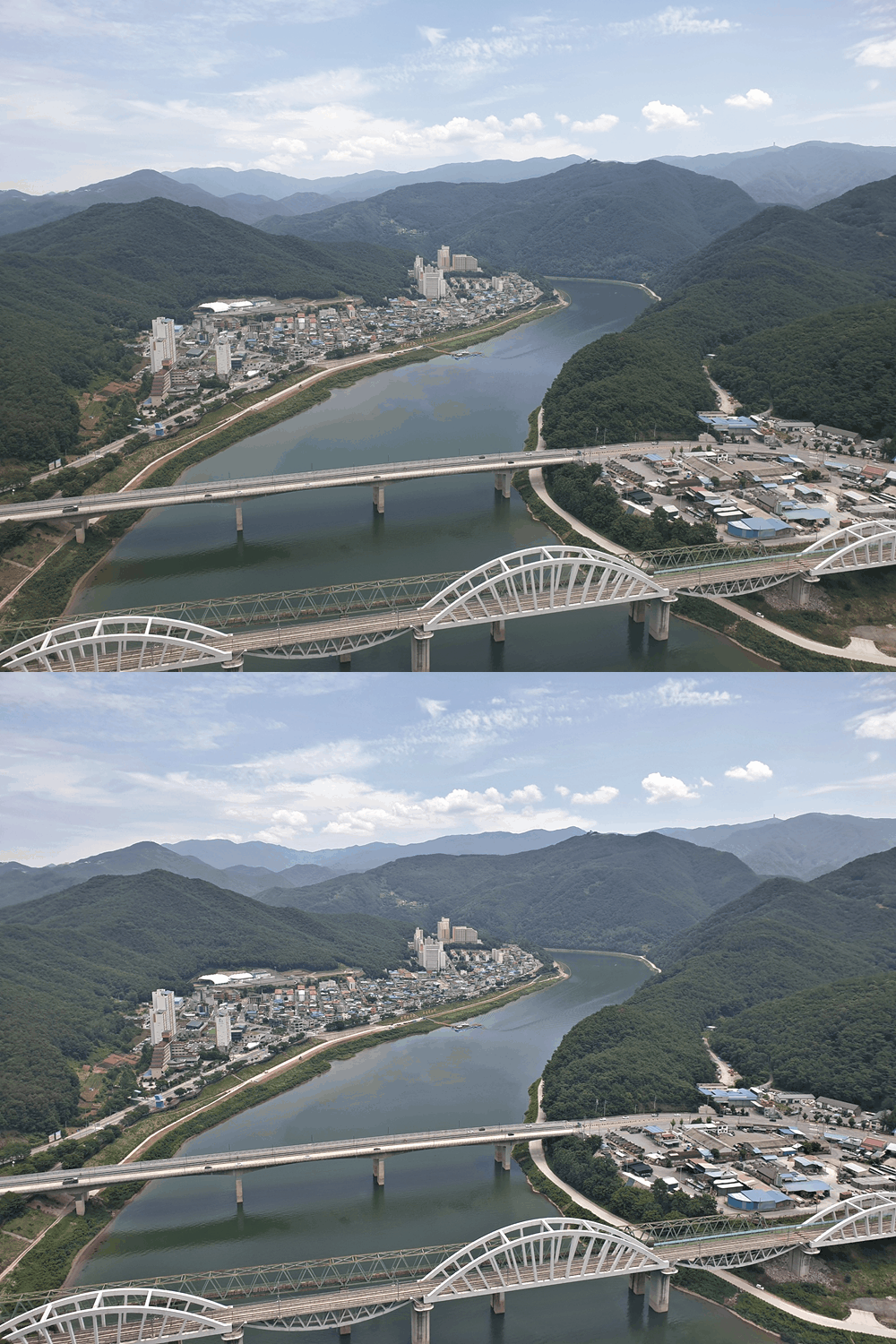
- Shadow & Highlight Recovery: By utilizing an inverted local illumination layer blended via a specialized SoftLight formula, the tool automatically brightens dark shadow regions and tames blown-out highlights without flattening the overall image.
- Micro-Contrast & Clarity Boost: Extracts high-frequency structural details and amplifies them independently, making delicate textures—such as leaf venation, cellular boundaries, foliage, and architectural edges—pop with three-dimensional depth.
- O(1) High-Speed Local Estimation: Powered by PhenoCapture AI’s constant-time Stack Blur architecture, even massive neighborhood radii (up to 150 pixels) are computed instantaneously.
- Zoom-Aware Real-Time Preview: Every slider adjustment is rendered live on your canvas with zero lag, dynamically compensating for your current zoom factor so what you see is always accurate.
- Smart Regional Masking: Draw a selection on your workspace to apply HDR tone mapping exclusively to a targeted area—such as a shadowed specimen or a specific foreground subject—leaving the rest of the image untouched.
- Seamless Undo & Reset Integration: Experiment freely with bold HDR looks. You can instantly reset all parameters using the Default button or revert anytime via the standard Undo engine.
🛠️ How to Use HDR Local Tone Mapping
Unlocking hidden details and balancing harsh lighting takes just a few simple steps:
Step 1: Select Your Target Area (Optional)
If you only want to enhance a specific part of your photo, use any of the region selection tools to isolate it first. If no region is selected, the HDR tone mapping will be applied to the entire image.
Step 2: Enable the Live Preview
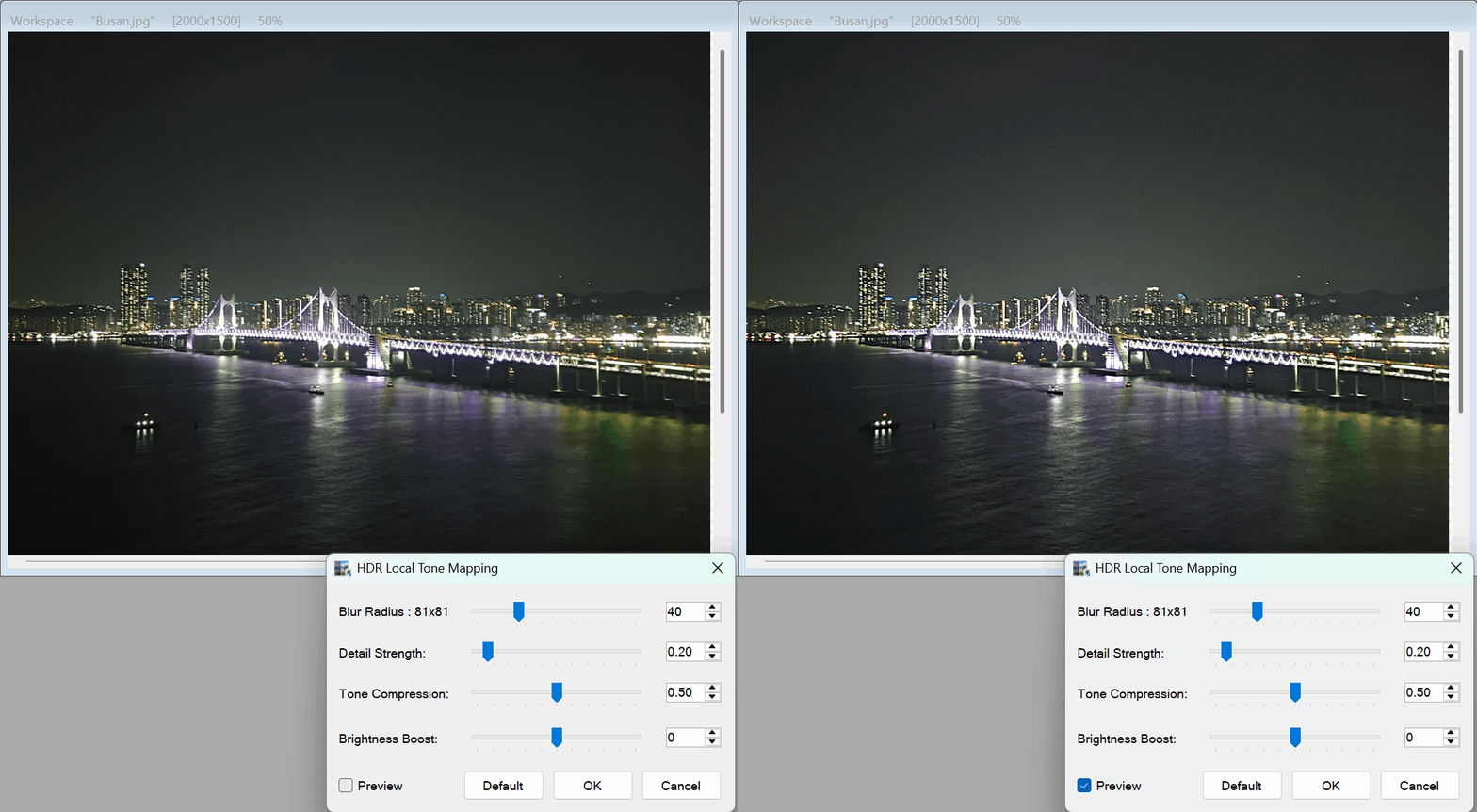
Open the HDR Local Tone Mapping tool from the menu and ensure the Preview checkbox is ticked. This lets you observe the shadow recovery and texture enhancement in real time.
Step 3: Fine-Tune the Parameters
Adjust the four sliders to balance dynamic range compression and local sharpness:
- Blur Radius (1 to 150): Defines the size of the local neighborhood used to evaluate lighting and contrast. A smaller radius emphasizes fine, intricate surface textures, while a larger radius creates a broader, natural-looking tonal balance without halo artifacts.
- Detail Strength (0.00 to 3.00): Controls the amplification of local contrast and fine structural edges (Clarity). Increase this value to make subtle textures stand out sharply.
- Tone Compression (0.00 to 1.00): Controls how strongly dark shadows are lifted and bright highlights are compressed. Higher values reveal more detail in extreme dark and bright zones.
- Brightness Boost (-100 to 100): Fine-tunes the overall final luminance of the image after tone mapping is applied.
(Tip: If the textures start looking overly gritty or intense, simply click the Default button to restore the balanced baseline settings!)
Step 4: Apply Your Changes
Once you are satisfied with the enhanced preview, click OK. The parallel processing engine will immediately render the full-resolution HDR result and commit it to your workspace.
With the HDR Local Tone Mapping tool, rescuing poorly lit photos and revealing ultra-crisp structural details is faster and more intuitive than ever!