✨ A Complete Guide to the Orton Effect
PhenoCapture AI’s Orton Effect tool brings the legendary darkroom photography technique—originally pioneered by Michael Orton—straight to your digital workspace. By blending an artfully overexposed, sharp layer with a softly diffused, out-of-focus layer via Multiply blending, this filter infuses your images with a magical, painterly glow while keeping core details crisp and rich in color.
Here is everything you need to know about using this feature to transform ordinary landscapes, nature shots, and portraits into dreamy, storybook masterpieces.
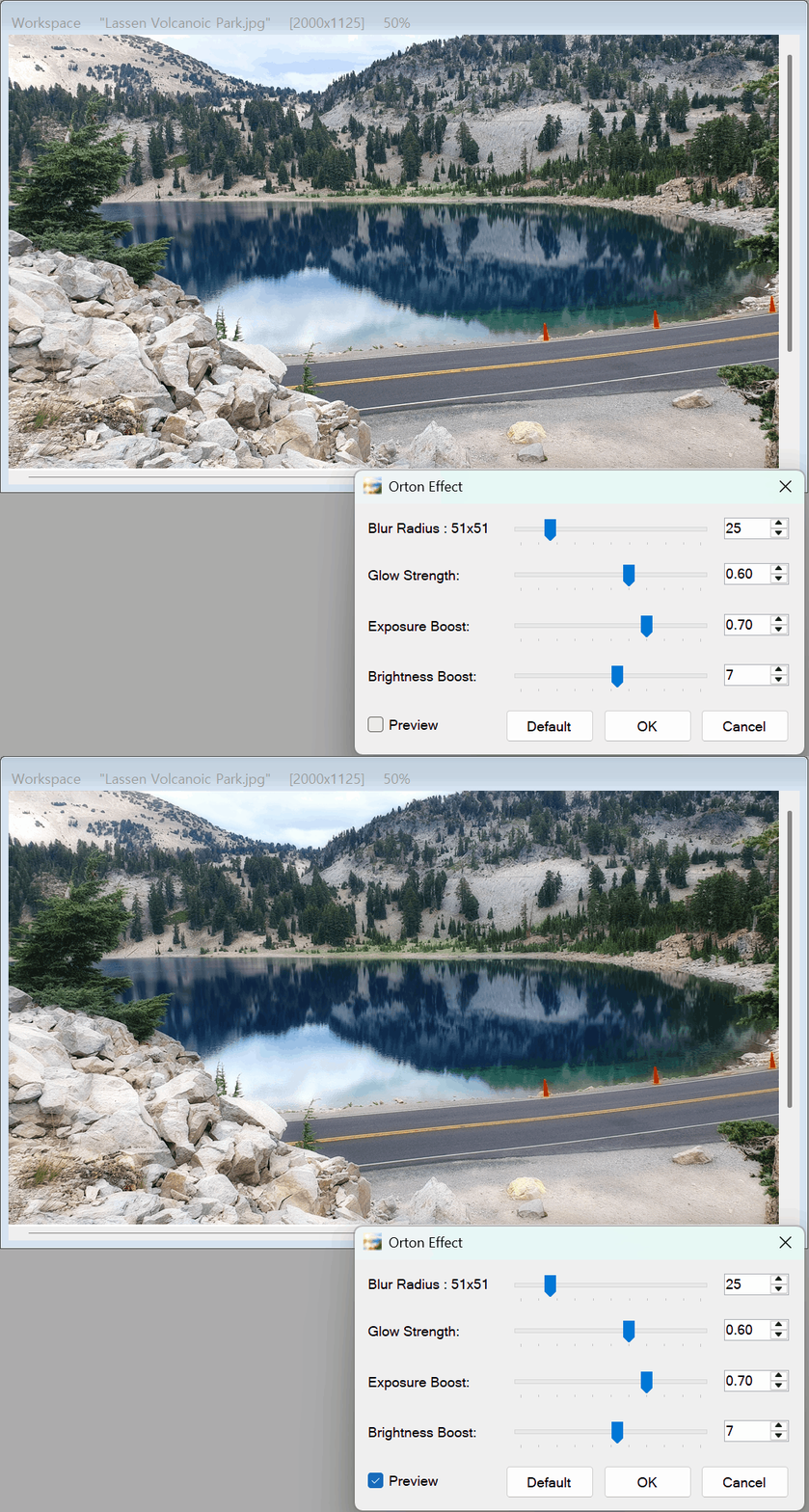
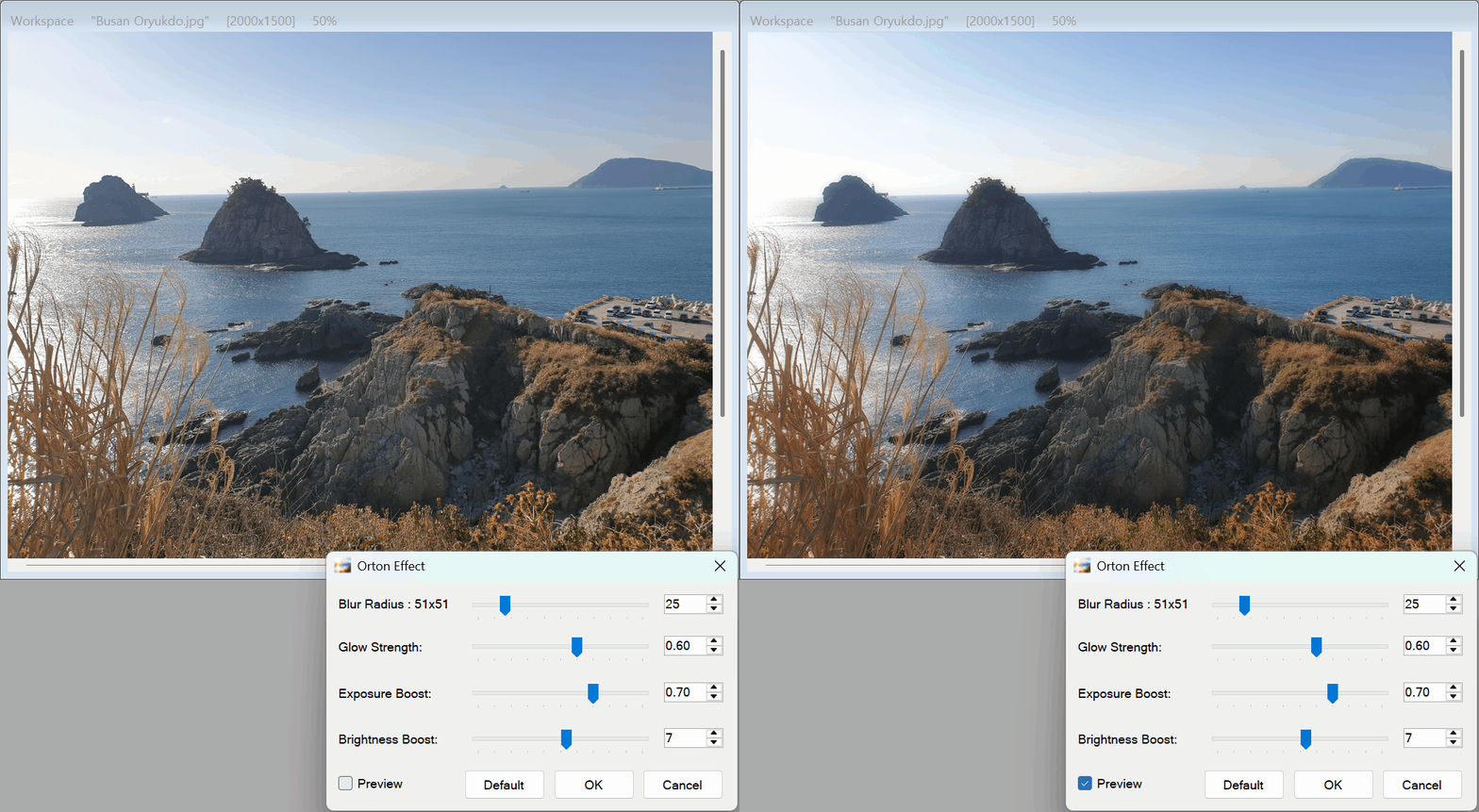
💡 Key Features
- Authentic Multi-Pass Film Emulation: Faithfully reproduces the classic dual-slide sandwich technique by combining Screen self-blending (for luminous highlight expansion) with Multiply compositing (for deep, velvety colors and rich shadows).
- Sharpness Within Softness: Unlike simple blur or haze filters that wash out contrast, the Orton Effect preserves the underlying sharp contours of your subject while wrapping the colors and lighting in a warm, ethereal aura.
- O(1) Ultra-Fast Diffusion Engine: Built on top of our high-speed parallel Stack Blur core, you can push the diffusion radius all the way up to 150 pixels with zero performance slowdown.
- Zoom-Aware Real-Time Preview: Watch the dreamy atmosphere unfold instantly on your canvas as you drag the sliders, with automatic radius scaling that adapts to your current zoom level.
- Smart Regional Masking: Use the selection tools to apply the painterly glow only to specific elements—such as sunlit autumn foliage, water reflections, or background scenery—while keeping the rest of your image unaltered.
- One-Click Reset & Undo Support: Push your creative boundaries without worry. Click Default at any time to return to the sweet spot, or use standard Undo shortcuts after applying.
🛠️ How to Use the Orton Effect Tool
Adding a rich, cinematic atmosphere to your images is quick and effortless:
Step 1: Select Your Target Area (Optional)
To restrict the dreamy glow to a specific region of your workspace, highlight the area using any selection tool. Otherwise, the effect will be applied across the entire canvas.
Step 2: Enable the Live Preview
Launch the Orton Effect tool and verify that the Preview checkbox is enabled so you can see every adjustment live on your image.
Step 3: Dial in the Atmosphere Sliders
Customize the look using the four dedicated controls:
- Blur Radius (1 to 150): Determines how far the diffused color and light spread across edges. A medium-to-high radius (25 to 60) is ideal for creating a lush, glowing atmosphere in landscape photos.
- Glow Strength (0.00 to 1.00): Controls the overall blending opacity of the Orton composite layer against your original photo.
- Exposure Boost (0.00 to 1.00): Adjusts the intensity of the internal Screen pass before the Multiply blend occurs. Lower values produce a darker, moody, high-contrast look, while higher values create a bright, radiant, and airy glow.
- Brightness Boost (-100 to 100): Provides a final linear brightness adjustment to ensure your shadows and highlights sit at the perfect level.
(Tip: If the shadows become too dark or the highlights too intense, click the Default button to instantly restore the recommended starting values!)
Step 4: Apply and Review
When your image has reached the perfect balance of painterly softness and rich contrast, click OK. The final high-resolution image will be processed immediately and saved to your undo history.
With the Orton Effect tool, turning everyday photographs into enchanting, gallery-worthy works of art is just a few clicks away!