✨ A Complete Guide to the Box Averaging (Blur) Tool
PhenoCapture AI’s Box Averaging tool is an advanced, high-performance feature designed to smooth images and reduce noise. With our newly upgraded interactive interface, you can now smoothly adjust the blur intensity and watch the results in real-time before committing to the final image.
💡 Key Features
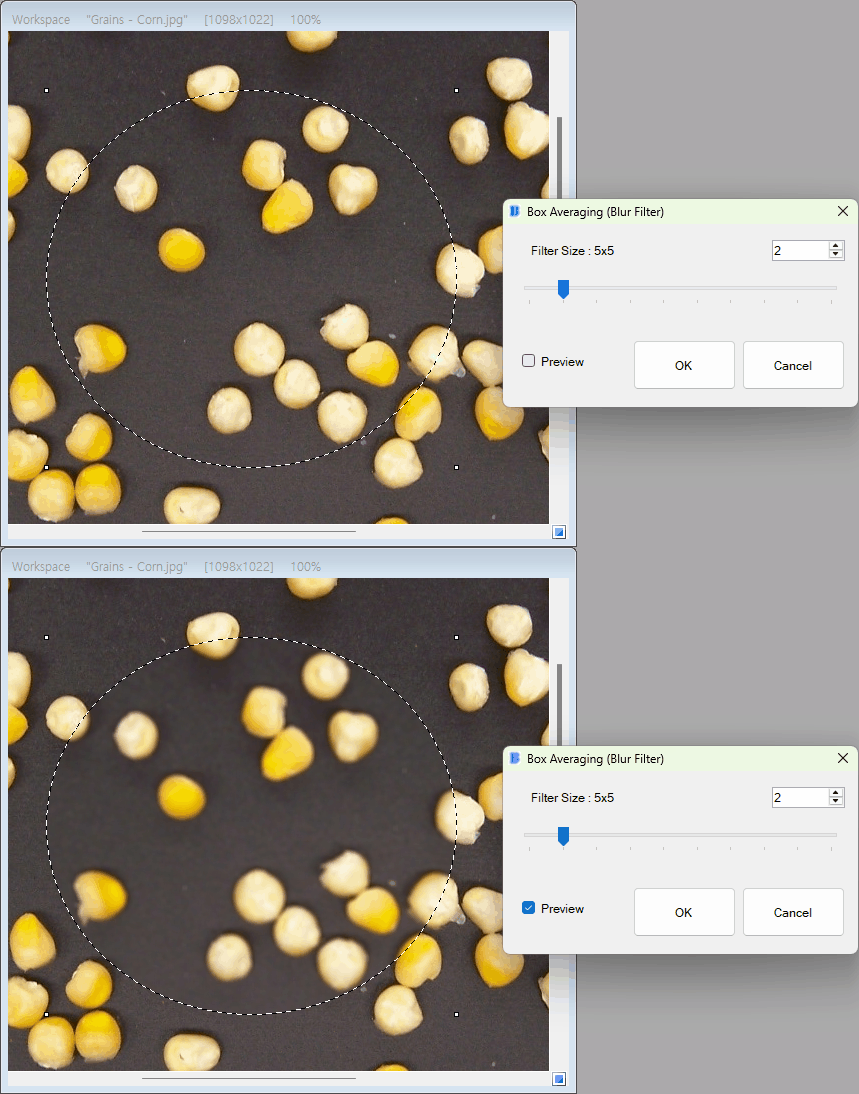
- Real-Time Live Preview: Instantly see the blurring effect on your canvas as you adjust the settings. The preview engine is fully optimized to render seamlessly without any lag, and it intelligently compensates for your current canvas zoom level to guarantee an accurate preview.
- Interactive Radius Control: Fine-tune your blur strength using a simple slider. Choose a radius from 1 to 10, which dynamically generates precise filter matrices ranging from a subtle 3×3 softening all the way up to a heavy 21×21 deep blur.
- Lightning-Fast Parallel Processing: Powered by a highly optimized multi-core parallel engine, the tool handles heavy blur calculations across high-resolution images instantly. Even at the maximum 21×21 filter size, your workflow remains incredibly smooth and uninterrupted.
- Smart Regional Masking: You have total control over what gets blurred. Draw a selection on your workspace, and the tool will intelligently apply the Box Averaging only to that specific area, preserving the crispness of the surrounding unselected pixels. Boundary edge artifacts are also elegantly prevented.
- Seamless Undo Integration: Connected directly to PhenoCapture AI’s undo engine, you can experiment freely. If the applied blur is too strong, simply undo it and try a different radius!
🛠️ How to Use the Box Averaging Tool
Step 1: Select Your Target Area (Optional)
If you only want to smooth out a specific section of your image (like a noisy background), use any of the region selection tools to highlight it. If no region is selected, the blur will be applied to the entire image.
Step 2: Adjust the Blur in Real-Time
Navigate to the menu and open the Box Averaging tool.
- Ensure the Preview checkbox is enabled.
- Drag the Filter Size slider (radius 1 to 10) to adjust the radius. The canvas will update instantly to show you exactly how the blur will look.
Step 3: Apply and Review
Once you are satisfied with the preview, click OK. The parallel engine will instantly process the high-resolution final image and commit it to your workspace. If you change your mind later, just use the standard Undo shortcut to revert to the original state.