✨ A Complete Guide to AI Binarization and Segmentation
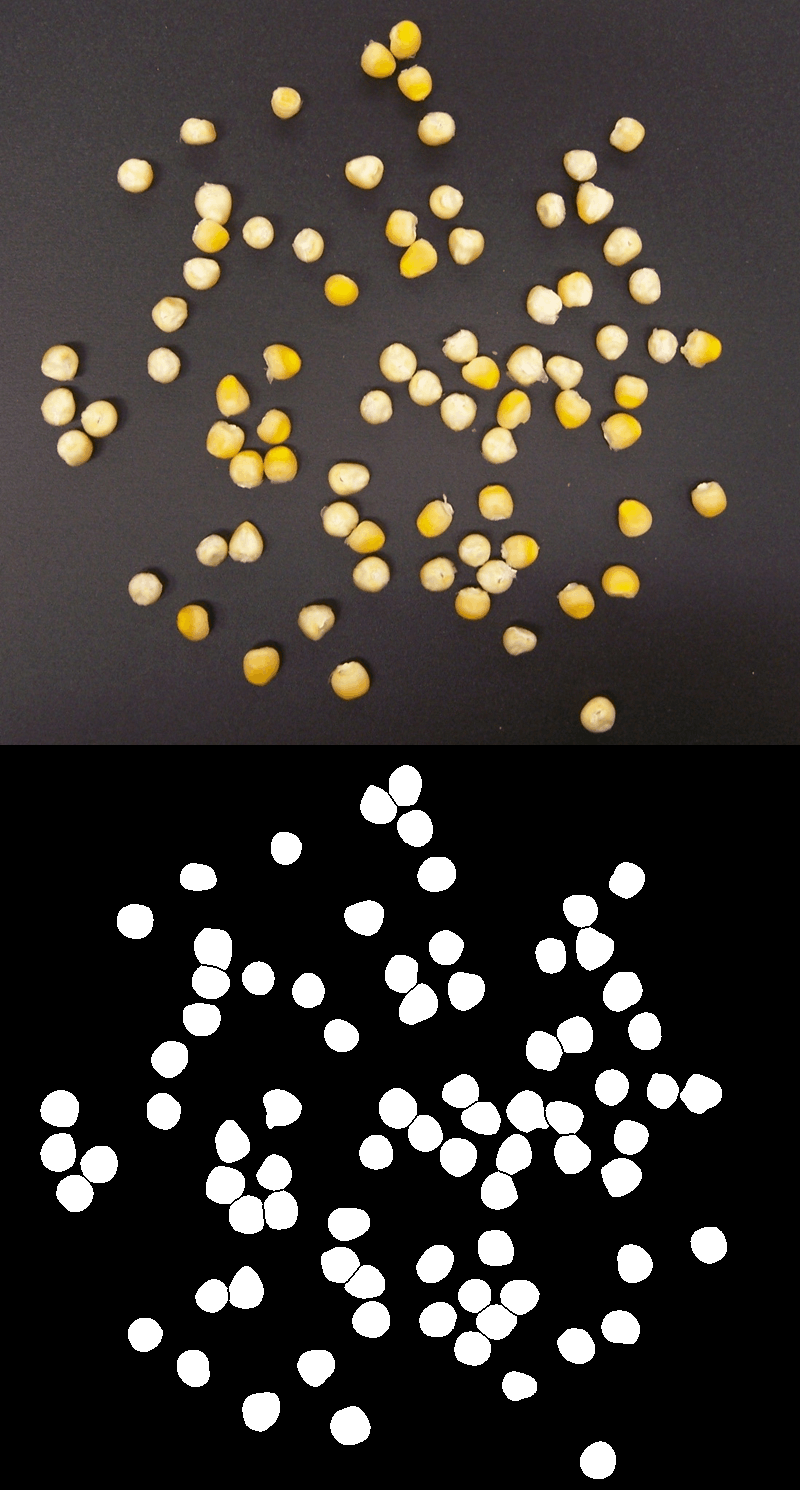
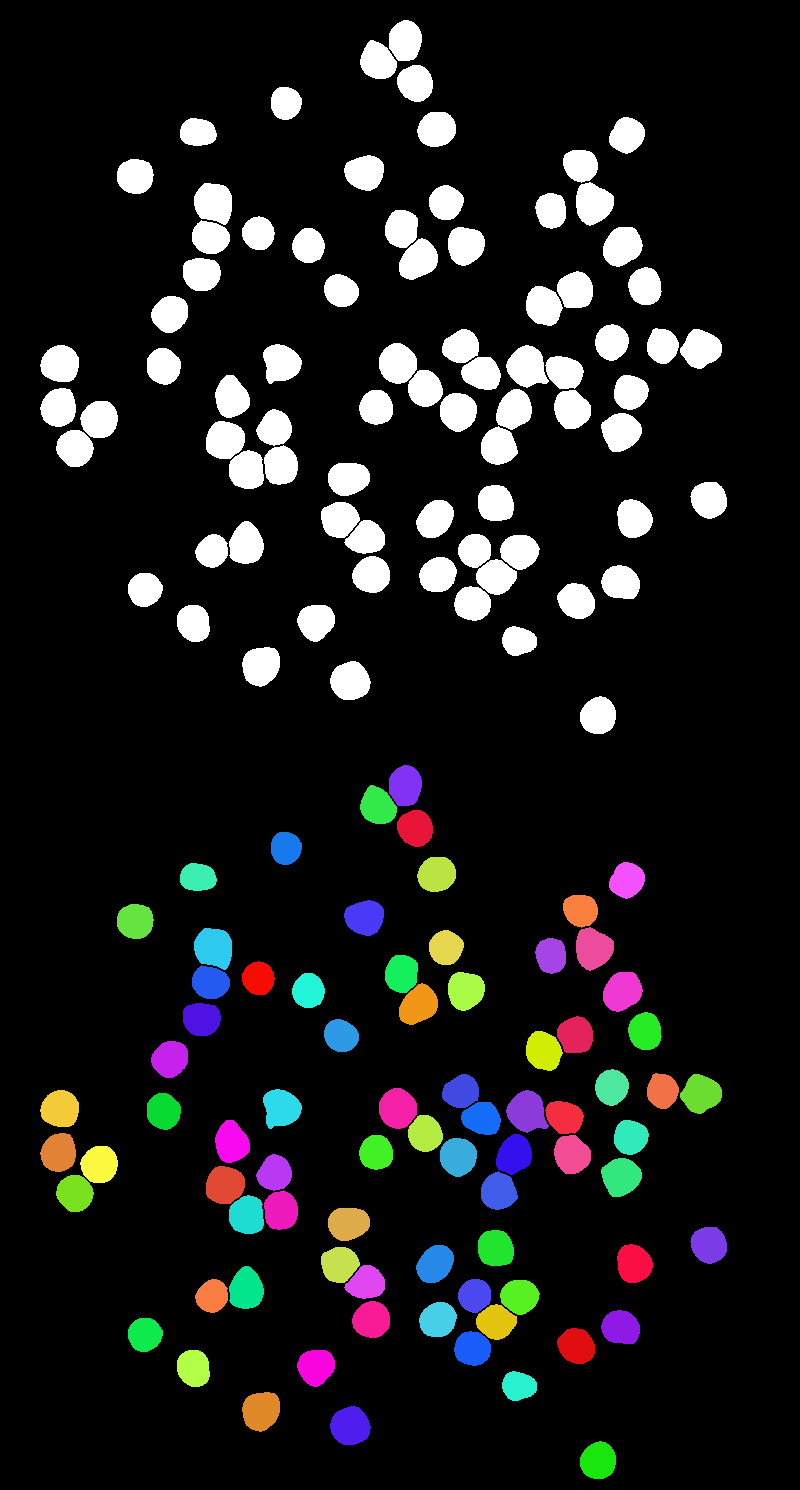
PhenoCapture AI’s AI Binarization and Segmentation tool leverages state-of-the-art artificial intelligence to automatically detect, outline, and separate complex objects—such as cells or distinct structures—within your images. By converting your standard photos into precisely separated masks, this feature takes the guesswork and manual labor out of object isolation.
Whether you are analyzing biological samples or isolating intricate patterns, this AI-driven tool provides incredibly accurate segmentation with just a single click.
[Before and After Applying Binarization and Segmentation]
[Region Coloring is applied to the image after Binarization and Segmentation]
💡 Key Features
- Advanced AI Processing: Powered by an industry-leading, pre-trained neural network specifically optimized for cellular and structural segmentation. It automatically calculates the probability maps of your image to cleanly separate overlapping or closely packed objects.
- Smart Regional Masking: You are in full control! If you only need to segment a specific cluster of objects, simply draw a selection boundary around them. The AI will strictly focus its analysis on your highlighted area and seamlessly blend the newly segmented results back into your original image without affecting the surrounding pixels.
- Smooth Background Operation: Heavy AI calculations are handled smoothly behind the scenes. A dedicated progress window keeps you updated through every stage—from loading the AI model to extracting probability maps and blending the final mask—ensuring your workspace remains completely responsive.
- Fail-Safe Execution: The tool intelligently verifies that the required AI models are present before starting and allows you to safely cancel the operation at any time during the process if you change your mind.
- Seamless Undo Integration: Connected directly to PhenoCapture AI’s built-in undo engine. You can safely experiment with the AI segmentation and instantly revert to your original image if needed!
🛠️ How to Use the AI Segmentation Tool
Step 1: Prepare Your Workspace and Mask (Optional)
Load your image into the main workspace. If you only want to segment a specific section, use the advanced selection tools to draw a boundary around that area. If no region is selected, the AI will analyze and segment the entire image.
Step 2: Launch the AI Segmenter
Navigate to the menu and click on AI Binarization and Segmentation.
Step 3: Let the AI Work
A progress window will appear, guiding you through the AI’s process. The software will load its specialized model, analyze the structures within your image, and generate a precise, separated mask. Once complete, your newly binarized and segmented image will instantly appear in the workspace!