✨ A Complete Guide to AI Background Removal (Portrait)
PhenoCapture AI’s AI Background Removal (Portrait) tool is an advanced artificial intelligence feature designed to exceptionally and cleanly separate people from their surroundings. Whether you are editing a professional headshot, preparing a portrait, or isolating subjects from a complex environment, this tool meticulously strips away the original background while perfectly preserving the intricate details of the human subject.
This specific AI model is engineered for photographic precision, making it incredibly highly capable of handling challenging details like fine hair, glasses, and clothing contours with stunning accuracy!
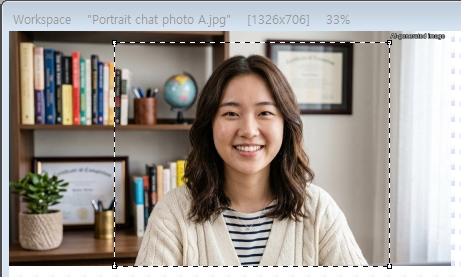 |
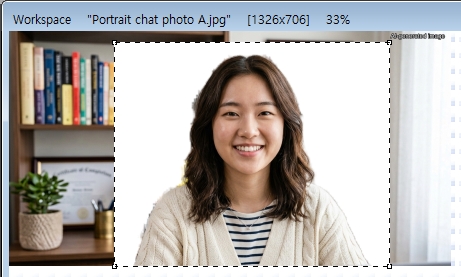 |
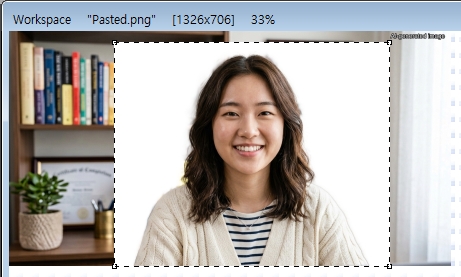 |
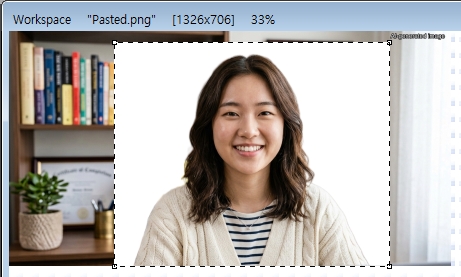 |
| Original Image | Background Removal by Selfie | Background Removal by Portrait | Background Removal by General Object |
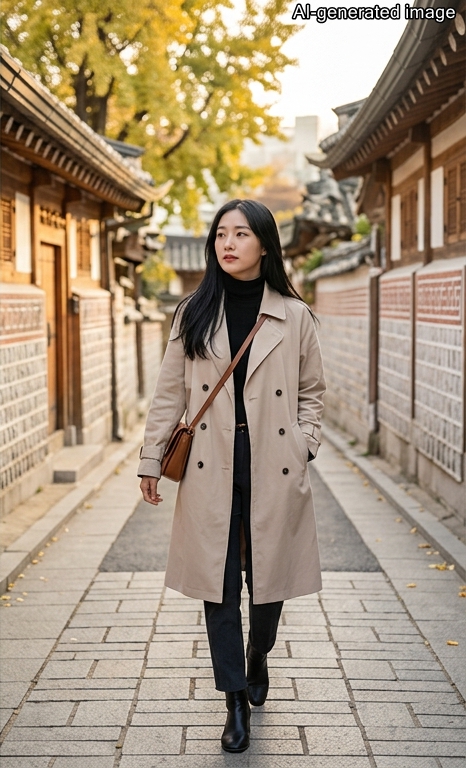 |
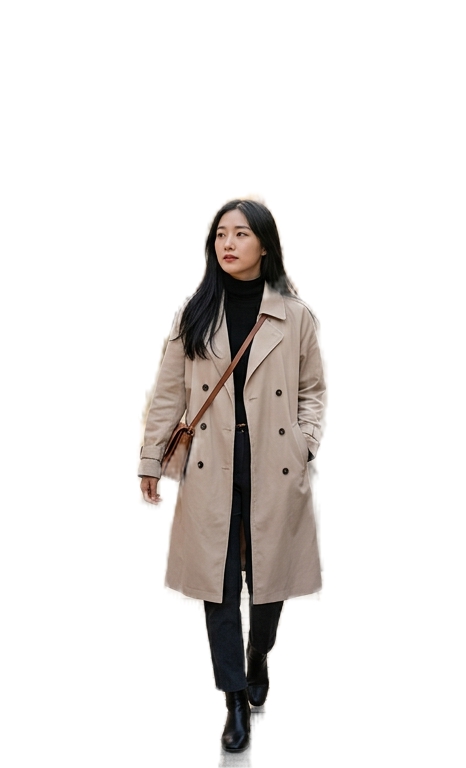 |
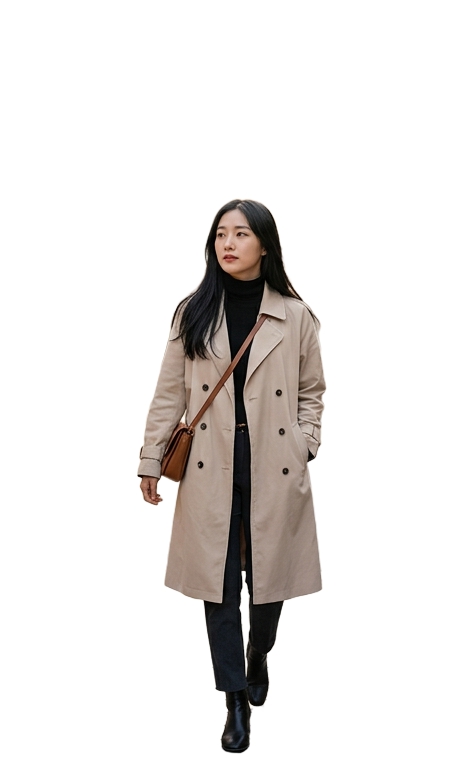 |
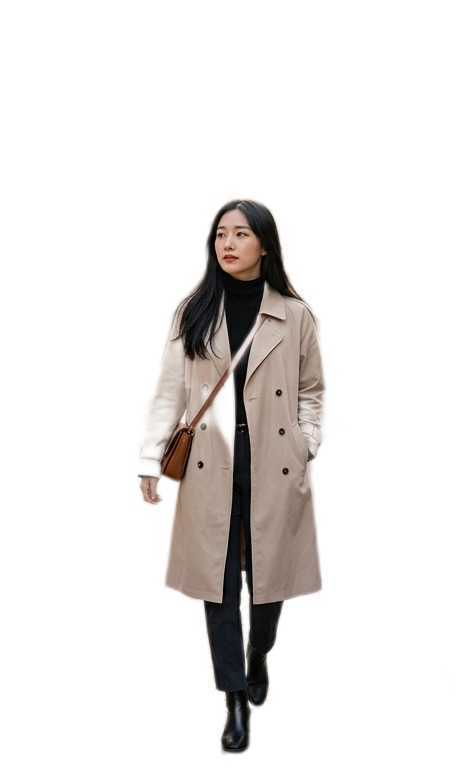 |
| Original Image | Background Removal by Selfie | Background Removal by Portrait | Background Removal by General Object |
💡 Key Features
- Exceptional Portrait Precision: The artificial intelligence powering this tool is expertly trained to recognize human subjects in high detail. It excels at identifying the exact boundaries of faces, hair, shoulders, and clothing, ensuring the person remains perfectly intact and natural-looking while the background is erased.
- Flexible Background Replacement: By default, the tool will smoothly replace your cluttered or distracting background with a clean, solid white canvas. This is perfect for creating instant studio-style portraits or preparing subjects for further editing.
- Whole Image or Targeted Region: You are in full control of where the AI focuses! If you only want to remove the background behind a specific person in a busy group photo, simply draw a boundary around them using the selection tools. The AI will strictly focus its high-quality removal on that highlighted area, leaving the rest of your image completely untouched.
- Smart Hardware Acceleration: The software automatically detects your computer’s hardware and selects the best available processor, guaranteeing the smoothest and most efficient background removal possible without freezing your workspace.
- Seamless Undo Integration: Connected directly to PhenoCapture AI’s built-in undo engine, allowing you to instantly revert to your original background if you want to try a different selection or compare the results.
🛠️ How to Use AI Background Removal (Portrait)
Step 1: Prepare Your Image (and Optional Boundary)
Ensure your photo is loaded into the main workspace.
- For the entire image: Leave the image as is. The AI will scan the entire photo, locate the human subject, and smoothly remove the background everywhere else.
- For a specific area: Use the standard selection tools to draw a boundary around the person you want to isolate. The background removal will only happen inside this shape.
Step 2: Activate the AI
Navigate to the menu and click on AI Background Removal (Portrait).
Step 3: Enjoy the Professional Results!
A progress window will appear as the AI analyzes the complex edges of your subject. Once completed, your original background will vanish, leaving your subject perfectly and naturally isolated on a crisp new background!