✨ A Complete Guide to the Reverse Selection Tool
PhenoCapture AI’s Reverse Selection tool is a powerful and essential feature that instantly flips your active selection area. Instead of painstakingly trying to select a complex background around an object, you can simply select the object itself and use this tool to instantly invert the mask—selecting everything else while completely protecting your original subject!
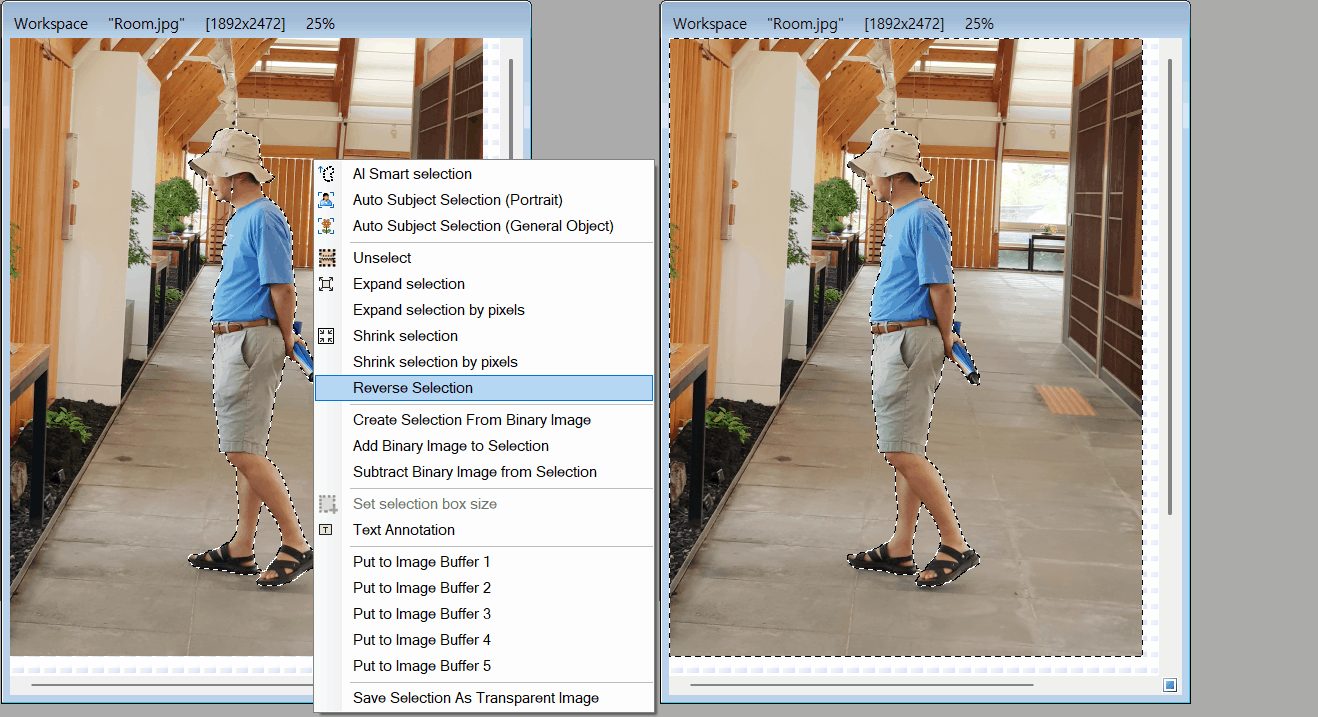
💡 Key Features
- Instant Mask Inversion: With a single click, the tool precisely deselects your currently highlighted areas and automatically selects everything that was previously unselected across the entire canvas.
- Universal Shape Support: Whether you started your selection with a simple rectangle, a perfect circle, or a complex freehand polygon, the tool seamlessly converts the shape into a precise pixel-perfect map before executing a flawless inversion.
- Lightning-Fast Performance: Built on highly optimized internal processing, the tool instantly flips the selection map without any lag, no matter how large or high-resolution your image is.
- Smart Safety Checks: The software intelligently prevents accidental errors. If you attempt to use the tool without an active selection, or if the inversion would result in a completely empty screen, it safely halts the process and alerts you.
- Seamless Undo Integration: Connected directly to PhenoCapture AI’s built-in undo engine, allowing you to quickly revert the inversion if you change your mind and want to go back to your original targeted area.
🛠️ How to Use the Reverse Selection Tool
Step 1: Make Your Initial Selection
Use any of the available tools (such as the Rectangle, Circle, or Polygon tool) to highlight a specific object or region on your image. Note: You must have an active, partial selection on the canvas for this tool to operate.
Step 2: Apply Reverse Selection
Navigate to the menu and click on Reverse Selection.
Step 3: Continue Editing
The active selection boundary will instantly flip to the exact opposite area! You can now safely apply filters, perform color corrections, or extract the newly targeted background region without affecting your original subject.