✨ A Complete Guide to Auto Subject Selection (Portrait)
PhenoCapture AI’s Auto Subject Selection (Portrait) tool utilizes a highly specialized AI vision model trained specifically to recognize human subjects. It excels at detecting people within your photos, automatically separating them from the background with stunning accuracy. Whether you need to isolate a person for a presentation or extract a portrait, this tool handles complex boundaries—like stray hairs and soft clothing edges—flawlessly.
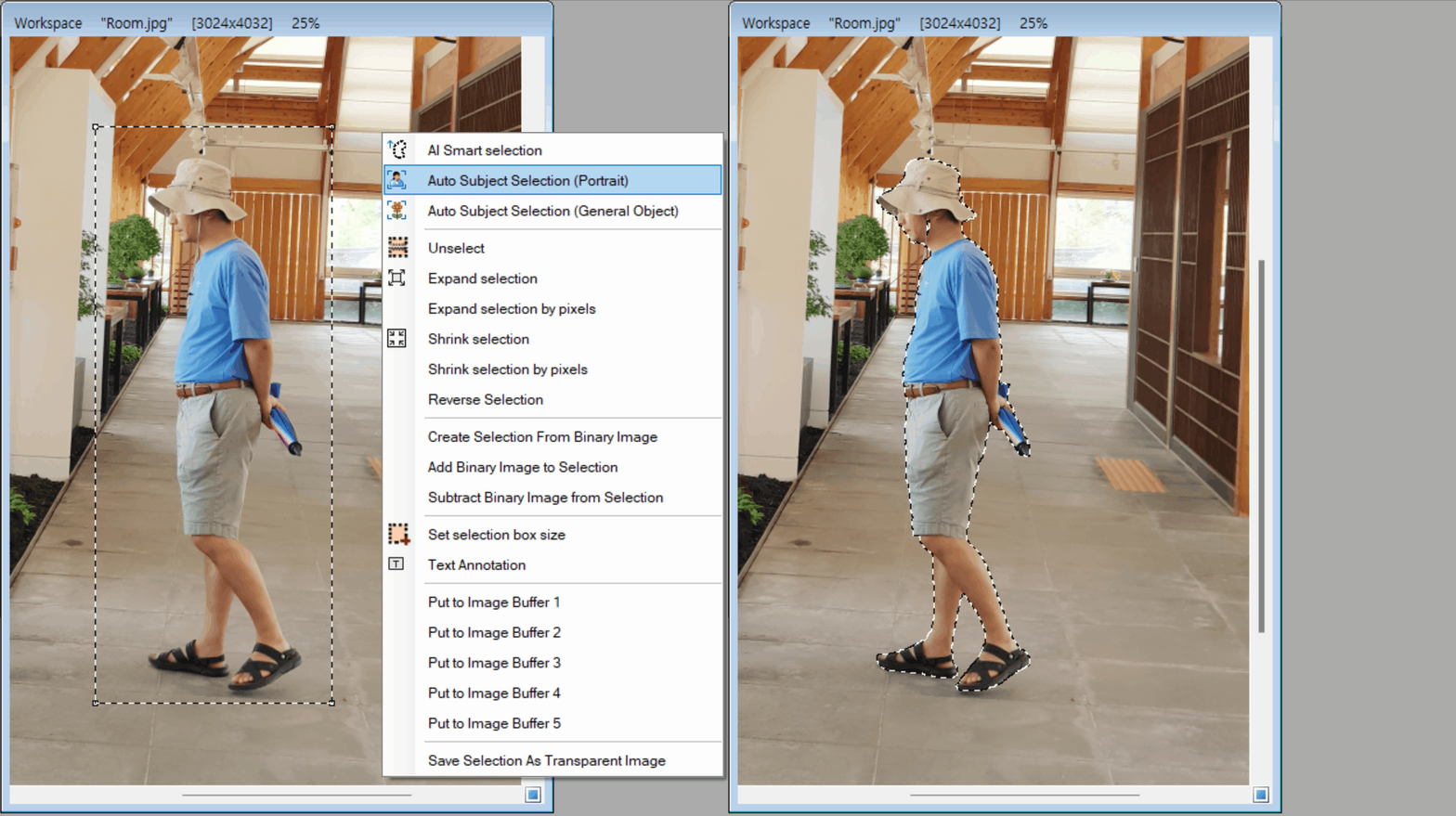
💡 Key Features
- Portrait-Optimized AI Detection: Unlike general selection tools, this AI is specifically engineered to understand human features. It instantly recognizes faces, bodies, and hair, automatically generating a precise outline around the person without any manual tracing.
- Soft-Edge Transparency (Alpha Matting): Human hair and fuzzy clothing can’t be cut out with a jagged, hard line. This tool calculates smooth, semi-transparent edges (soft matting), ensuring that the selected portrait blends beautifully and naturally into any new background.
- Whole Image or Targeted Region: By default, the AI will scan your entire image and isolate the primary human subjects. However, if you have a crowded photo and only want to extract a specific person, you can draw a rough Rectangle or Circle around them first to focus the AI’s attention solely on that region.
- Smart Hardware Acceleration: The engine automatically scans your computer’s hardware and selects the fastest available processor to guarantee the quickest possible selection time without requiring any manual configuration.
- Smooth Background Processing: A dedicated progress window tracks the AI’s analysis step-by-step. This ensures your software remains completely responsive while the heavy lifting is done behind the scenes.
- Seamless Undo Integration: Connected directly to PhenoCapture AI’s built-in undo engine, allowing you to easily revert the AI’s mask if the initial result isn’t exactly what you need.
🛠️ How to Use Auto Subject Selection (Portrait)
Step 1: Prepare Your Image (and Optional Boundary)
Ensure your image is loaded into the main workspace.
- For the entire image: Simply leave the image as is. The AI will scan the whole photo to find the person.
- For a specific person: Use the standard selection tools to draw a Rectangle or a Circle around the specific individual you want to isolate.
Step 2: Activate the AI
Navigate to the menu and click on Auto Subject Selection (Portrait).
Step 3: Let the AI Work
A progress window will appear as the AI loads its portrait-specific visual models and begins processing your image. Within moments, the tool will automatically detect the person and create a perfect, soft-edged mask outlining your subject!