✨ A Complete Guide to Custom AI Binarization
PhenoCapture AI’s Custom AI Binarization tool empowers you to go beyond standard filters by applying your own dynamically loaded artificial intelligence models. Utilizing specialized neural networks, this feature converts your images into highly accurate binary (black-and-white) representations tailored to your specific analysis needs.
Whether you are isolating complex biological structures, extracting text, or highlighting unique patterns, this tool allows you to select the exact AI model that fits your dataset, delivering precise binarization with a single click.
💡 Key Features
- Train Your Own Custom Models: You are not limited to pre-packaged algorithms! You can actually create your own custom AI binarization models right from your own data. By simply providing the software with training data consisting of pairs of original images and their corresponding perfect binary masks, the AI will learn exactly how to isolate your specific objects. This allows for unparalleled, highly personalized accuracy.
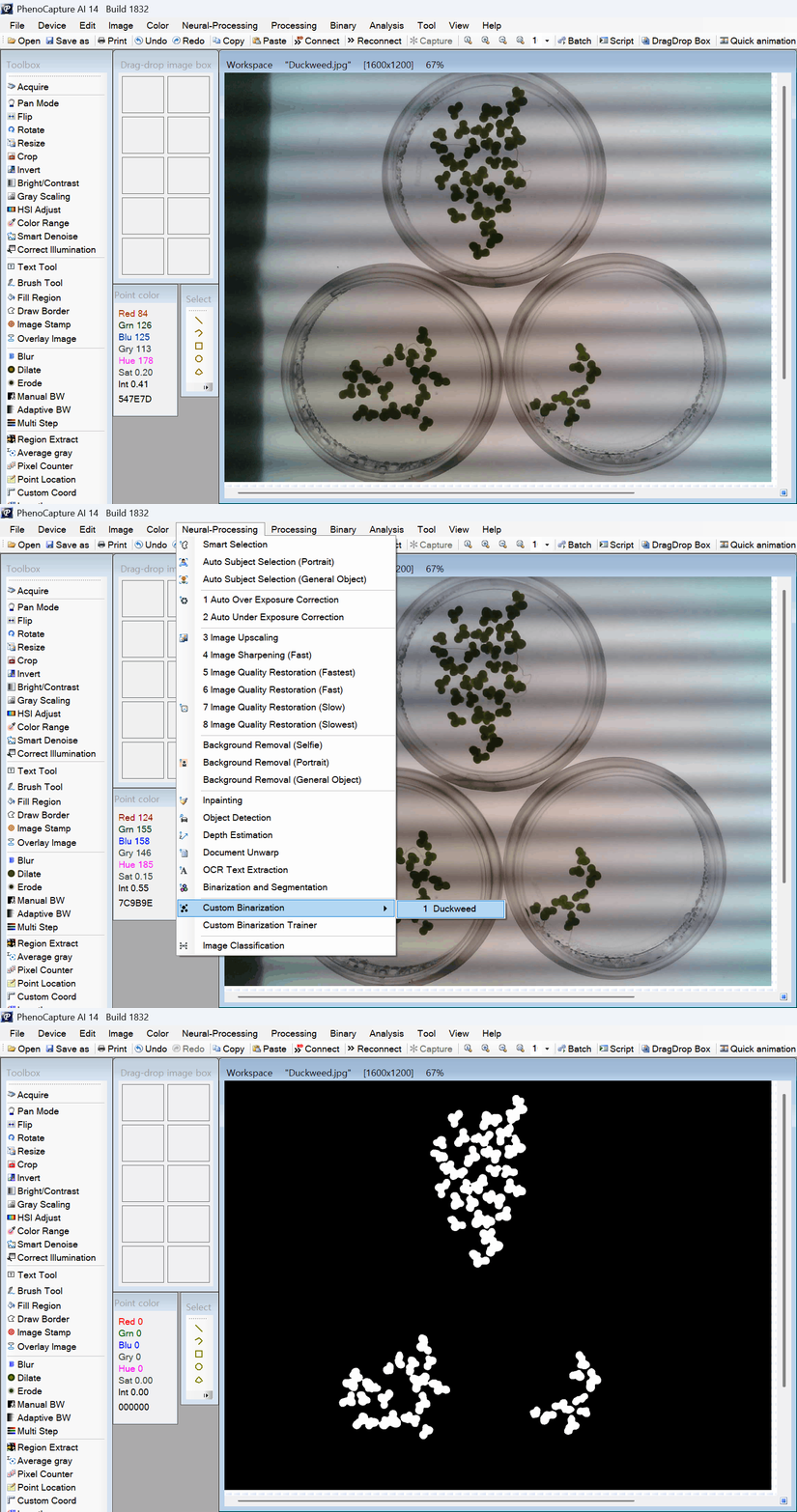
- Custom Model Integration: Once your models are trained or imported, the tool dynamically loads them directly into your software’s menu. Simply select the specific custom model you want to run, and the AI will immediately adapt its binarization strategy accordingly.
- Smart Regional Masking with Context: You are in full control! If you only need to binarize a specific cluster of objects, simply draw a selection boundary around them. The AI strictly focuses its analysis on your highlighted area while intelligently reading a small margin of the surrounding background. This ensures the newly binarized region blends seamlessly back into your original image without harsh artificial edges.
- Smooth Background Operation: Heavy AI calculations are handled smoothly behind the scenes. A dedicated progress window keeps you updated through every stage—from loading your custom model to processing the image and applying the final result—ensuring your workspace remains completely responsive.
- Seamless Undo Integration: Connected directly to PhenoCapture AI’s built-in undo engine. You can safely experiment with different custom AI models and instantly revert to your original image if needed!
🛠️ How to Use the Custom AI Binarization Tool
Step 1: Prepare Your Workspace and Mask (Optional)
Load your image into the main workspace. If you only want to binarize a specific section, use the advanced selection tools to draw a boundary around that area. If no region is selected, the AI will analyze and binarize the entire image.
Step 2: Select Your Custom AI Model
Navigate to the menu and click on the specific Custom Binarization model you wish to apply. The menu will display the names of all the custom models you have trained or loaded into the system.
Step 3: Let the AI Work
A progress window will appear, guiding you through the AI’s process. The software will load your chosen model, analyze the structures within your image (or selected region), and generate a precise binary output. Once complete, your custom-binarized image will instantly appear in the workspace!