A Comprehensive Guide to Smart Copying and Transparency in PhenoCapture AI
PhenoCapture AI provides a highly advanced Copy feature that goes far beyond traditional rectangular screen grabs. When you select a specific region of your image and copy it, PhenoCapture AI’s smart rendering engine automatically processes the background, ensuring that only your selected subject is captured.
Whether you are extracting an object to paste into a presentation or isolating a complex shape for another project, this feature guarantees a clean, professional result with perfect transparency support.
In this post, we will explore how to utilize PhenoCapture AI’s advanced Copy capabilities and seamlessly integrate your images into other software.
 |
 |
💡 Key Features
Our Smart Copy engine is designed to preserve the exact shape and transparency of your selection, making it incredibly easy to use your clipped images in other applications.
- Advanced Region Selection Support: You are not limited to squares! The copy function fully supports all selection tools, including standard Rectangles, precise Circles, complex Polygons, Freehand Paths, and even advanced Bitmap Masks.
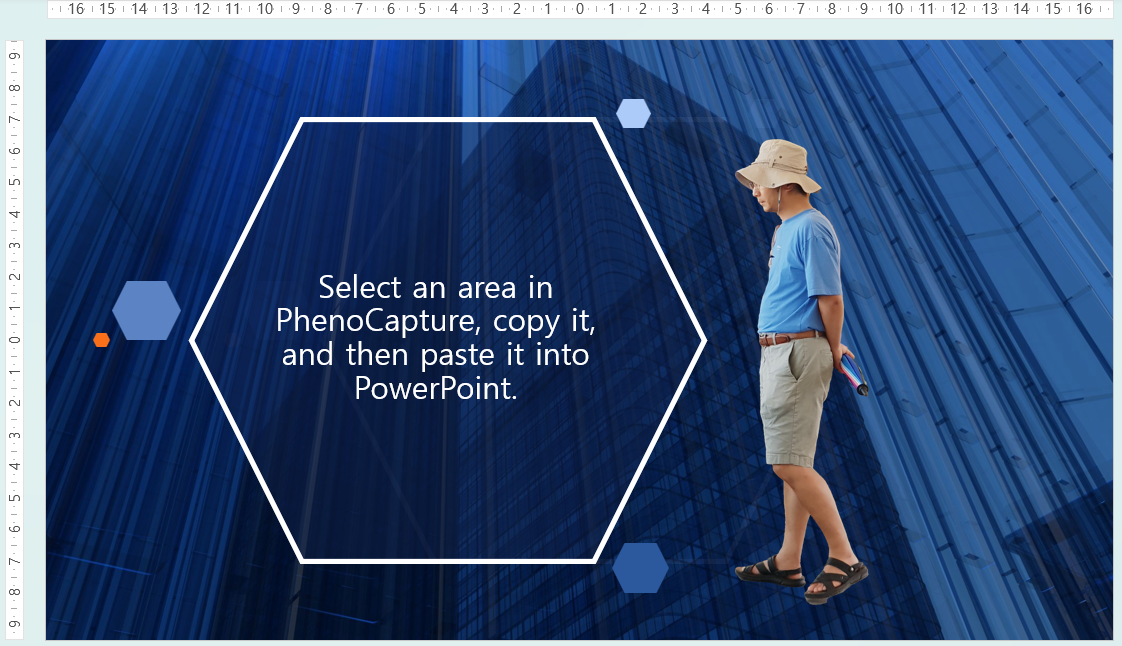
- Perfect Transparency Preservation: When you copy a non-rectangular shape (like a circle or a custom polygon), the area outside your selection is instantly converted into a transparent background, rather than filling it with an ugly white or black box.
- Auto-Cropping: PhenoCapture AI automatically calculates the tightest bounding box (Mask Boundary) around your selected shape. This means your copied image will be perfectly cropped to your subject without unnecessary blank space.
- Multi-Format Clipboard Integration: The copied data is simultaneously pushed to the Windows clipboard in multiple formats (both standard Bitmap and Alpha-channel PNG). This guarantees flawless compatibility across both legacy programs and modern design tools.
🛠️ How to Use the Smart Copy Feature
Isolating and copying objects with perfect transparency is a breeze. Just follow these steps:
Step 1: Select Your Desired Region
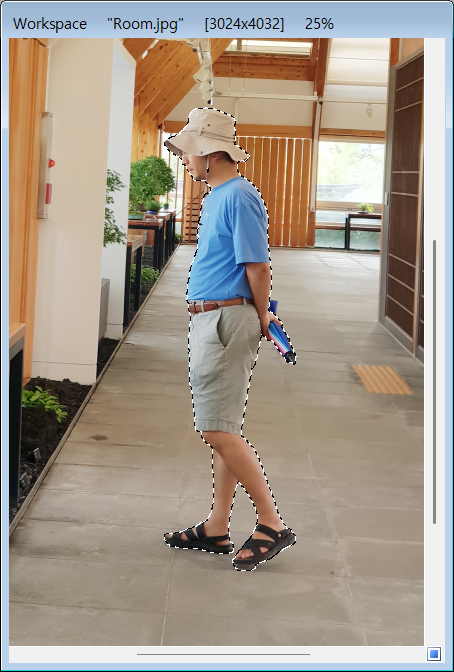
Use PhenoCapture AI’s selection tools to highlight the area you want to copy.
- Full Image: If no specific region is selected, the entire canvas will be copied.
- Basic Shapes: Use the Rectangle or Circle tools to quickly select standard areas.
- Complex Shapes: Use the Polygon, Compound mask, Image mask tools to tightly outline an irregular object (e.g., a person, an architectural detail, or a specific plant).
Step 2: Copy to Clipboard
Once your selection is active, simply click the Copy button from the menu (or use the standard Ctrl + C shortcut).
PhenoCapture AI will momentarily display a wait cursor while its engine cleanly isolates your shape, turns the unselected outside area transparent, and crops the image to the perfect size.
Step 3: Paste into Your Favorite Software
Now, open your target application—such as Microsoft PowerPoint, Word, Excel, or Adobe Photoshop—and paste (Ctrl + V) the image.
- Because PhenoCapture AI embeds PNG transparency directly into the clipboard, you will instantly notice that your object has no background block.
- It will float seamlessly over your presentation slides, document text, or other design elements, saving you the hassle of removing backgrounds manually in a separate program!
By leveraging PhenoCapture AI’s transparent region copying, creating stunning presentations and documents has never been easier. Stop wrestling with background removal tools and start copying smart today!