✨ A Complete Guide to Removing Dots (White, Black & Both)
PhenoCapture AI’s Remove Dots tool is a highly effective cleanup filter designed to eliminate small, unwanted artifacts—whether they are white specks against a dark background, black “pinholes” inside solid white objects, or a messy combination of both in your binary images.
By dynamically scanning the boundaries of these pixel clusters based on your selected connectivity method, it automatically neutralizes stray data. This makes it an essential tool for cleaning up noisy threshold results, repairing disconnected segments, and perfectly isolating your main subjects.
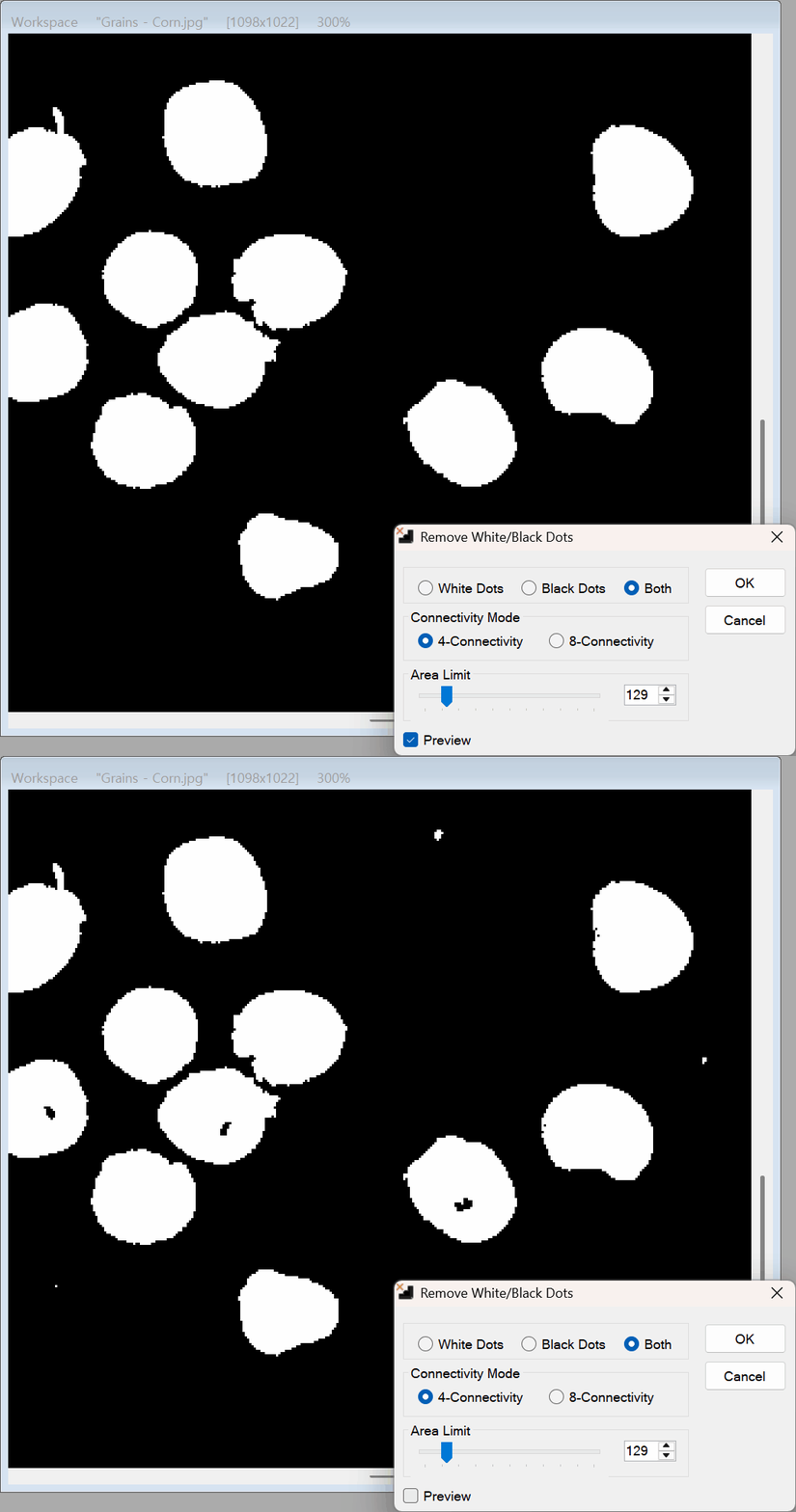
💡 Key Features
- Tri-Mode Operation (White, Black, or Both): Instantly choose between removing white noise (stray pixels in the background), black noise (holes or gaps inside white objects), or select Both Dots to clean up both types of artifacts simultaneously.
- Customizable Dot Size: You have total control over the aggressiveness of the cleanup! Use the slider or input box to define a specific maximum dot size. The algorithm will strictly target and erase only the artifacts that fall within this defined threshold, preserving your larger, intentional shapes.
- Advanced Connectivity Options (4-Way & 8-Way):
- 4-Connected: Scans the immediate top, bottom, left, and right neighbors. Ideal for strict, block-like noise removal.
- 8-Connected: Scans all 8 surrounding neighbors (including diagonals). Essential for thoroughly removing scattered, diagonally linked noise that 4-way scanning might miss.
- Real-Time Live Preview: See the exact results of your cleanup instantly before committing. The preview engine dynamically scales your requested dot size according to your current zoom level, ensuring the preview perfectly matches your visual expectation.
- Smart Regional Masking: Need to clean up just one specific area of your image without touching the rest? Draw a selection boundary! The tool will safely restrict its scanning logic to the inside of your mask, completely ignoring the surrounding unmasked areas.
- Ultra-Fast Multi-Core Processing: Scanning and evaluating connectivity for every single pixel can be computationally heavy. PhenoCapture AI splits the processing across your CPU’s available cores. Furthermore, targeting Both Dots utilizes a highly optimized single-pass algorithm, ensuring rapid artifact removal without doubling the processing time!
- Seamless Undo Integration: Connected directly to PhenoCapture AI’s built-in undo engine. If you set the size threshold too high and accidentally erase fine details you wanted to keep, simply undo and try again!
🛠️ How to Use the Remove Dots Tool
Step 1: Prepare Your Image and Mask (Optional)
Ensure your binary image is loaded into the main workspace. If you only want to clean up artifacts from a specific region, use the advanced selection tools to draw your mask boundary. If no mask is active, the tool will analyze the entire image.
Step 2: Open the Tool
Navigate to the menu and click on Remove Dots. The dedicated settings window will appear, overlaying a live preview onto your workspace.
Step 3: Select the Noise Type
Choose whether you want to Remove White Dots (clean the background), Remove Black Dots (fill holes inside objects), or Remove Both Dots to tackle all stray artifacts at once.
Step 4: Choose the Connectivity Method
Select between 4-Connected or 8-Connected logic. (8-Connected is generally recommended for removing jagged or diagonally scattered noise).
Step 5: Define the Maximum Dot Size
Use the slider or the numeric input box to define the maximum size of the dots you want the software to erase. Watch the Live Preview update in real-time as you adjust the slider!
Step 6: Apply the Changes
Once you are satisfied with the preview, click OK. The software will instantly process the full-resolution image across your CPU cores, and your newly cleaned binary map will be permanently applied to the workspace.