🧩 A Complete Guide to SuperPixel Segmentation
PhenoCapture AI’s SuperPixel Segmentation is a fascinating tool that automatically groups similar colors and textures together, transforming your standard photos into stunning geometric or mosaic-like artworks. Whether you want to give a portrait a creative abstract feel, simplify a busy background, or generate unique graphic design elements, this tool makes it incredibly easy.
Here is everything you need to know to start creating stylized images.
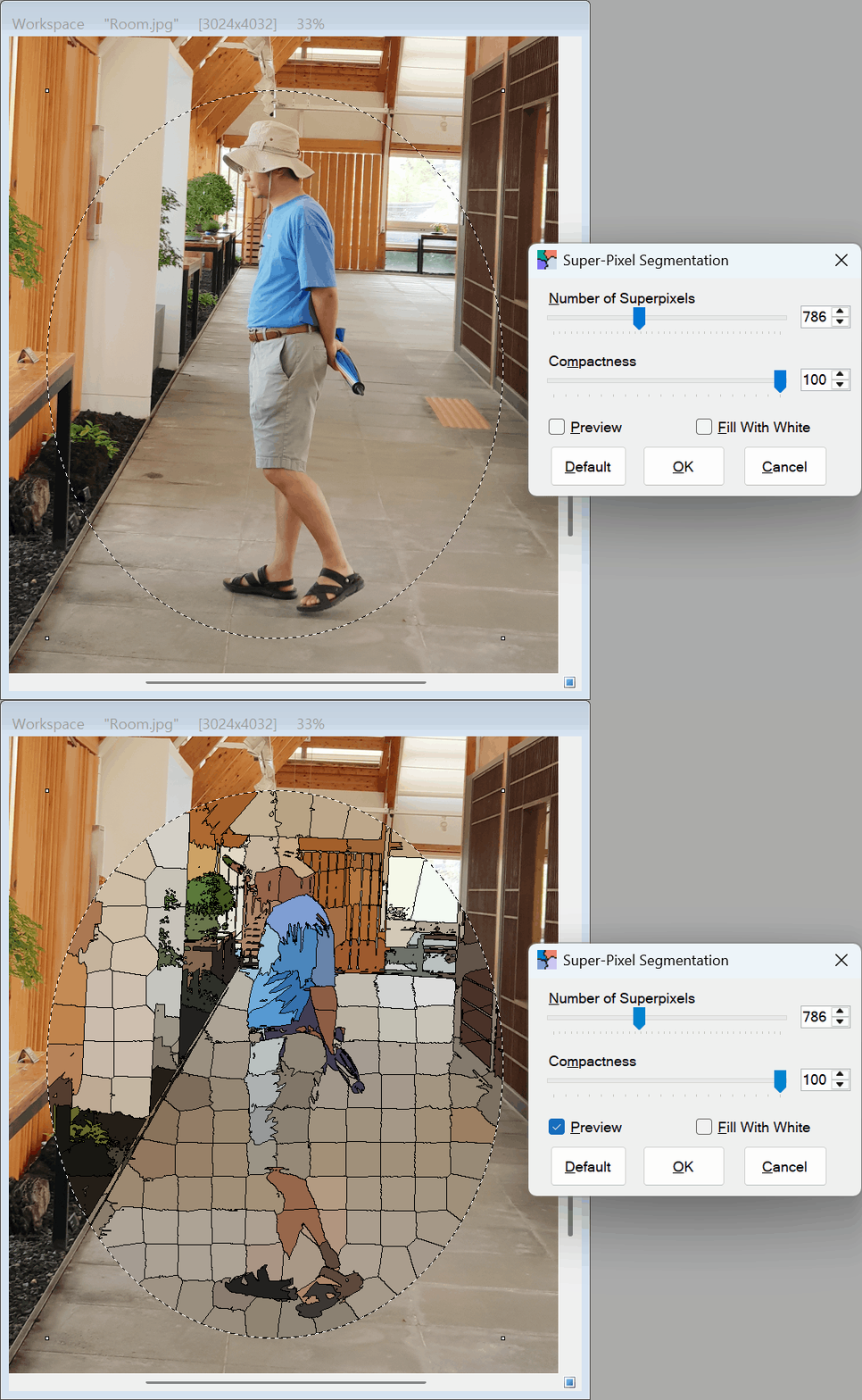
💡 Key Features
- Customizable Pixel Density: You have total control over the level of detail. Choose to break your image down into just a few large, bold blocks, or thousands of tiny, intricate segments.
- Compactness Control: Decide the shape and feel of your segments. You can make them highly structured and grid-like, or allow them to flow organically along the natural lines of your photo.
- Wireframe Effect (Fill with White): With a single click, you can empty the colors from the segments, leaving only the structural outlines. This is perfect for creating minimalist wireframe designs or coloring-book style patterns.
- Zero-Lag Real-Time Preview: Watch your photo turn into a mosaic masterpiece in real time as you adjust the sliders, ensuring you get the exact artistic look you want before applying.
🛠️ How to Use SuperPixel Segmentation
Turning your photo into a stylized segment artwork takes just a few clicks. Simply follow these steps:
Step 1: Enable the Preview
Open the SuperPixel Segmentation tool and check the Preview box. This allows you to watch the effect take shape live on your canvas.
Step 2: Choose the Number of SuperPixels
Use the SuperPixels slider to set how many segments you want to create.
- A lower number creates large, abstract, and highly stylized blocks.
- A higher number retains more of the original photo’s details by using many small, fine segments.
Step 3: Adjust the Compactness
Move the Compactness slider to change how the segments form. Higher compactness makes the pieces look more uniform and square, while lower compactness allows the shapes to flexibly wrap around the objects in your image.
Step 4: Try the “Fill with White” Option (Optional)
If you want a purely structural look, check the Fill with White box. This strips away the image’s original colors, leaving a brilliant geometric outline of your subject.
Step 5: Apply Your Masterpiece
Once you are perfectly satisfied with your new stylized image in the preview, simply click OK to lock in the changes!
(Tip: Not sure where to start? Just click the Default button to return to a balanced, medium-detail mosaic look.)
With the SuperPixel Segmentation tool, you can instantly unleash your creativity and transform any ordinary photograph into an eye-catching work of art!