✨ A Complete Guide to AI Exposure Correction
PhenoCapture AI’s AI Exposure Correction tool leverages state-of-the-art deep learning models to automatically balance and restore overexposed or underexposed images. By dynamically analyzing the lighting and reconstructing lost details, this feature takes the guesswork and manual labor out of exposure adjustment.
Whether you are recovering washed-out documents or rescuing poorly lit photographs, this AI-driven tool provides incredibly accurate tonal balancing with just a single click.
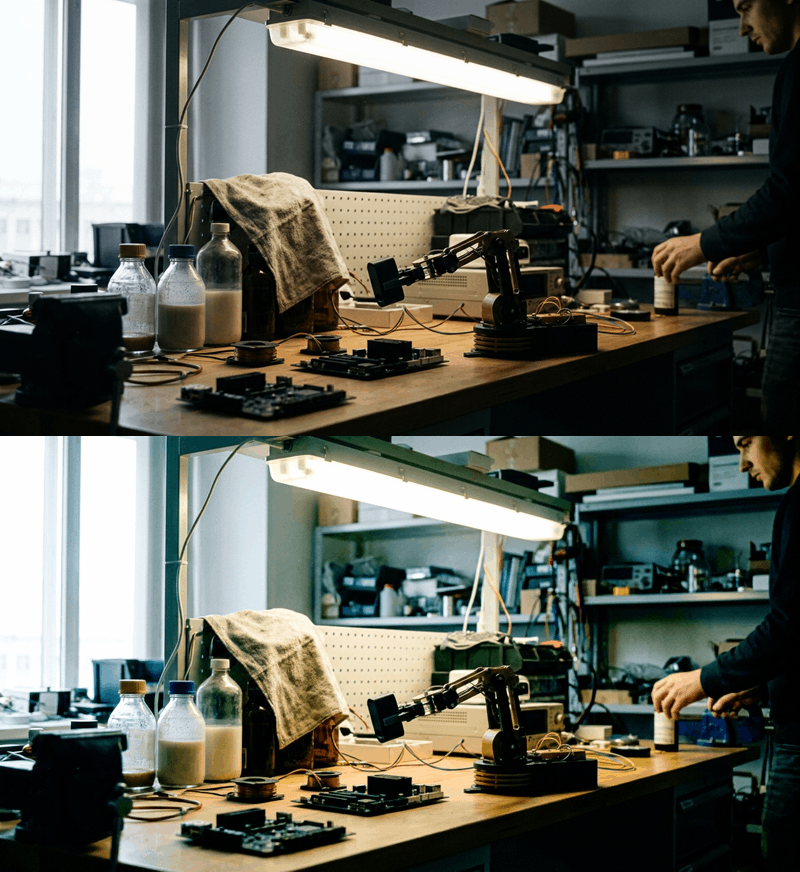
💡 Key Features
- Advanced AI Processing: Powered by specialized pre-trained neural networks for both overexposure and underexposure. It automatically recalculates the lighting properties of your image to cleanly recover hidden shadows or tone down blown-out highlights.
- Optimized CPU Acceleration: Engineered to run successfully and very quickly using OpenVINO CPU mode optimizations. It perfectly leverages AVX-512 support on modern processors, ensuring blazing-fast AI workloads even on AMD hardware such as the Ryzen 7 8845HS (Zen 4 architecture).
- Smart Regional Masking: You are in full control! If you only need to correct a specific dark or bright cluster, simply draw a selection boundary around it. The AI will strictly focus its analysis on your highlighted area (applying intelligent padding to prevent artifacts) and seamlessly blend the newly corrected results back into your original image without affecting the surrounding pixels.
🛠️ How to Use the AI Exposure Correction Tool
Step 1: Prepare Your Workspace and Mask (Optional)
Load your image into the main workspace. If you only want to correct the lighting in a specific section, use the advanced selection tools to draw a boundary around that area. If no region is selected, the AI will analyze and correct the entire image.
Step 2: Launch the AI Corrector
Navigate to the menu and click on either AI Auto Over Exposure Correction or AI Auto Under Exposure Correction, depending on whether your image is too bright or too dark.
Step 3: Let the AI Work
A progress window will appear, guiding you through the AI’s process. The software will load its specialized model, analyze the lighting structures within your image, and restore the lost details. Once complete, your newly balanced image will instantly appear in the workspace!