📐 A Complete Guide to SVG Preview & Import
PhenoCapture’s SVG Preview feature is an incredibly handy tool for working with Scalable Vector Graphics (SVG). Unlike regular photos, SVGs can be scaled to any size without ever getting blurry or pixelated. This tool lets you open your vector files, resize them to the exact dimensions you need, and import them directly into your workspace with perfect, crystal-clear quality.
Whether you are importing a company logo, a web icon, or a detailed illustration, here is everything you need to know to get the best results.
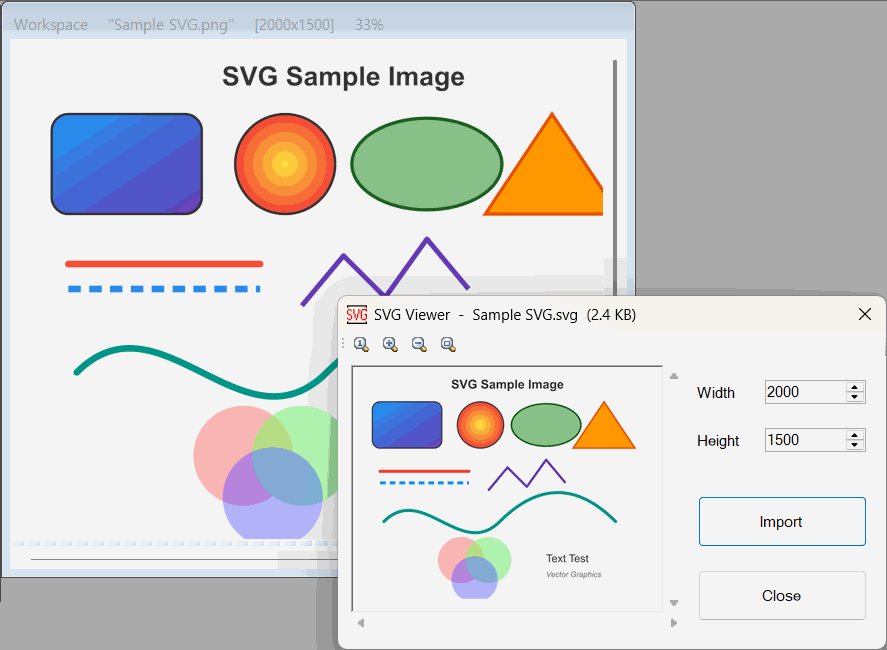
💡 Key Features
- Infinite Scalability: Because SVGs are mathematical vectors, you can increase the resolution as much as you want. The tool will perfectly re-render the image at your chosen size with zero pixelation or quality loss.
- Smart Aspect Ratio Lock: You never have to worry about stretching or squishing your graphic. When you type in a new Width, the tool instantly calculates the mathematically perfect Height to keep the proportions exact (and vice versa).
- Interactive Viewer Controls: Need to check a fine detail? Use the built-in viewer tools to zoom in, zoom out, view the graphic at exactly 100% scale, or snap it back to fit your screen.
- Seamless Drag-and-Drop: Once you are happy with the size and look, you can literally click and drag the image straight from the preview window and drop it directly into your project!
🛠️ How to Use the SVG Preview Tool
Getting your vector graphic ready for editing is incredibly easy. Just follow these simple steps:
Step 1: Open Your SVG File
When you select an SVG file to open, this preview window will automatically launch. You will immediately see your graphic rendered against a clean white background, safely fit to your screen.
Step 2: Set Your Perfect Size
Look at the Width and Height boxes. By default, the tool provides a high-quality starting size.
- Need it bigger for a high-resolution print? Just type a larger number into the Width box.
- Need it smaller for a web banner? Type in a smaller number. The tool will automatically handle the rest and keep the shape perfectly proportioned.
Step 3: Inspect the Preview
Use the zoom buttons (Zoom In, Zoom Out, 100%, and Fit to Screen) to check the edges and details of your newly sized graphic. Because it re-renders live, it will always look razor-sharp.
Step 4: Import to Your Workspace
Once your graphic is the exact size you need, you have two simple ways to bring it into PhenoCapture:
- Click the Import button to instantly load it onto your main canvas.
- Or, simply click and drag the image directly from the viewer window into your workspace!
(Tip: If you selected the wrong file, simply click the Cancel button to close the window and try again.)
With the SVG Preview tool, handling complex vector graphics and ensuring they remain perfectly crisp at any resolution is completely effortless!