🔍 A Complete Guide to AI Image Upscaling
PhenoCapture AI’s AI Image Upscaling is a powerful, next-generation tool that breathes new life into low-resolution photos. Whether you want to enlarge an old, pixelated picture, increase the size of a small web graphic for printing, or enhance the details of a cropped image, this feature uses advanced Artificial Intelligence to multiply your image size without the usual blurriness or blocky artifacts.
Here is everything you need to know about enlarging your images with crystal-clear quality.
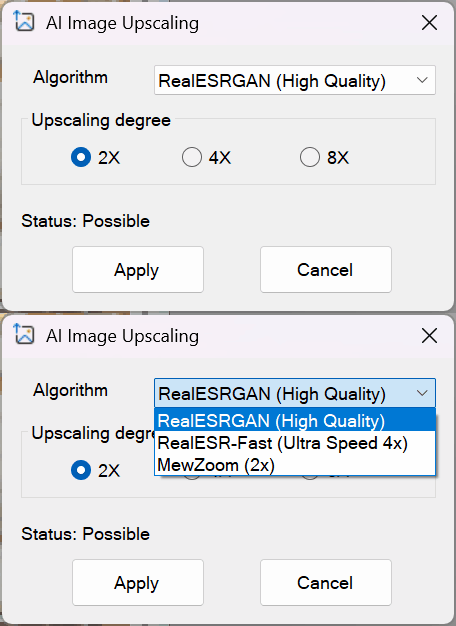
⚡ Core Architecture: Local, Private & Offline AI
- 100% Local PC Execution (Zero Cloud Uploads): All processing and AI inferences run exclusively on your local machine. Your proprietary research data and images are never transmitted to the cloud or over the network.
- CPU Acceleration & Parallel Processing: These neural-processing features are highly optimized to run efficiently on standard desktop CPUs using parallel processing. You do not need an expensive GPU to achieve high-quality AI upscaling.
- Fully Functional Offline: Operates seamlessly without an active internet connection, making it ideal for secure facilities and offline workstations.
💡 Key Features
- Multiple AI Engines: Choose the perfect AI model for your needs. Use the High Quality (RealESRGAN) model for stunning, detailed results, or switch to Ultra Speed or MewZoom for lightning-fast enlargements.
- Flexible Scaling Options: You have the power to double (2x), quadruple (4x), or even super-size (8x) your image resolution with a single click.
- Smart Hardware Protection: Enormous upscaling requires serious processing power. The tool features a built-in safety checker that instantly analyzes your starting image size and warns you if choosing an extreme multiplier (like 8x) might overload your computer.
- One-Click Processing: The complex AI runs seamlessly in the background. You don’t need to be a machine-learning expert to get professional-grade, high-definition results.
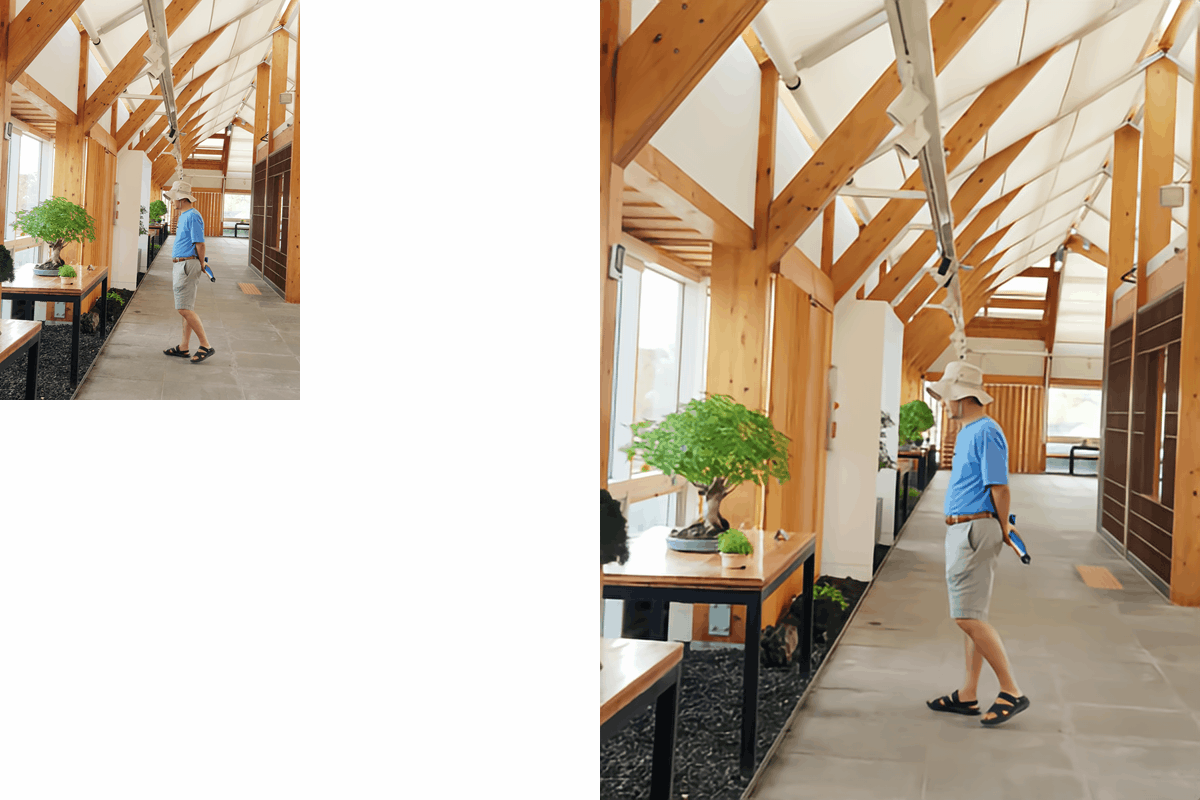
Note: There is some loss of image quality during the conversion to an animated GIF.
[RealESRGAN (High Quality) – 2x]
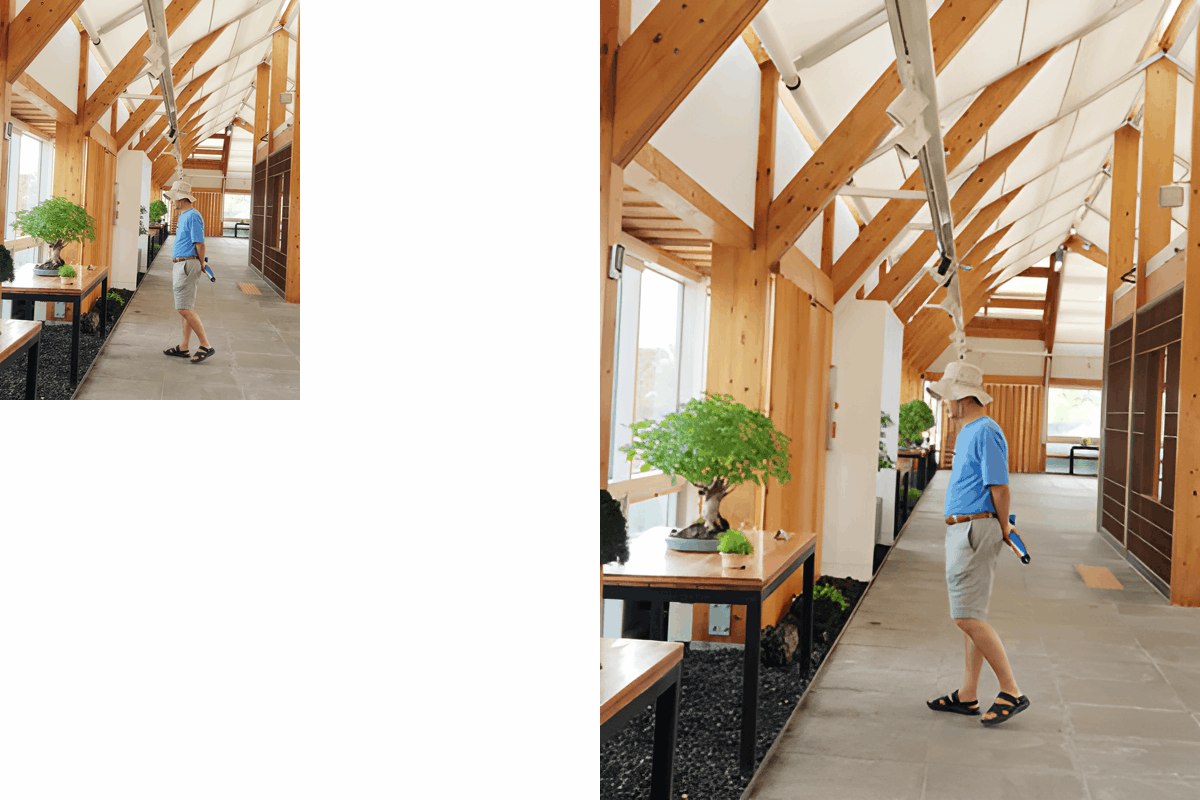
[RealESRGAN (High Quality) – 4x]
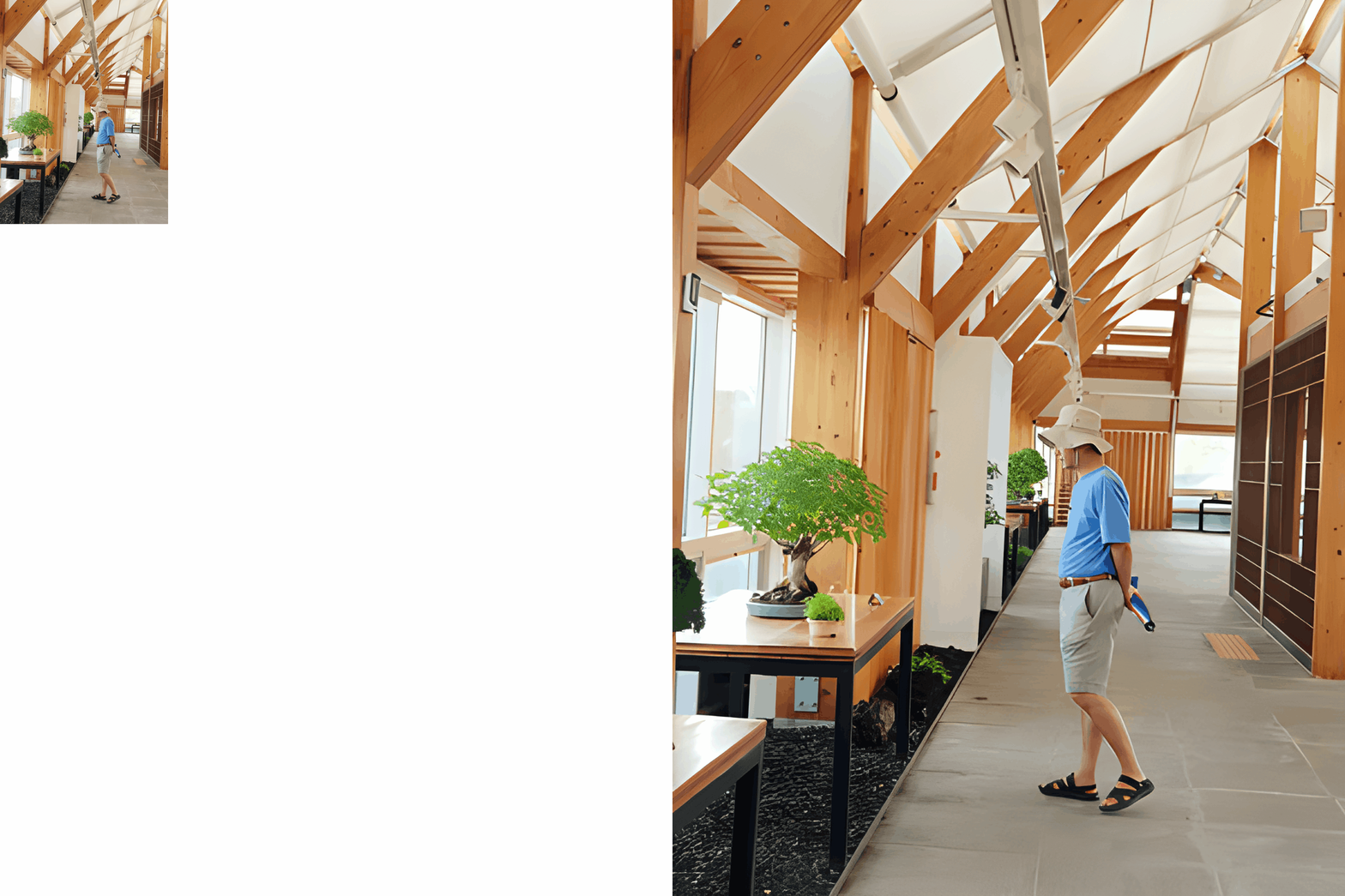
[RealESR-Fast (Ultra Speed 4x)]
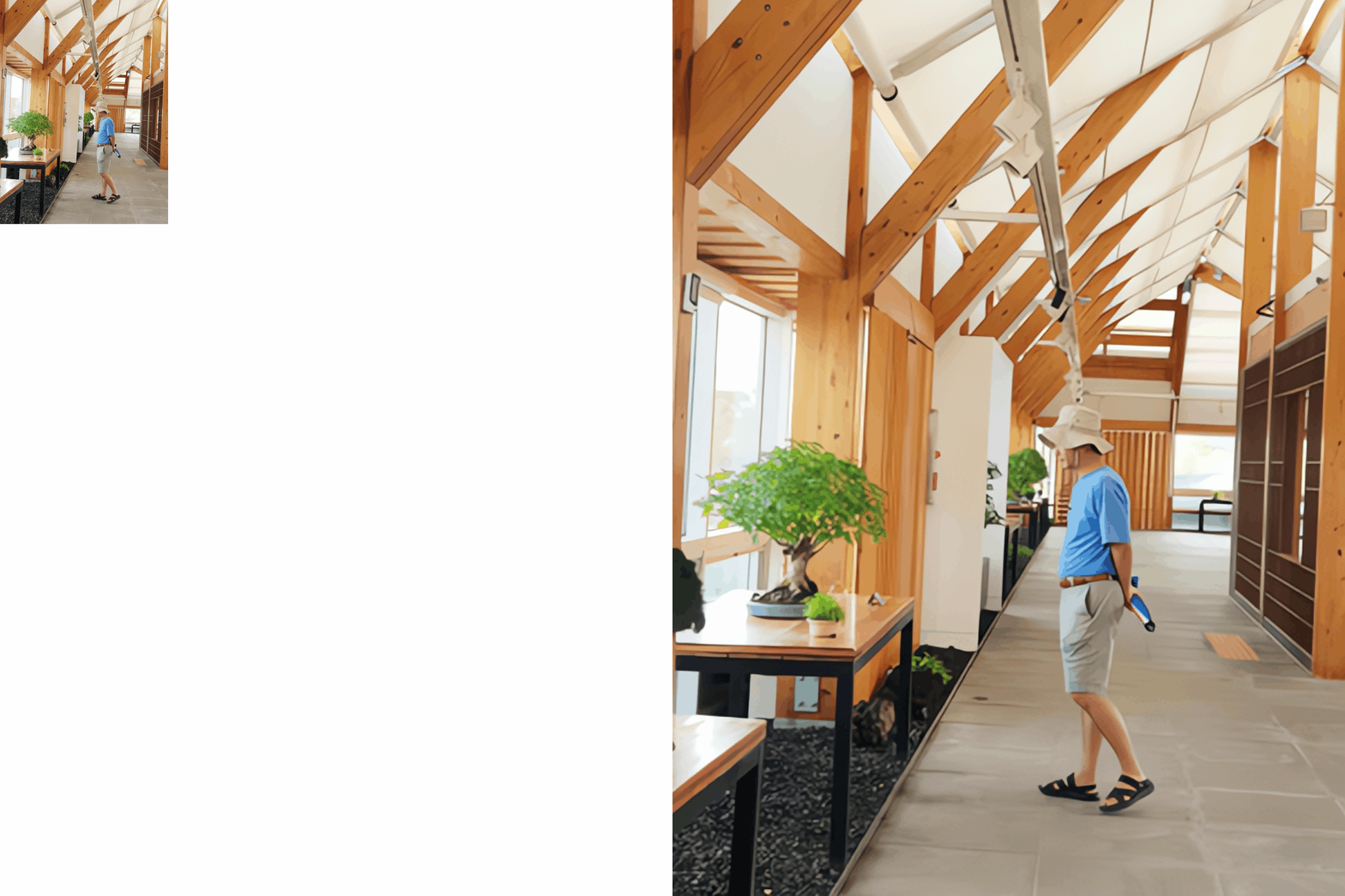
[MewZoom (2x)]
🛠️ How to Use AI Upscaling
Transforming your tiny images into high-resolution masterpieces is incredibly simple. Just follow these steps:
Step 1: Choose Your AI Algorithm
Open the Upscaling tool and select your preferred AI engine from the dropdown menu:
- RealESRGAN (High Quality): The best choice for maximum detail and clarity.
- RealESR-Fast (Ultra Speed 4x): Perfect for rapidly blowing up an image by 4 times its original size.
- MewZoom (2x): A specialized, lightweight model for a quick and beautiful 2x boost.
Step 2: Select the Upscaling Degree
Depending on your chosen algorithm, select how much larger you want the image to be (2x, 4x, or 8x). Note: The Ultra Speed and MewZoom algorithms are highly optimized and locked to their specific multipliers (4x and 2x).
Step 3: Check the Status Indicator
Look at the bottom of the window for the Status text.
- If it says Status: Possible in blue or black, you are good to go!
- If it says Status: Not possible (Max pixels…) in red, your original image is already too large to be multiplied by that specific degree. Try selecting a lower multiplier (like 2x instead of 8x) to proceed.
Step 4: Apply and Enhance
Once your status is clear, simply click OK. The AI will work its magic in the background, and your image will be successfully upscaled with stunning sharpness and detail!
(Tip: AI processing can take a few moments depending on your computer’s speed, but the results are always worth the short wait!)
With the AI Image Upscaling tool, you never have to settle for tiny, blurry pictures again. Bring your smallest images into high-definition reality today!