🌈 A Complete Guide to Multiband Color Adjustment
PhenoCapture AI’s Multiband Color tool provides ultimate control over your image’s color palette. Instead of applying a blanket saturation or brightness adjustment to the entire photo, this advanced tool lets you target and enhance specific color ranges—like making a dull sky vibrant blue or brightening green foliage—without affecting the rest of the image.
Here is everything you need to know about isolating and perfecting your colors.
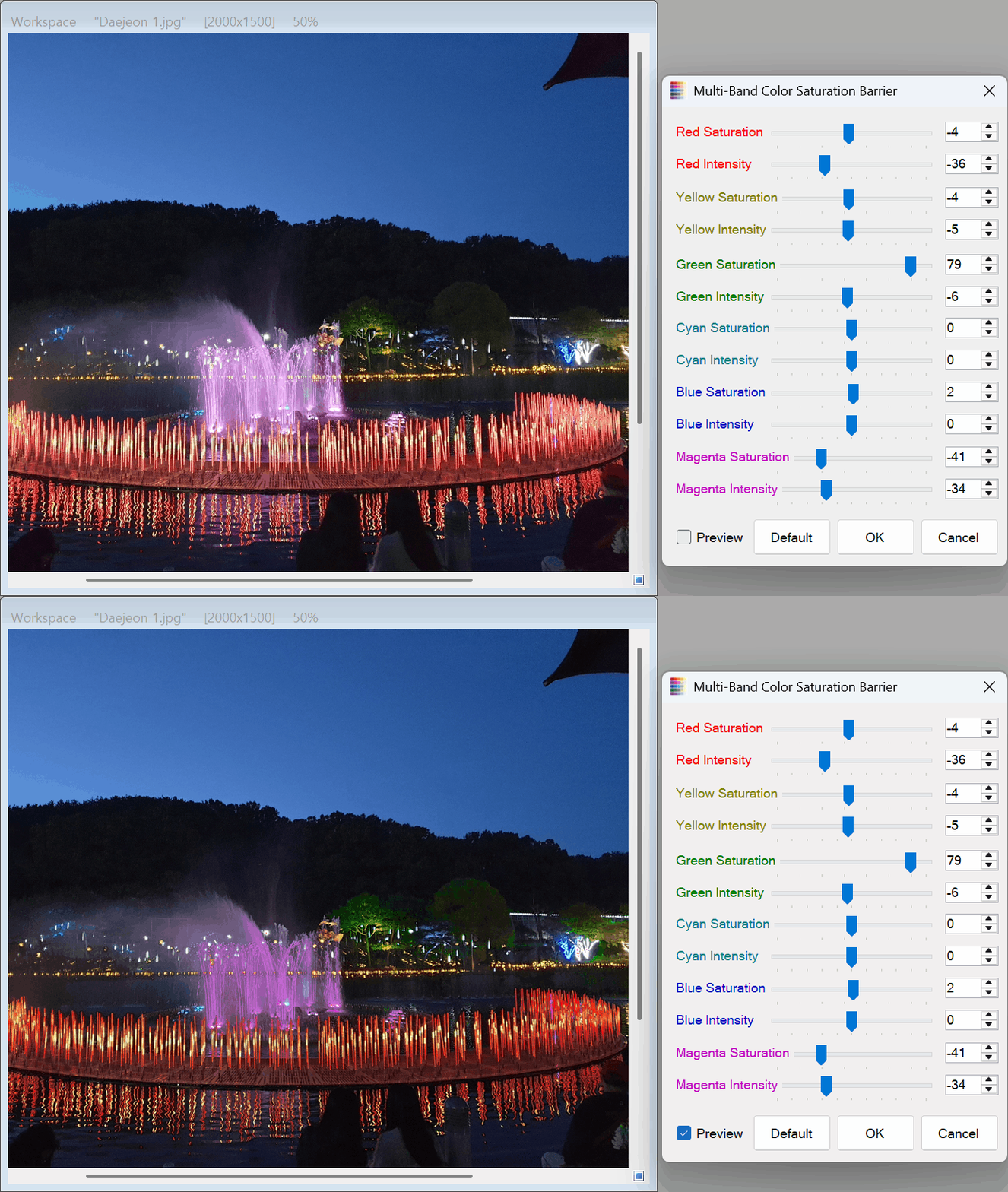
💡 Key Features
- Six-Channel Targeting: You have independent control over the six primary and secondary colors: Red, Yellow, Green, Cyan, Blue, and Magenta.
- Dual Precision Control: For every single color band, you can tweak both the Saturation (how rich or faded the color appears) and the Intensity (how bright or dark that specific color is).
- Zero-Lag Real-Time Preview: The highly optimized rendering engine allows you to adjust multiple sliders and see the results instantly on your high-resolution images without any stutter or delay.
- Targeted Masking: Combine this tool with your selection tools to isolate a specific area of your image and only apply the color adjustments inside that selected boundary.
🛠️ How to Use the Multiband Color Tool
Fine-tuning your specific colors is intuitive and highly responsive. Follow these simple steps:
Step 1: Enable the Preview
When you open the Multiband Color tool, make sure to check the Preview box. This allows you to watch your image transform in real time as you move the sliders, ensuring you get the perfect look before saving.
Step 2: Choose Your Target Color
Look at your image and decide which color needs adjustment. Locate the corresponding color block in the tool panel (Red, Yellow, Green, Cyan, Blue, or Magenta).
Step 3: Adjust Saturation and Intensity
Use the sliders or type precise numbers into the boxes to adjust your chosen color:
- Saturation (Sat): Move the slider to the right to make the color pop and look more vibrant, or move it to the left to mute and fade that specific color.
- Intensity (Int): Move the slider to the right to brighten the specific color, or to the left to darken and deepen it.
Step 4: Apply Your Adjustments
You can adjust as many different colors as you need at the same time. Once your image looks perfectly balanced, simply click OK to permanently apply the color correction!
(Tip: If you’ve moved several sliders and want to start over, just click the Default button. This instantly resets all saturation and intensity values back to zero without altering your original image.)
With the Multiband Color tool, achieving professional, targeted color grading is effortless, allowing you to bring out the absolute best in your images!