📑 A Complete Guide to PDF Preview
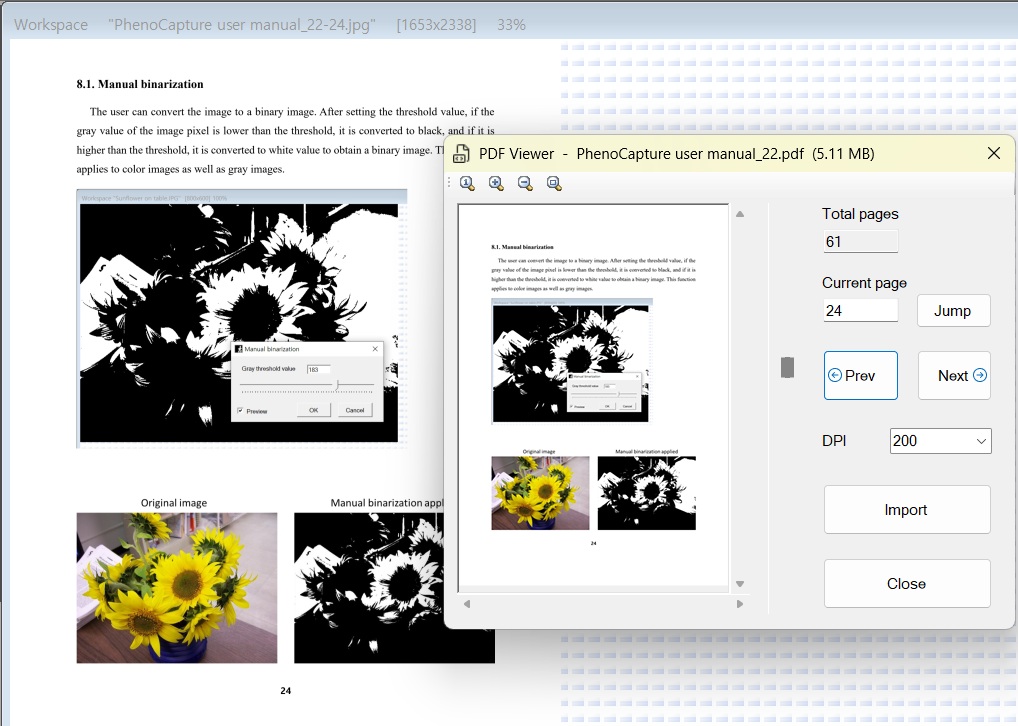
PhenoCapture AI’s PDF Preview tool completely changes the way you interact with PDF documents. Instead of relying on blurry screenshots or opening separate bulky software, you can now drag any PDF directly into PhenoCapture AI. The software instantly parses the document and allows you to extract any page as a perfectly crisp, editable image.
Here is everything you need to know about extracting perfect graphics and text from your PDF files.
💡 Key Features
- High-Fidelity Rendering: You are in complete control of the image quality. By adjusting the DPI (Dots Per Inch), you can render a page fast at a lower resolution, or push it up to 600 DPI to extract ultra-crisp, print-ready images that capture every microscopic detail of the original document.
- Instant In-Memory Processing: The tool loads the PDF directly into your computer’s memory, ensuring that flipping through pages is fast and seamless without creating messy temporary files on your hard drive.
- Smart Zoom Controls: Fully inspect your extracted page before you commit. The viewer includes robust zoom controls, allowing you to zoom in, zoom out, or snap the image to Fit to Screen perfectly.
- Seamless Extraction: Moving a page from the PDF to your workspace takes just one second. You can click the Import button, or simply drag and drop the page straight from the preview window onto your main canvas.
🛠️ How to Use the PDF Preview Tool
Extracting the perfect page from your PDF is highly intuitive. Follow these simple steps:
Step 1: Open Your PDF
Drag and drop any .pdf file directly onto the PhenoCapture AI workspace. The software will detect the file and immediately open the PDF Preview window, displaying the first page.
Step 2: Navigate and Set the Quality
- Use the Page Scrollbar or the Next/Prev Page buttons to flip through the document and find the exact page you need.
- Click the DPI dropdown and select a higher number (e.g., 300 or 400) if the page contains small text or detailed graphics that need to remain crystal clear when zoomed in. The software will instantly re-render the page at the higher quality.
Step 3: Inspect the Page
Use the magnifying glass icons at the top to zoom in and check the details of your rendered page. Click the Fit to Screen icon to see the entire page at a glance.
Step 4: Import the Page
When you are looking at the perfect page, you have two incredibly easy ways to move it to your main workspace:
- Click the Import button at the top to automatically load the page and safely close the preview window.
- Or, simply Click and Drag the image directly from the preview window straight onto the main PhenoCapture AI workspace!
With the PDF Preview tool, transforming multi-page documents into high-quality, editable images is completely effortless!