✨ A Complete Guide to OCR Text Extraction
PhenoCapture AI’s OCR Text Extraction tool uses advanced Optical Character Recognition (OCR) technology to instantly “read” and extract editable text directly from your images. Whether you are digitizing scanned documents, pulling data from screenshots, or analyzing labels within specific regions of a photo, this tool seamlessly bridges the gap between image and text.
To ensure the highest quality results, the tool also runs the extracted data through a smart correction engine to fix common recognition errors and improve readability.
💡 Key Features
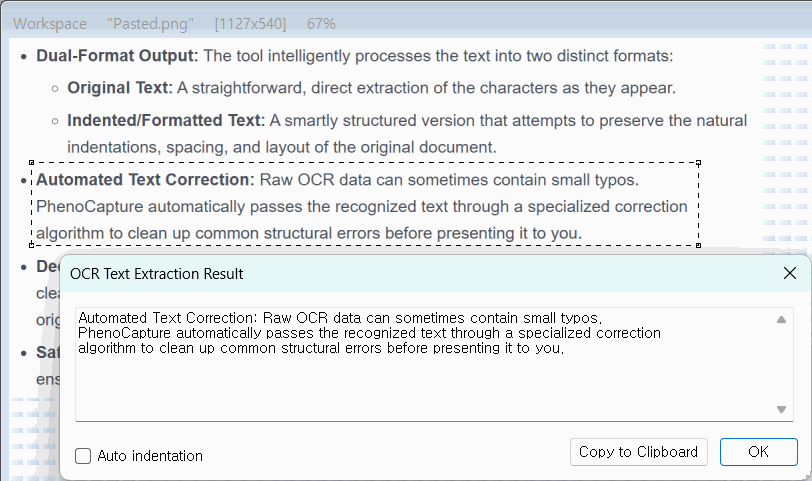
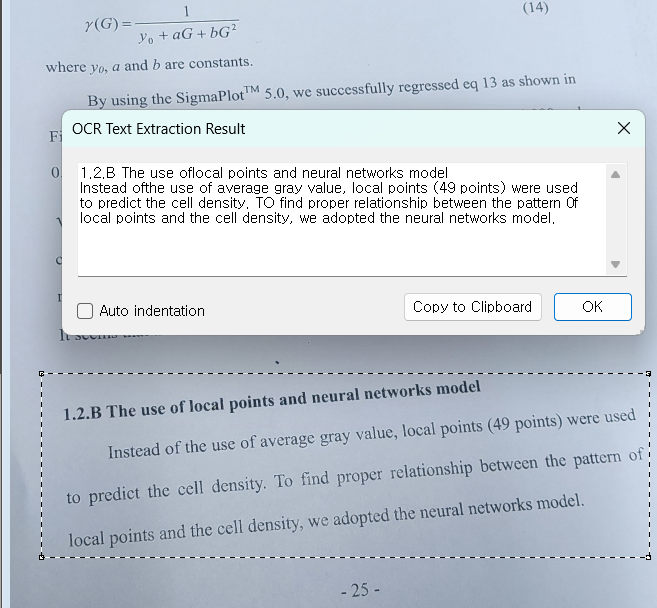
- Smart Region Targeting: You don’t have to scan the entire image! If you only need text from a specific paragraph or label, simply draw a selection boundary around it. The OCR engine will strictly focus on your highlighted area, saving time and preventing unwanted text from being captured.
- Dual-Format Output: The tool intelligently processes the text into two distinct formats:
- Original Text: A straightforward, direct extraction of the characters as they appear.
- Indented/Formatted Text: A smartly structured version that attempts to preserve the natural indentations, spacing, and layout of the original document.
- Automated Text Correction: Raw OCR data can sometimes contain small typos. PhenoCapture AI automatically passes the recognized text through a specialized correction algorithm to clean up common structural errors before presenting it to you.
- Dedicated Viewing Window: Once the extraction is complete, your results are presented in a clean, dedicated pop-up window. This makes it incredibly easy to review the text, compare the original and formatted versions, and copy the data to your clipboard for use in other applications.
- Safe Background Processing: The text extraction is handled smoothly in the background, ensuring your workspace remains completely responsive while the engine analyzes the image.
🛠️ How to Use the OCR Text Extraction Tool
Step 1: Prepare Your Workspace and Mask (Optional)
Load your image containing the text into the main workspace. If you only want to extract a specific sentence or block of text, use the selection tools to draw a boundary around that specific area. If no region is selected, the tool will analyze the entire image.
Step 2: Launch the Extraction
Navigate to the menu and click on OCR Text Extraction. The software will immediately begin analyzing the pixels and recognizing the characters.
Step 3: Review and Copy Your Text
Once the engine finishes, a dedicated results window will pop up displaying your extracted text. You can easily toggle between the original extraction and the structured/indented format, and copy the results directly to your clipboard! (Note: If the selected area contains no recognizable text, the software will gently notify you so you can adjust your selection).