✨ A Complete Guide to Auto Subject Selection (General Object)
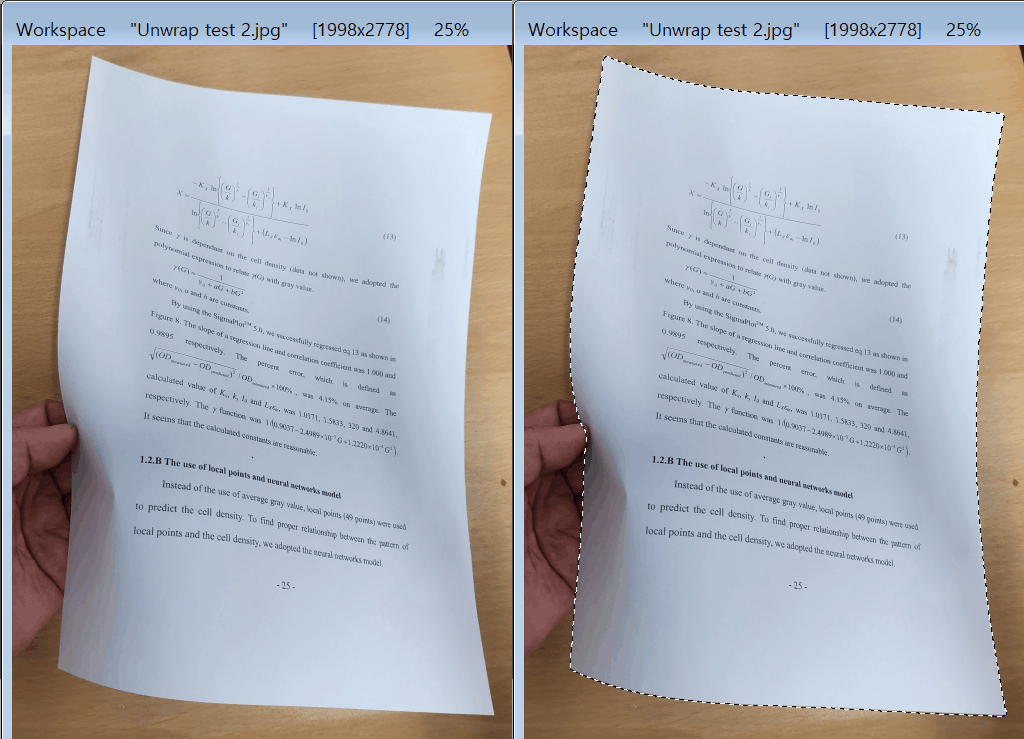
PhenoCapture AI’s Auto Subject Selection (General Object) tool utilizes a highly versatile AI vision model trained to recognize a vast array of everyday items. It excels at detecting general objects—including products, animals, vehicles, and even people—automatically separating them from the background with stunning accuracy. Whether you need to isolate a specific item for a presentation or extract an object for analysis, this tool handles complex boundaries flawlessly.
💡 Key Features
- Versatile AI Object Detection: Unlike specialized portrait tools, this AI is engineered to understand and identify general objects of all shapes and sizes. It instantly recognizes the primary subject in your photo, automatically generating a precise outline without any manual tracing.
- Soft-Edge Transparency: Objects rarely have perfectly sharp, jagged edges. This tool calculates smooth, semi-transparent boundaries, ensuring that the selected item blends beautifully and naturally into any new background or analysis workspace.
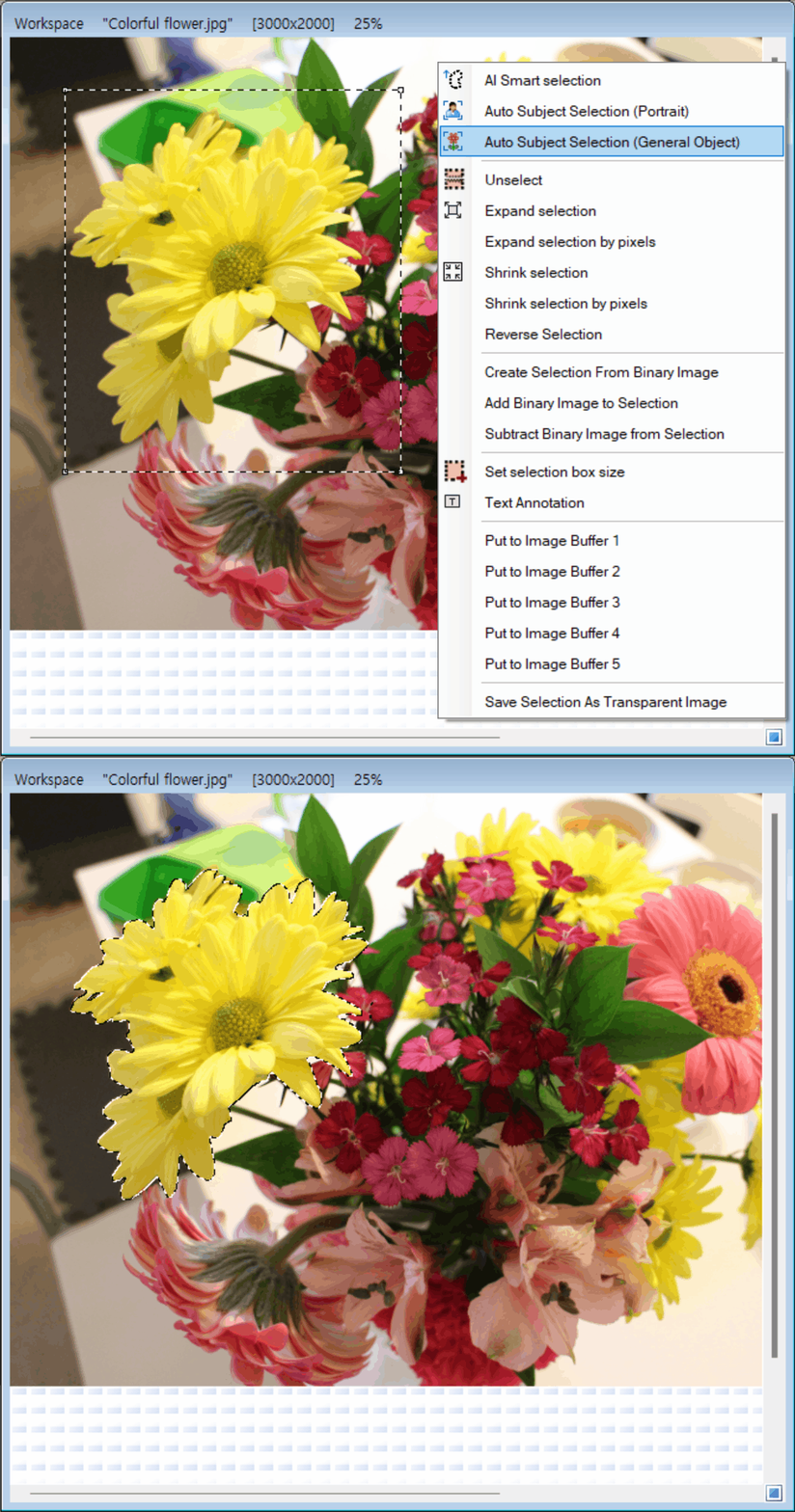
- Whole Image or Targeted Region: By default, the AI will scan your entire image and isolate the most prominent subject. However, if you have a cluttered photo and only want to extract one specific item, you can draw a rough Rectangle or Circle around it first to focus the AI’s attention solely on that region.
- Smart Hardware Acceleration: The engine automatically scans your computer’s hardware and selects the fastest available processor to guarantee the quickest possible selection time without requiring any manual configuration.
- Smooth Background Processing: A dedicated progress window tracks the AI’s analysis step-by-step. This ensures your software remains completely responsive while the heavy lifting is done behind the scenes.
- Seamless Undo Integration: Connected directly to PhenoCapture AI’s built-in undo engine, allowing you to easily revert the AI’s mask if the initial result isn’t exactly what you need.
🛠️ How to Use Auto Subject Selection (General Object)
Step 1: Prepare Your Image (and Optional Boundary)
Ensure your image is loaded into the main workspace.
- For the entire image: Simply leave the image as is. The AI will scan the whole photo to find the primary object.
- For a specific item: Use the standard selection tools to draw a Rectangle or a Circle around the specific object you want to isolate.
Step 2: Activate the AI
Navigate to the menu and click on Auto Subject Selection (General Object).
Step 3: Let the AI Work
A progress window will appear as the AI loads its general-purpose visual models and begins processing your image. Within moments, the tool will automatically detect the item and create a perfect, smooth-edged mask outlining your subject!