✨ A Complete Guide to AI Background Removal (General Object)
PhenoCapture AI’s AI Background Removal (General Object) tool is a highly versatile artificial intelligence feature designed to cleanly separate a wide variety of subjects from their surroundings. Whether you are isolating a product for a catalog, an animal, a vehicle, or a person, this tool intelligently strips away the background while preserving the distinct shape and details of the main object.
Powered by a robust, general-purpose AI model, it is your go-to solution for everyday background removal tasks across any type of photography!
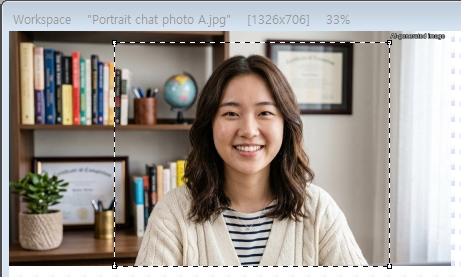 |
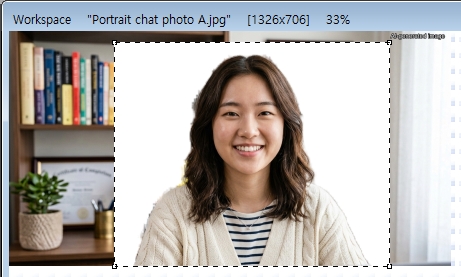 |
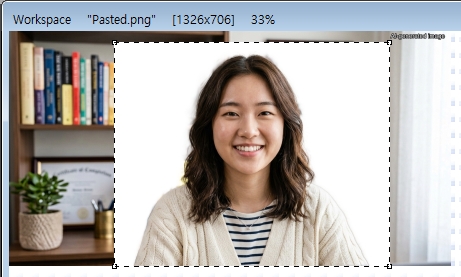 |
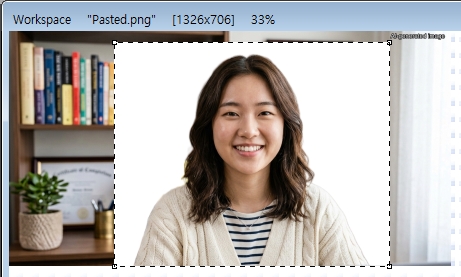 |
| Original Image | Background Removal by Selfie | Background Removal by Portrait | Background Removal by General Object |
 |
 |
 |
 |
| Original Image | Background Removal by Selfie | Background Removal by Portrait | Background Removal by General Object |
💡 Key Features
- Versatile Object Detection: The artificial intelligence powering this tool is expertly trained to recognize a broad spectrum of subjects—not just humans. It excels at identifying the most prominent objects in your image and cleanly extracting them from complex or cluttered environments.
- Flexible Background Replacement: By default, the tool will smoothly replace your distracting background with a clean, solid white canvas. This is perfect for creating instant product shots, presentations, or preparing subjects for further creative editing.
- Whole Image or Targeted Region: You are in full control of where the AI focuses! If you only want to remove the background behind a specific item in a busy scene, simply draw a boundary around it using the selection tools. The AI will strictly focus its high-quality removal on that highlighted area, leaving the rest of your image completely untouched.
- Smart Hardware Acceleration: The software automatically detects your computer’s hardware and selects the best available processor, guaranteeing the smoothest and most efficient background removal possible without freezing your workspace.
- Seamless Undo Integration: Connected directly to PhenoCapture AI’s built-in undo engine, allowing you to instantly revert to your original background if you want to try a different selection or compare the results.
🛠️ How to Use AI Background Removal (General Object)
Step 1: Prepare Your Image (and Optional Boundary)
Ensure your photo is loaded into the main workspace.
- For the entire image: Leave the image as is. The AI will scan the entire photo, locate the primary object or subject, and smoothly remove the background everywhere else.
- For a specific area: Use the standard selection tools to draw a boundary around the exact item you want to isolate. The background removal will only happen inside this shape.
Step 2: Activate the AI
Navigate to the menu and click on AI Background Removal (General Object).
Step 3: Enjoy the Clean Results!
A progress window will appear as the AI analyzes the shapes and edges within your image. Once completed, your original background will vanish, leaving your subject perfectly isolated on a crisp new background!