✨ A Complete Guide to the Toolbox
PhenoCapture AI’s Toolbox serves as your centralized, floating command center. It provides instant, one-click access to the software’s most frequently used image processing, filtering, and measurement tools. Designed to maximize your workflow efficiency, it neatly organizes everything you need into a single, manageable panel.
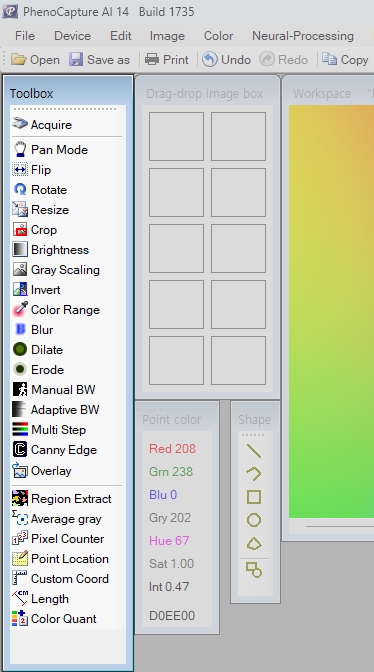
💡 Key Features
- Comprehensive Tool Access: The Toolbox acts as a universal shortcut hub. Whether you need to flip, rotate, or crop an image, apply morphological filters (Erode/Dilate), or extract specific color ranges, the Toolbox has a dedicated button ready to launch the process immediately.
- Magnetic Docking: The Toolbox features smart magnetic docking, allowing it to neatly snap to the edges of your main workspace or other panels to keep your screen perfectly organized without overlapping crucial image data.
- Quick Pan Mode Help: Includes a dedicated Pan Mode tip button to remind you of the quick-navigation shortcut (holding
Ctrl + Altand dragging) to move around large images effortlessly.
🛠️ How to Use the Toolbox
Launching a Tool
Simply click on any icon within the Toolbox to instantly apply the corresponding filter or launch the specific analysis module on your currently active image.
Customizing the Toolbox Layout
The Toolbox will automatically adjust its width and layout style (Icon-only vs. Icon and Text) depending on your current view settings, ensuring you always have the optimal balance between tool visibility and workspace area.