🖥️ A Complete Guide to High DPI Settings
PhenoCapture AI’s DPI Settings tool is an essential feature for users working on high-resolution displays, such as 4K monitors or modern laptops. If your software interface ever looks blurry, the text appears too tiny, or the windows don’t scale correctly across multiple monitors, this tool allows you to instantly fix the display scaling to perfectly match your hardware.
Here is everything you need to know about adjusting your display scaling for a crystal-clear interface.
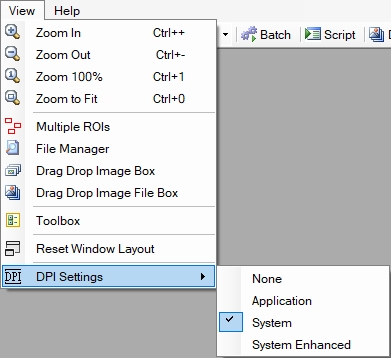
💡 Key Features
- Four Optimization Modes: You have full control over how Windows scales the software. Choose between None (Reset), Application, System, and System Enhanced to find the absolute best visual clarity for your specific monitor.
- Smart Status Detection: You never have to guess what setting you are currently using. The moment you open the DPI menu, the software automatically detects and places a checkmark next to your active scaling mode.
- One-Click Application: Fixing your display is effortless. Simply select your desired mode, and the software will immediately apply the new DPI scaling settings and close/restart to ensure the interface renders perfectly.
🛠️ How to Use the DPI Settings
Getting a crisp, perfectly scaled interface takes just a few seconds. Follow these simple steps:
Step 1: Open the DPI Settings Menu
Navigate to the top menu and open the DPI Settings dropdown. As soon as the menu opens, you will see a checkmark next to your current active setting.
Step 2: Choose Your Scaling Mode
Select the mode that best fits your display issue:
- Reset (None): Turns off custom DPI scaling. Use this if you want to revert to the default behavior.
- Application: Tells Windows to leave the scaling alone and lets PhenoCapture AI handle its own display size. This is often the best choice for keeping images and tools perfectly sharp without Windows artificially stretching them.
- System: Lets Windows stretch the interface based on your primary monitor’s settings. Useful if the UI looks too tiny on a 4K screen.
- System Enhanced: An advanced Windows feature that scales the interface while keeping text incredibly crisp. Try this if the standard “System” mode makes the text look blurry.
Step 3: Apply and Restart
Once you click your preferred mode, the software will automatically execute the necessary changes and close itself to apply the new scaling rules. Simply reopen PhenoCapture AI, and enjoy your perfectly scaled, crystal-clear workspace!
With the DPI Settings tool, ensuring your workspace looks professional and razor-sharp on any monitor is completely effortless!