📏 A Complete Guide to Length Measurement
PhenoCapture AI’s Length Measurement is an essential tool for extracting real-world data from your images. Whether you are analyzing the size of microscopic cells, measuring distances on a map, or scaling architectural floor plans, this tool seamlessly translates on-screen pixels into actual, usable metrics like millimeters, inches, or miles.
Here is everything you need to know about calibrating your image and making precise measurements.
💡 Key Features
- Smart Scale Calibration: You don’t need to do any complex math. Simply draw a line over an object with a known size in your image, type in its real-world length, and the software will automatically calculate the pixel-to-real-world ratio.
- Scale Locking: Once you calibrate your scale, you can Lock it. All subsequent lines and shapes you draw will be automatically and instantly measured using this accurate scale.
- Straight Lines & Complex Paths: The tool isn’t limited to just straight lines. You can measure the distance between two points, or use the Path tool to measure curved, irregular, or winding shapes with perfect accuracy.
- Real-Time Calculation: As soon as you draw or adjust a line on your workspace, the measurement results update instantly in the panel, allowing for fast and fluid analysis.
🛠️ How to Use the Length Measurement Tool
Getting precise real-world measurements from your photo takes just a few quick steps:
Step 1: Draw a Reference Line
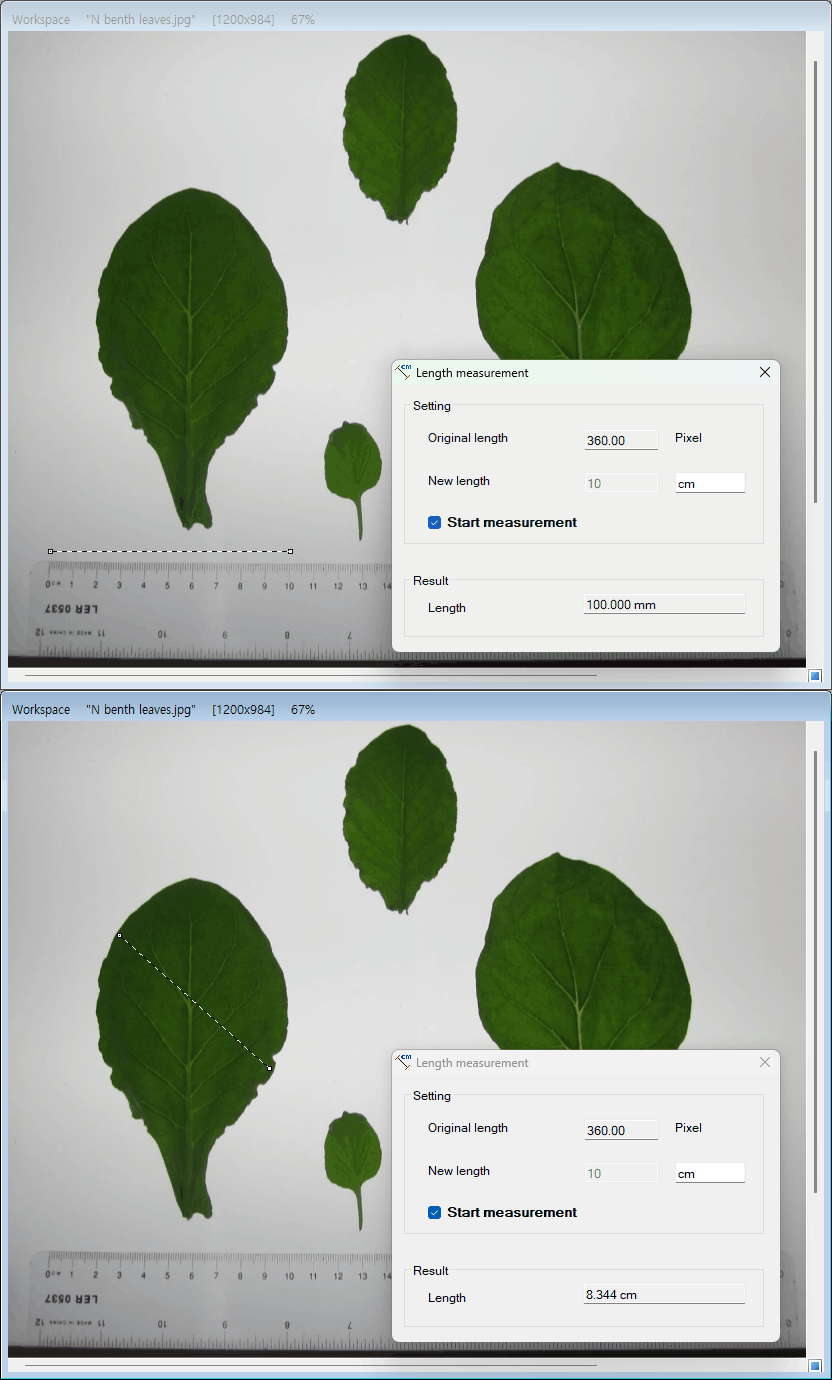
Find an object in your image where you already know the exact real-world size (like a ruler scale in a microscope image, or a standard doorway in a floor plan). Click and drag to draw a straight line perfectly across that object. The tool will display the “Original Length” in screen pixels.
Step 2: Calibrate the Scale
In the panel, look at the New Length box. Type in the actual real-world size of the object you just drew a line over. Then, type your preferred unit of measurement (e.g., mm, cm, um, inches) into the Unit box.
Step 3: Lock the Scale
Check the Lock box. This saves your calibration! The software now knows exactly how many pixels equal your chosen real-world unit.
Step 4: Measure Anything!
With the scale locked, you are ready to measure anything else in the image. Simply draw a new line or a freeform path anywhere on the workspace. The Result box will instantly display the accurate, real-world length of your new drawing based on your custom calibration.
(Tip: If you open a different image with a different scale, simply uncheck the Lock box to reset the tool and start a new calibration!)
With the Length Measurement tool, turning digital photos into highly accurate, measurable data is completely effortless!