📏 A Complete Guide to Length Measurement
PhenoCapture AI’s Length Measurement is an essential tool for extracting real-world data from your images. Whether you are analyzing the size of microscopic cells, measuring distances on a map, or scaling architectural floor plans, this tool seamlessly translates on-screen pixels into actual, usable metrics like millimeters, inches, or miles.
Here is everything you need to know about calibrating your image, making precise measurements, and managing your structured datasets.
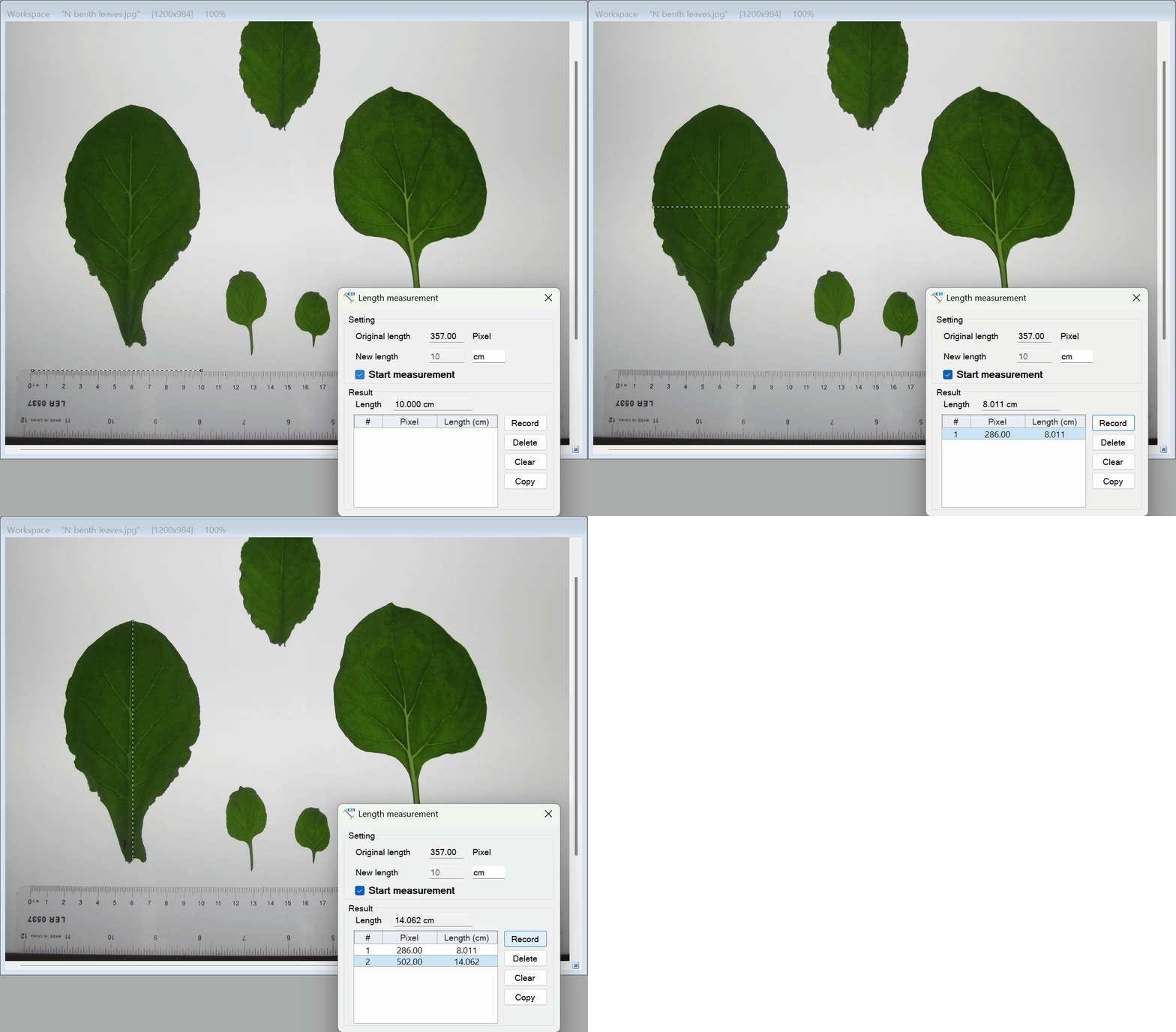
💡 Key Features
- Smart Scale Calibration: You don’t need to do any complex math. Simply draw a line over an object with a known size in your image, type in its real-world length, and the software will automatically calculate the pixel-to-real-world ratio.
- Scale Locking & Measurement Flow: Once you calibrate your scale, check the Start measurement option. This locks your reference scale, allowing you to freely draw and resize subsequent lines or paths, which are instantly measured.
- Straight Lines & Complex Paths: The tool isn’t limited to just straight lines. You can measure the distance between two points, or use the Path tool to measure curved, irregular, or winding shapes with perfect accuracy.
- Interactive Data Grid: Say goodbye to manual note-taking. All your measurements are organized in an interactive Data Grid. It displays the unique index, original pixel length, and calibrated real-world length for every record.
- Dynamic Recalculation: Changing your Target Length or Unit at any time instantly updates and recalculates all previously recorded rows in the grid with perfect numeric precision.
- Robust Record Management: Easily manage your data with dedicated controls—Record a new measurement (or press Enter), Delete selected records, Clear the entire table, or Copy the tabulated data directly to your clipboard for Excel.
🛠️ How to Use the Length Measurement Tool
Getting precise real-world measurements from your photo and exporting them to spreadsheets takes just a few quick steps:
Step 1: Draw a Reference Line
Find an object in your image where you already know the exact real-world size (like a ruler scale in a microscope image, or a standard doorway in a floor plan). Click and drag to draw a straight line perfectly across that object. The tool will display the “Original length” in screen pixels.
Step 2: Calibrate the Scale
In the setting panel, look at the New length box. Type in the actual real-world size of the reference object you just drew a line over. Then, type your preferred unit of measurement (e.g., mm, cm, um, inches) into the adjacent text box.
Step 3: Lock the Scale
Check the Start measurement box. This locks your calibration ratio! The software now knows exactly how many pixels equal your chosen real-world unit and freezes the reference length.
(Note: For maximum reliability, this scale lock is automatically unchecked whenever you load or close the form, preventing conflicts with saved configuration files.)
Step 4: Measure and Record Your Data
With the scale locked, you are ready to compile your measurements:
- Measure: Draw a new line or a freeform path anywhere on the workspace. The Result panel will instantly calculate and display the calibrated length.
- Record: Click the Record button or press the Enter key on your keyboard. This appends the active measurement to the Data Grid table.
- Edit / Delete: Select any row in the table and click Delete (or press the Delete key) to remove erroneous entries. Click Clear to wipe the grid and start a new session.
Step 5: Export to Spreadsheets
Once you have collected all your data points, click the Copy button. Your tabulated list—complete with index columns and unit-specific headers—is copied to the clipboard and ready to be pasted directly into Microsoft Excel, Google Sheets, or other analysis tools.
With the Length Measurement tool, turning digital photos into highly accurate, structured, and measurable datasets is completely effortless!