✨ A Complete Guide to AI Document Unwarping
PhenoCapture AI’s AI Document Unwarping tool is a powerful feature designed to digitally flatten and correct curved, folded, or warped images of documents. Powered by an advanced artificial intelligence model, this tool analyzes the geometric distortion in your photo and seamlessly reconstructs it into a clean, flat, and perfectly readable document.
Whether you are digitizing curved pages from a thick book or correcting a photo of a crumpled piece of paper, this tool handles the complex spatial transformations automatically in the background.
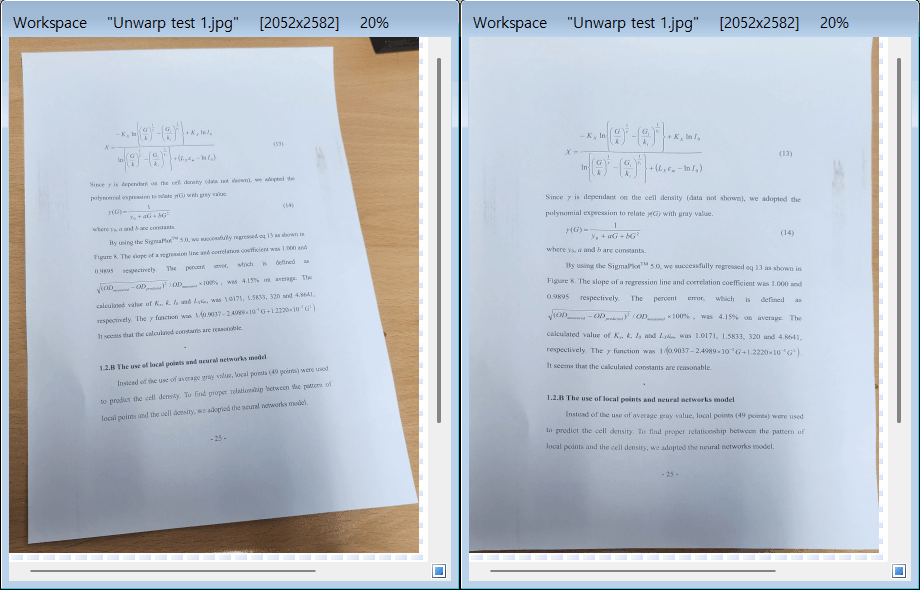 |
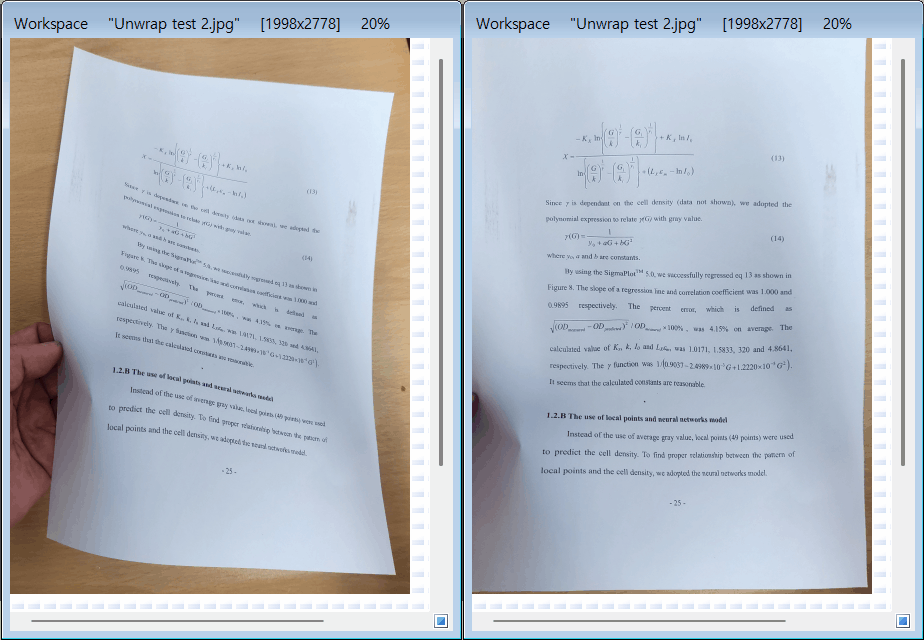 |
💡 Key Features
- State-of-the-Art AI Integration: The tool utilizes a highly specialized AI model designed specifically to recognize document grids and structural warping, allowing it to intelligently “unroll” and flatten the image with remarkable accuracy.
- Smooth Progress Tracking: Advanced AI processing is resource-intensive, but PhenoCapture AI handles it gracefully. A dedicated progress window keeps you updated through every phase—from initializing the AI to applying the final unwarped image—ensuring your workspace remains completely responsive.
- Safe Background Processing: The heavy lifting is done entirely in the background. If you need to stop the operation for any reason, the progress window provides a safe way to abort the process without freezing or crashing the application.
- Detailed Error Handling: In the rare event of an issue (such as a missing AI model file), the system provides clear, readable alerts to help you quickly identify and resolve the problem.
- Seamless Undo Integration: Connected directly to PhenoCapture AI’s built-in undo engine, allowing you to instantly revert to the original, unwarped photo if you want to compare the results or try a different approach.
🛠️ How to Use the Document Unwarping Tool
Step 1: Prepare Your Workspace
Load your warped or curved document photo into the main workspace. Make sure the text and boundaries of the document are as clearly visible as possible for the best AI analysis.
Step 2: Launch the AI Unwarping Tool
Navigate to the menu and click on Document Unwarping.
Step 3: Let the AI Work
A dedicated progress window will immediately appear. The software will first load the AI model into memory and then begin the intensive process of mapping and flattening the document. Because this is handled smoothly in the background, you can simply watch the progress bar advance.
Once the AI finishes computing the geometry and flattening the image, the beautifully corrected document will instantly appear in your workspace. If you wish to see the original curved version again, just use your standard Undo shortcut!