✨ A Complete Guide to rg Chromaticity Conversion
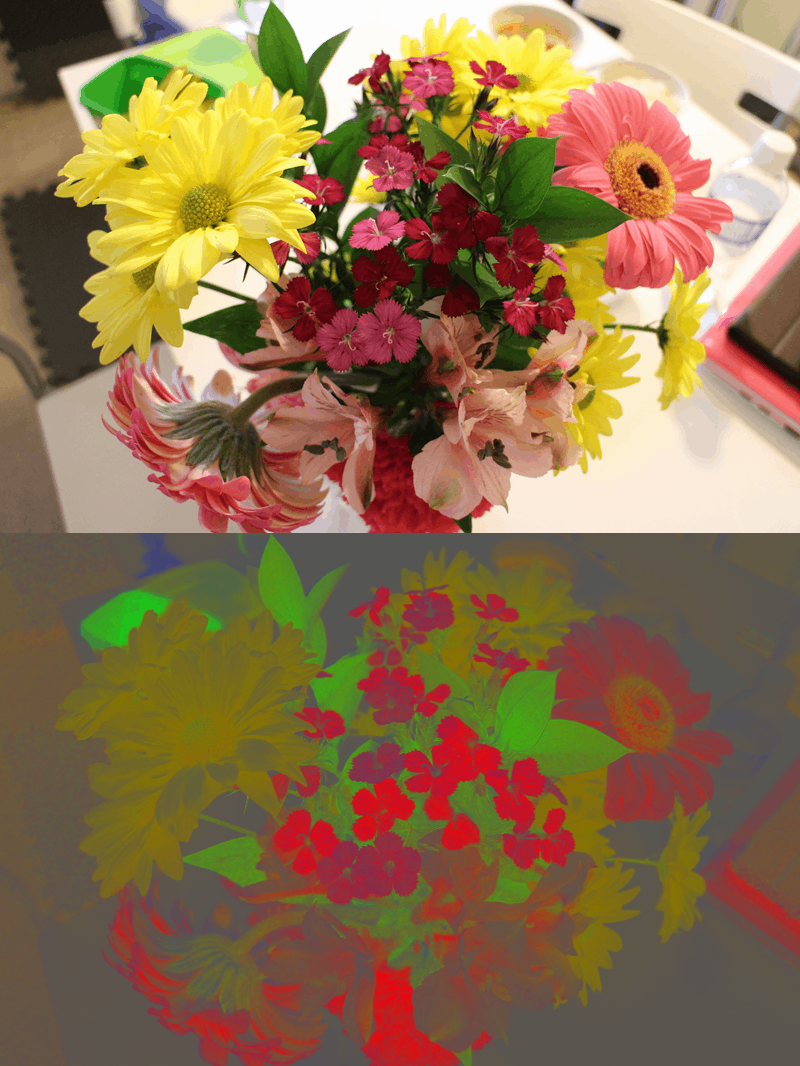
PhenoCapture AI’s rg Chromaticity tool offers a highly optimized algorithm to convert standard RGB images into the normalized rg chromaticity color space. By separating pure color information from luminance (brightness), this tool is incredibly useful for removing the effects of uneven lighting, shadows, and varying illumination in scientific imagery and computer vision tasks.
💡 Key Features
- Advanced Color Normalization: The algorithm precisely converts each pixel using a thread-safe
RGBToGChromaticitycalculation. This normalizes the Red, Green, and Blue channels to represent pure color proportions, effectively stripping away intensity variations and leaving you with true chromaticity data. - Multi-Core Parallel Processing: Mathematical color space conversions can be heavily demanding. This tool utilizes advanced
Parallel.Forloops to distribute the complex pixel-by-pixel calculations across all available CPU cores, ensuring blazing-fast transformations even on high-resolution datasets. - Smart Regional Masking: Need to normalize the lighting on just one specific object? Simply draw a selection boundary! If a mask is active, the algorithm respects the exact boundaries and applies the rg Chromaticity conversion only within your targeted area, leaving the rest of the image completely untouched.
- Smooth UI & Progress Tracking: For exceptionally large files, the parallel engine safely reports its progress in ~10% intervals. This highly optimized tracking prevents the user interface from freezing and ensures a smooth, responsive experience without bottlenecking the conversion speed.
- Seamless Undo Integration: Connected directly to PhenoCapture AI’s Undo Engine. You can instantly test the chromaticity conversion for your lighting analysis, and simply use your Undo shortcut to restore the original RGB data.
🛠️ How to Use the rg Chromaticity Tool
Step 1: Prepare Your Workspace and Mask (Optional)
Load your image into the main workspace. If you only want to normalize the color of a specific area (for example, analyzing a biological sample under uneven lighting), use the advanced selection tools to draw your mask boundary. If no mask is selected, the tool will process the entire image.
Step 2: Apply the Conversion
Navigate to the menu and click Convert to rg Chromaticity.
Step 3: View the Results
The software will instantly utilize your CPU’s multi-threading capabilities to execute the thread-safe color space conversion. Your workspace will immediately update to reflect the normalized rg chromaticity image, free of its original lighting variances. If you need to revert to the standard RGB view, just trigger your standard Undo command!