✨ A Complete Guide to Homogeneity Edge Detection
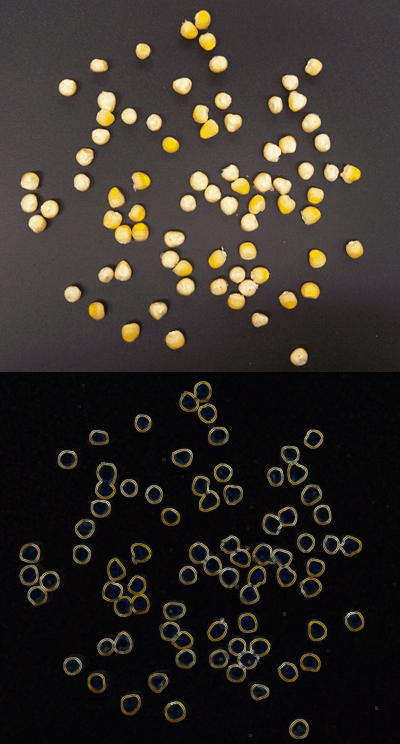
PhenoCapture AI’s Edge Detection by Homogeneity tool provides a unique and highly effective way to identify structural boundaries in your images. Instead of using complex directional matrices, this tool analyzes the immediate 3×3 neighborhood of every pixel. It calculates the maximum absolute color difference between the center pixel and its neighbors, perfectly highlighting areas of high contrast and low homogeneity.
 |
 |
 |
💡 Key Features
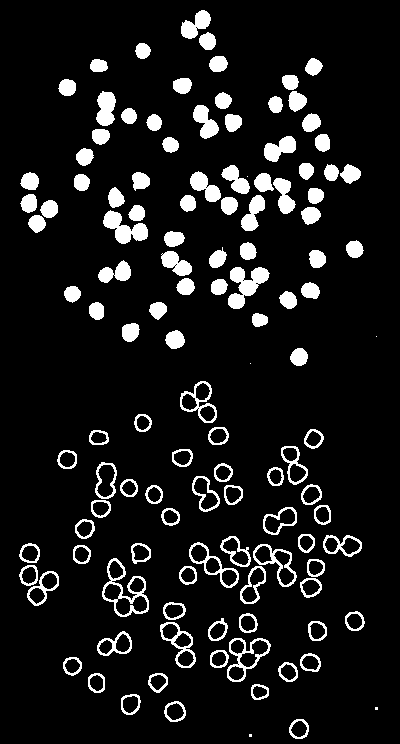
- 3×3 Neighborhood Homogeneity Algorithm: The core engine looks at each pixel and compares it to its 8 surrounding neighbors. It calculates the maximum difference in brightness. Flat, solid areas (high homogeneity) will turn black, while sharp transitions (low homogeneity) will light up as bright edges.
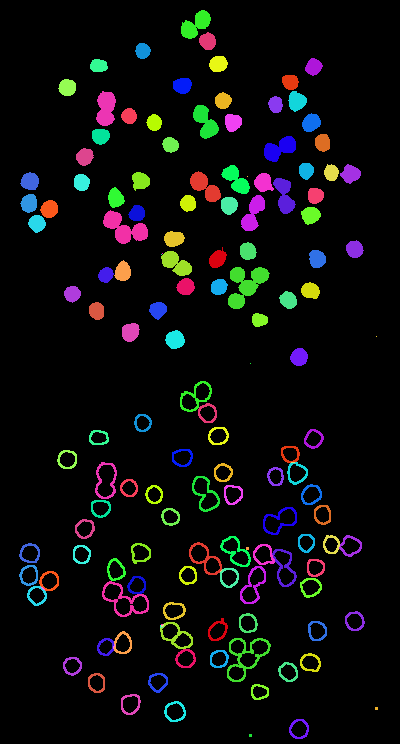
- Independent RGB Edge Mapping: Unlike standard edge detectors that convert the image to grayscale before processing, this tool calculates the homogeneity difference independently for the Red, Green, and Blue channels. This results in a rich, color-coded edge map that retains the original color transition data!
- Multi-Core Parallel Processing: Scanning the neighborhood of every single pixel can be computationally expensive. To ensure real-time performance, the algorithm divides the image into segments and utilizes your CPU’s multi-threading capabilities (
ParallelOptions) to process the 3×3 comparisons simultaneously. - Smart Regional Masking: Only need to find edges in a specific part of your image? Draw a selection boundary! The tool will seamlessly restrict its neighborhood-checking logic to the inside of your mask, ensuring no unnecessary processing happens outside your selected area.
- Seamless Undo Integration: Connected directly to PhenoCapture AI’s built-in undo engine, allowing you to instantly revert the edge detection effect if you wish to return to your original image.
🛠️ How to Use the Homogeneity Edge Detection Tool
Step 1: Prepare Your Image and Mask (Optional)
Ensure your image is loaded into the main workspace. If you only want to extract the edges of a specific object or area, use the advanced selection tools to draw your mask boundary. If no mask is active, the tool will process the entire image.
Step 2: Apply the Filter
Navigate to your menu and click on Edge Detect (Homogeneity).
Step 3: View the Result
The software will instantly crunch the neighborhood contrast calculations in parallel. Watch the progress bar as the image transforms! Once complete, the workspace will display your newly extracted, color-preserved edge map. If you want to compare it to the original, simply use the standard Undo shortcut!