🎨 A Complete Guide to Multi-Step Thresholding
PhenoCapture AI’s Multi-Step Thresholding (often known as posterization) is an excellent tool for simplifying the colors in your image. Whether you want to create a stylized, artistic poster effect or reduce a complex photo into distinct, readable color bands for scientific analysis, this tool gives you absolute control over your image’s color levels.
Here is everything you need to know to beautifully simplify your image colors.
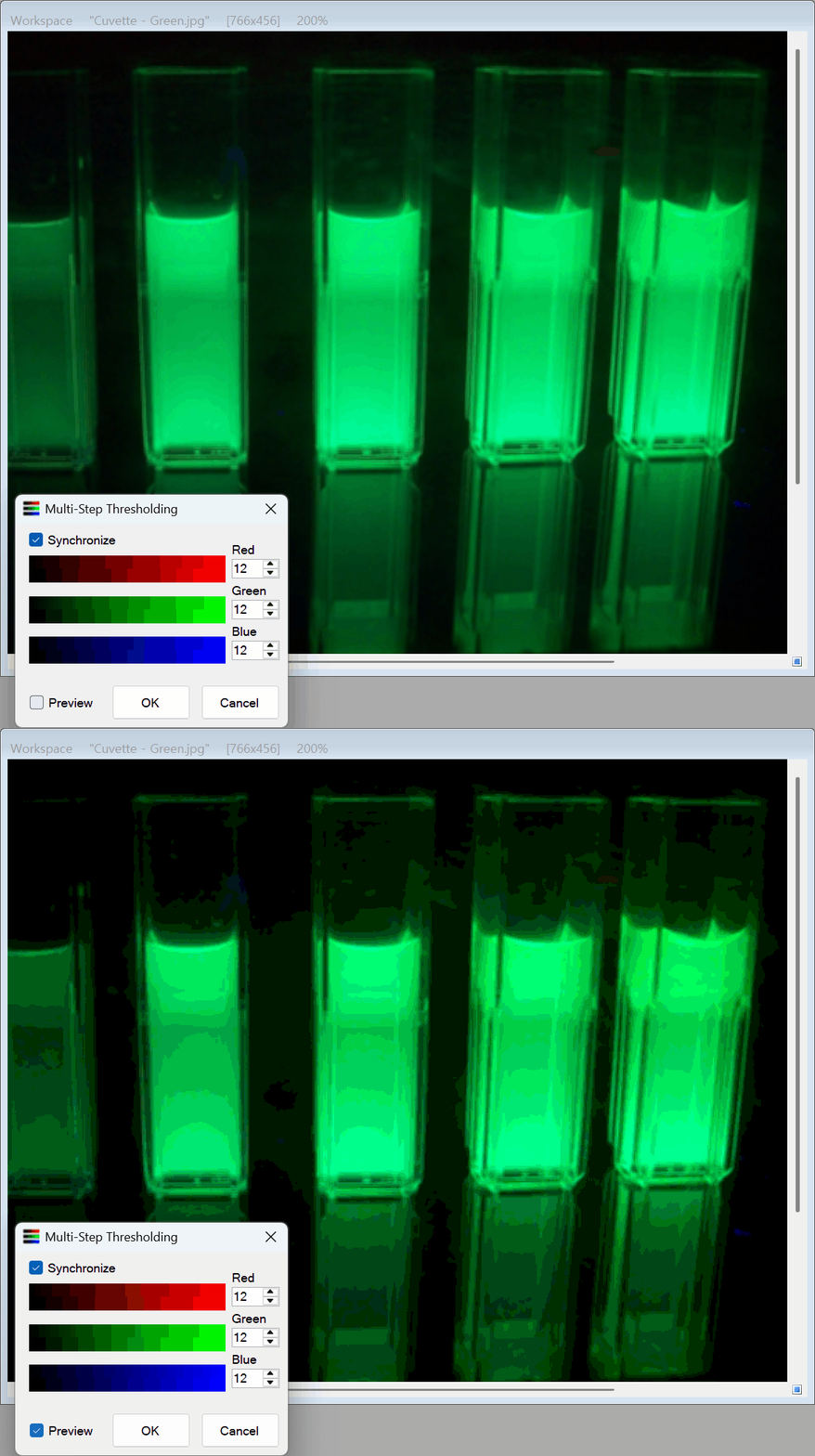
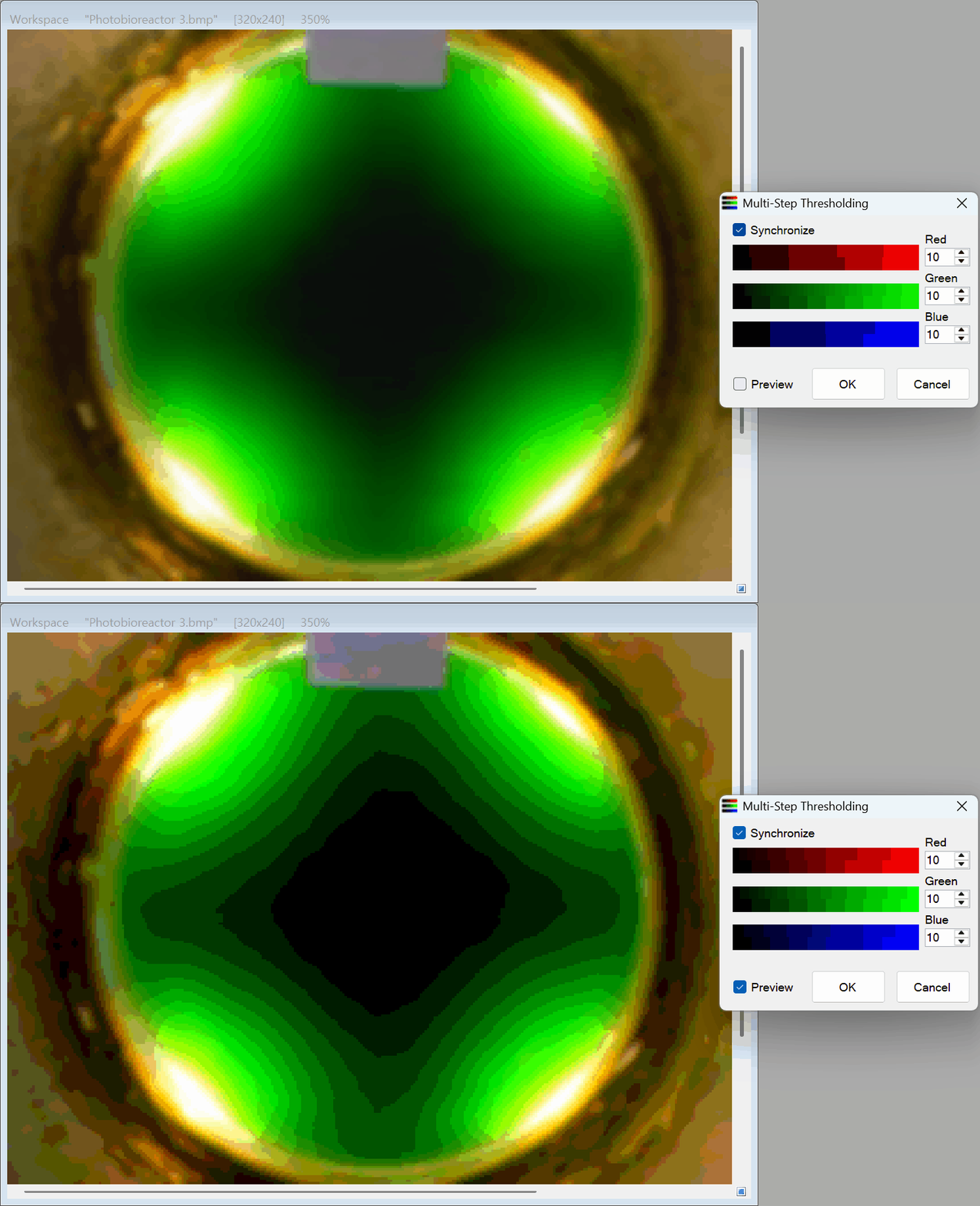
💡 Key Features
- Independent Color Control: You have the freedom to adjust the number of color steps for the Red, Green, and Blue channels individually. You can create unique, highly customized color palettes by mixing different levels for each channel.
- Smart Channel Sync: Don’t want to adjust every color one by one? Simply check the Sync box. When you change the Red channel, the Green and Blue channels will automatically match it, ensuring a perfectly balanced grayscale or uniform color reduction.
- Visual Color Level Boxes: As you adjust the numbers, the color boxes instantly update to show you a visual gradient of exactly how many distinct color bands are being generated for each channel.
- Zero-Lag Real-Time Preview: Watch your image transform instantly! The highly optimized rendering engine guarantees a perfectly smooth preview without any freezing, allowing you to find the perfect artistic or analytical balance.
🛠️ How to Use Multi-Step Thresholding
Reducing your image’s color palette is incredibly easy. Just follow these simple steps:
Step 1: Enable the Preview
When you open the Multi-Step Thresholding tool, make sure the Preview box is checked. This allows you to see the posterization effect happen in real time on your actual image.
Step 2: Choose Your Sync Mode
Decide how you want to adjust your colors:
- Check the Sync Box if you want a balanced, uniform color reduction across the whole image.
- Uncheck the Sync Box if you want to experiment with artistic color shifts by adjusting the Red, Green, and Blue channels independently.
Step 3: Adjust the Color Levels
Use the number boxes to set the amount of color steps (between 1 and 255).
- A lower number (e.g., 3 or 5) creates a dramatic, blocky poster effect with very few colors.
- A higher number (e.g., 50 or 100) creates a much smoother image that looks closer to the original photograph.
Watch the visual color boxes below the numbers to see exactly how your gradient is being divided.
Step 4: Apply the Effect
Once you have found the perfect balance of detail and simplification, simply click OK. The thresholding effect will be instantly applied to your image!
(Tip: If you change your mind, you can always click the Cancel button to safely close the tool without altering your original image.)
With the Multi-Step Thresholding tool, transforming complex photos into striking, simplified artwork or clean analytical data is completely effortless!