🎯 A Complete Guide to the Pixel Counter
PhenoCapture AI’s Pixel Counter is a highly precise analytical tool that allows you to instantly quantify specific colors within your images. Whether you are a scientist measuring the exact area of a fluorescent stain, a designer analyzing color distribution, or simply checking the percentage of a specific hue in a photograph, this tool delivers instant, mathematically accurate results.
Here is everything you need to know about extracting precise color metrics from your images.
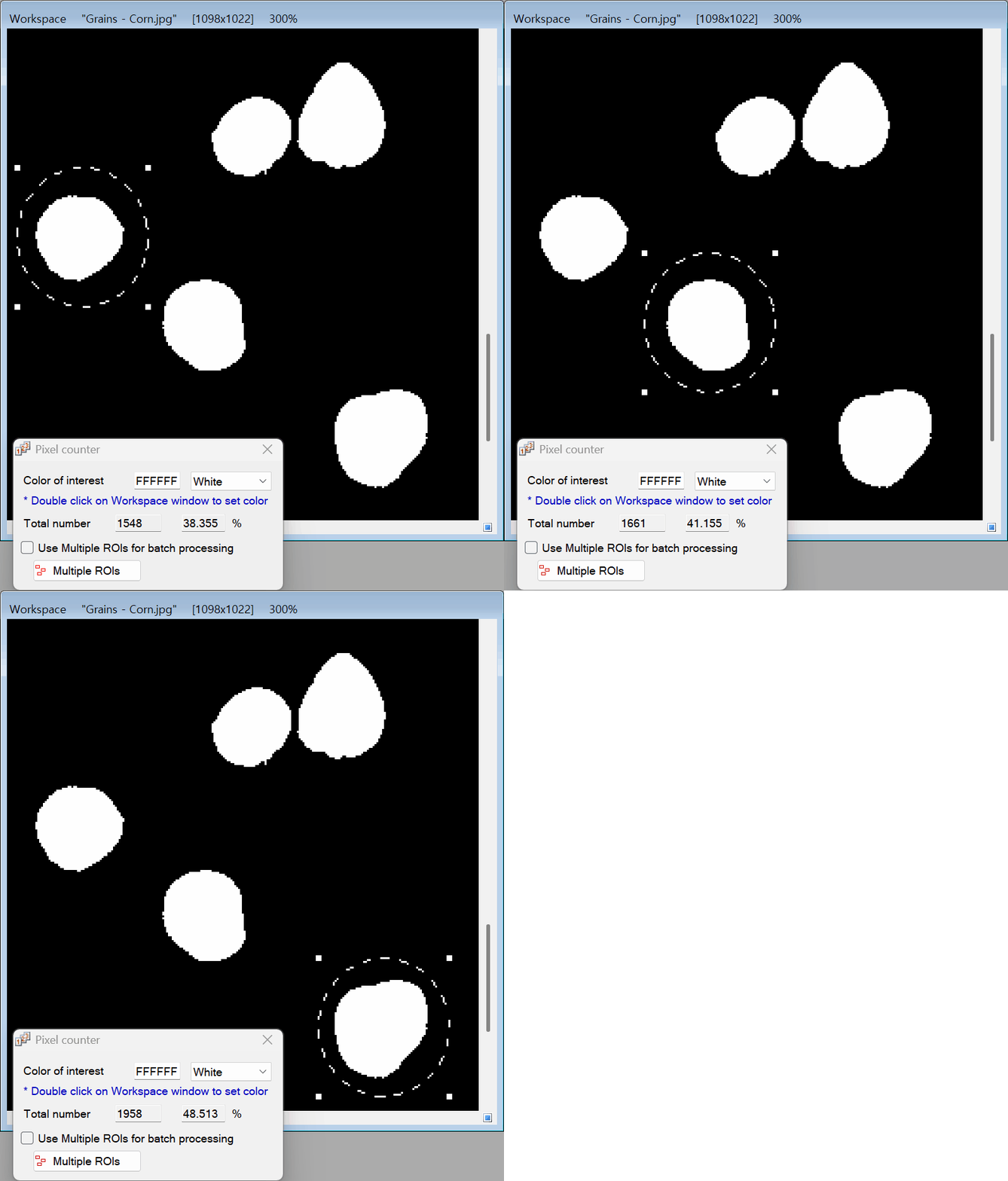
💡 Key Features
- Instant Color Quantification: Automatically count the exact number of pixels that match your target color. The software does the heavy lifting, delivering lightning-fast calculations.
- Automatic Percentage Calculation: You don’t need a calculator! The tool instantly compares your target color against the total pixels in your image (or your selected area) and displays the exact percentage.
- Smart Eyedropper Selection: Choosing your target color is incredibly easy. You can select a quick preset (like Red, Blue, or White) or use the custom eyedropper cursor to pick the exact shade directly from your workspace image.
- Multi-ROI (Region of Interest) Support: Need to measure pixels across several different areas at once? Enable the Multi-ROIs feature to analyze multiple distinct zones simultaneously, saving you massive amounts of time.
🛠️ How to Use the Pixel Counter
Getting precise numerical data from your image colors takes just a few clicks. Follow these simple steps:
Step 1: Define Your Analysis Area (Optional)
If you want to analyze the entire image, you can leave the workspace as it is. If you only want to count pixels within a specific boundary, use any of the selection tools (Rectangle, Circle, or Freehand) to draw a region over your image first.
Step 2: Choose Your Target Color
Open the Pixel Counter tool. You can pick your color in two ways:
- Use a Preset: Click the dropdown menu to instantly select a standard color like Red, Green, Blue, Black, or White.
- Pick from the Image: Move your mouse over your main image (your cursor will change into an eyedropper tool) and click on the exact color you want to count!
Step 3: View Your Results
As soon as you select a color, the tool will instantly process the image. Look at the data panel to see your results:
- Total Pixels: The exact number of pixels matching your chosen color.
- Percentage (%): The proportion of your selected area that is made up of this specific color.
Step 4: Enable Multi-ROIs (Advanced)
If you are analyzing a complex image (like a multi-well plate or a grid), check the Use Multi-ROIs box and click the Multi-ROIs button. This allows you to set up multiple measurement zones and count the pixels for all of them at the same time!
With the Pixel Counter, turning visual colors into highly accurate, publishable data is completely effortless!