✨ A Complete Guide to the Region Coloring Tools
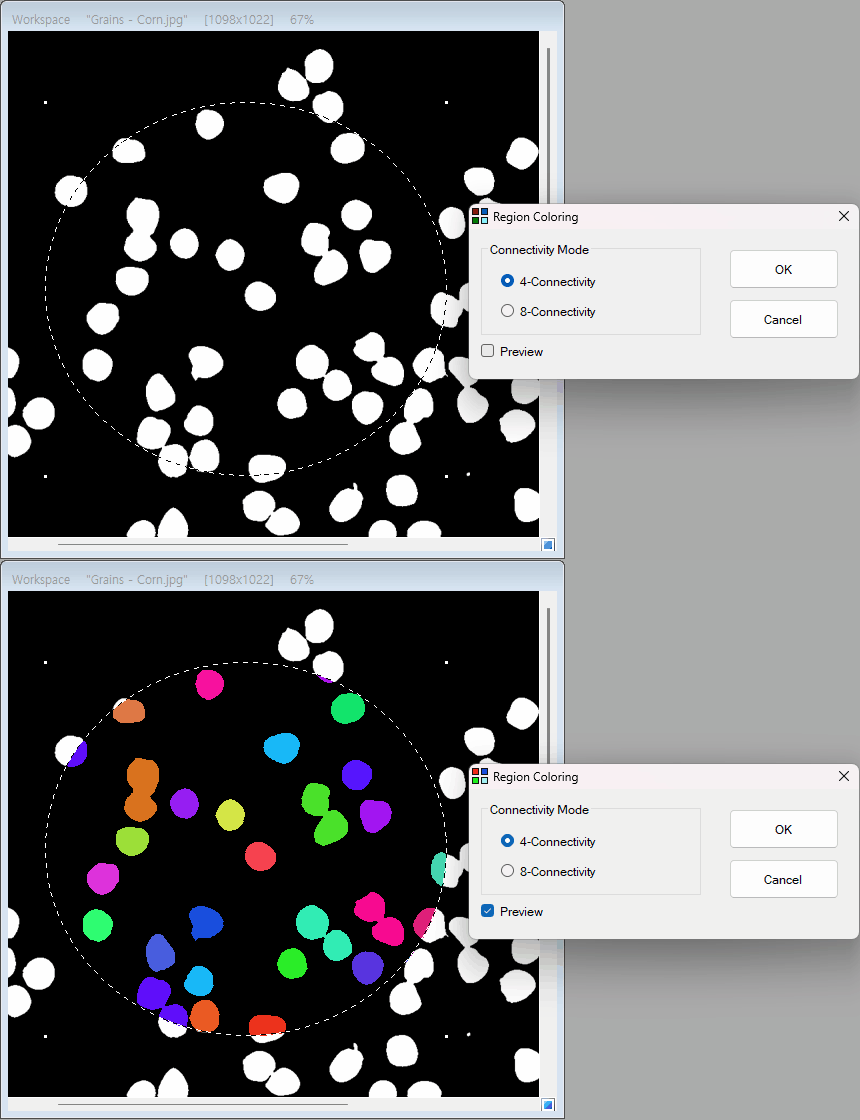
PhenoCapture AI’s Region Coloring (also known as Blob Coloring or Connected Component Labeling) tools are designed to automatically detect, isolate, and uniquely color distinct objects or blobs within your image. By analyzing the connectivity of neighboring pixels, the software maps out individual structures and assigns each one a highly distinguishable color. This is an essential feature for object counting, segmentation, and preparing images for particle analysis.
You can choose between two specialized tracking algorithms—4-Connectivity and 8-Connectivity—depending on the topology of your specific image dataset.
💡 Key Features
- Advanced Breadth-First Search (BFS) Engine: Under the hood, the tool utilizes a blazing-fast, array-based queue to perform a Breadth-First Search. This allows it to rapidly flood-fill and map out massive, complex blobs without the risk of stack overflow errors.
- 4-Connectivity vs. 8-Connectivity:
- 4-Connectivity: Only evaluates pixels directly adjacent (Top, Bottom, Left, Right). This is perfect for strictly defined grids where diagonally touching pixels should be considered separate objects.
- 8-Connectivity: Evaluates all adjacent pixels, including the four diagonals. This is ideal for natural, organic shapes where a continuous blob might have slightly jagged or diagonally connected edges.
- Golden Ratio Color Assignment: To ensure every single blob is visually distinct, the tool uses an intelligent HSV (Hue, Saturation, Value) generation algorithm based on the Golden Ratio (0.618). This mathematically guarantees that consecutive blobs receive highly contrasting, beautiful colors!
- Smart Background & Boundary Ignore: The algorithm is hard-coded to recognize and ignore pure black backgrounds (R=0, G=0, B=0) and specific boundary wall colors. This ensures that only your actual objects of interest are colored.
- Precision Regional Masking: Want to color objects in only one specific quadrant? Draw a selection boundary! The BFS engine is hyper-optimized to restrict its search strictly within your bounding box. The unmasked areas are seamlessly restored to their original pixels, leaving the rest of your image completely untouched.
- Seamless Undo Integration: Connected directly to PhenoCapture AI’s built-in undo engine, allowing you to quickly test both the 4-connected and 8-connected algorithms and instantly revert if needed.
🛠️ How to Use the Region Coloring Tools
Step 1: Prepare Your Image
For this tool to work effectively, your image does not necessarily need to be strictly binary. Because the tool runs a simple internal binarization algorithm first, it can extract and color regions directly from a color image. However, for the most accurate and precise results, we highly recommend converting your image to a binary format beforehand using our high-performance binarization tools: Manual Binarization, Adaptive Binarization, Binarization and Segmentation, or Custom Binarization. Pure black will be treated as the background.
Step 2: Draw a Selection Mask (Optional)
If you only want to detect and color blobs within a specific area, use the advanced selection tools to draw a boundary. If no mask is active, the tool will analyze the entire workspace.
Step 3: Choose Your Connectivity Algorithm
Navigate to the menu and select the tool that best fits your object topology:
- Click Region Coloring (4-Connectivity) if you want to strictly separate objects that only touch at their diagonal corners.
- Click Region Coloring (8-Connectivity) if you want to group diagonally touching pixels together as a single, continuous object.
Step 4: Let the Engine Work
The software will rapidly map every connected component and assign brilliant, unique colors to each distinct blob. Once complete, your newly mapped image will appear in the workspace! If you want to try the other connectivity mode, simply use the standard Undo shortcut and re-apply.