🖼️ A Complete Guide to Rolling Ball Background Subtraction
PhenoCapture AI’s Rolling Ball Background Subtraction is an incredibly powerful tool for fixing photos with uneven lighting or heavy shadows. Whether you are digitizing a document that looks too dark on one side or trying to balance the background of an everyday photograph, this feature cleans up the image and makes your subject stand out perfectly.
Here is everything you need to know about using this feature to enhance your images.
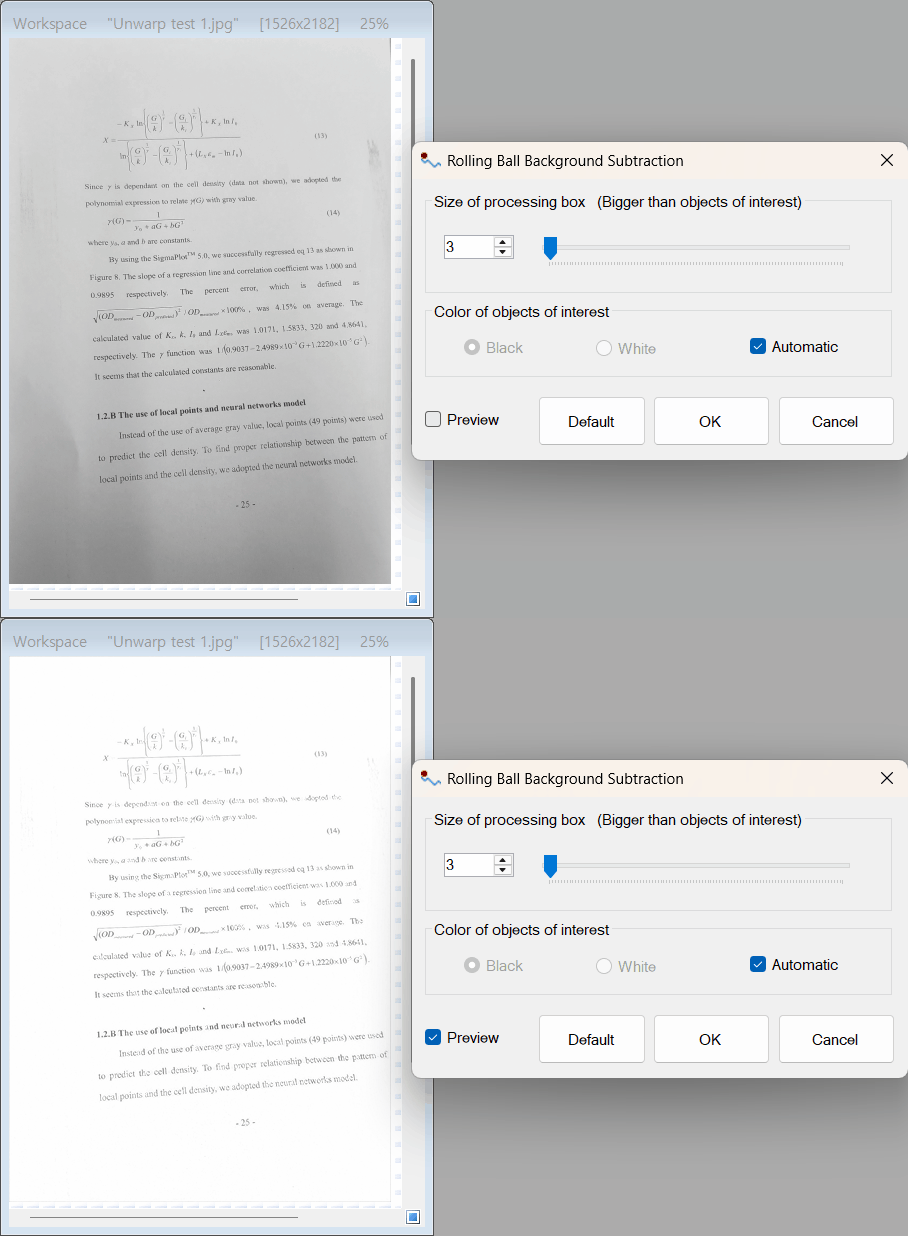
💡 Key Features
- Smart Automatic Detection: The tool can automatically analyze the image to determine whether your main subject is lighter or darker than the background, saving you time and effort.
- Adjustable Box Size: You have full control over the area analyzed by the tool. By adjusting the Box Size, you can perfectly tailor the correction to the specific details of your image.
- Real-Time Preview: Instantly see how your adjustments affect the image. The highly optimized real-time preview ensures you get the perfect result without any guesswork or lag.
- Manual Override Options: For tricky lighting situations, you can manually specify whether the object you want to keep is white (light) or black (dark) against the background.
🛠️ How to Use Background Subtraction
Fixing uneven backgrounds is quick and straightforward. Just follow these simple steps:
Step 1: Enable the Tool and Check the Preview
Open the Background Subtraction tool. Make sure the Preview box is checked so you can see your changes happen in real time on your main image.
Step 2: Choose Your Detection Mode
By default, the Automatic option is checked. This allows PhenoCapture AI to intelligently decide the best way to separate your subject from the background. If you prefer manual control, simply uncheck the Automatic box and choose either Object White (if your subject is lighter than the background) or Object Black (if your subject is darker).
Step 3: Adjust the Box Size
Use the Box Size slider to control the intensity and scale of the background subtraction.
- A smaller box size is great for fine text, scanned documents, or small details.
- A larger box size works better for larger subjects or more gradual lighting changes.
Slowly adjust the slider until your background looks clean and beautifully even.
Step 4: Apply the Changes
Once the preview looks exactly the way you want it, simply click OK. The uneven shadows and lighting will be instantly removed, leaving you with a crisp, professionally balanced image!
(Tip: If you ever want to start over, just click the Default button to reset all settings to their original state.)
By leveraging the Rolling Ball Background Subtraction feature, turning a badly lit photo or a shadowed scan into a clean, high-quality image takes only a few seconds!