📜 A Complete Guide to the Script Runner
PhenoCapture AI’s Script Runner is a powerful automation tool that lets you take full control of your image editing workflow. Whether you want to automate a repetitive task, apply custom batch edits, or create entirely new features, this built-in code editor allows you to write and execute scripts directly within the application using popular programming languages.
Here is everything you need to know to start automating your workflow.
💡 Key Features
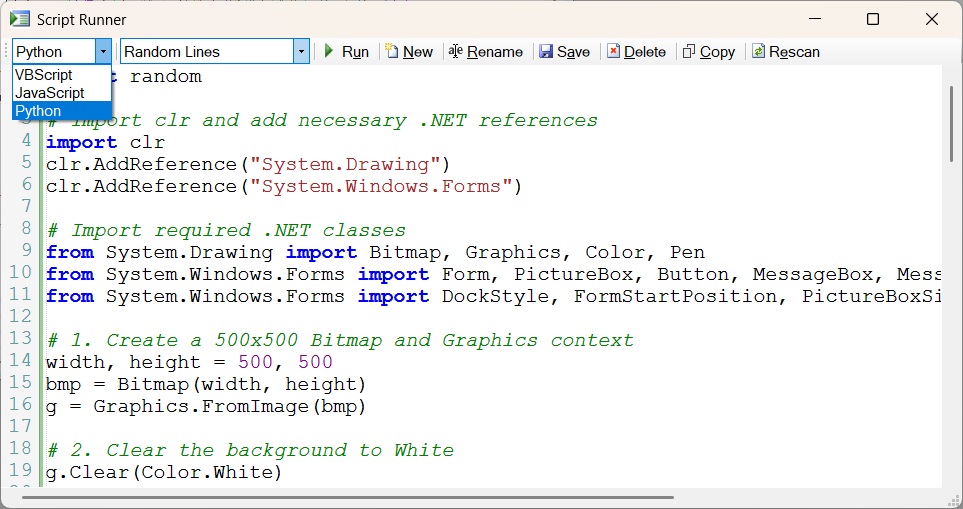
- Multi-Language Support: Write your scripts in the language you are most comfortable with! The tool fully supports Python, JavaScript, and VBScript, automatically adjusting its settings and syntax rules to match your choice.
- Advanced Code Editor: The built-in editor offers a premium coding experience complete with automatic syntax highlighting, line numbers, code folding, and auto-indentation, making it easy to read, write, and organize complex scripts.
- Safe & Interruptible Execution: Scripts run smoothly in the background without freezing the main application. If a script takes too long or you want to cancel an operation, you can instantly halt it using the Stop button.
- Smart Error Tracking: If your code hits a snag, the Script Runner doesn’t just tell you there was an error—it automatically jumps to and highlights the exact line of code where the problem occurred, saving you hours of troubleshooting.
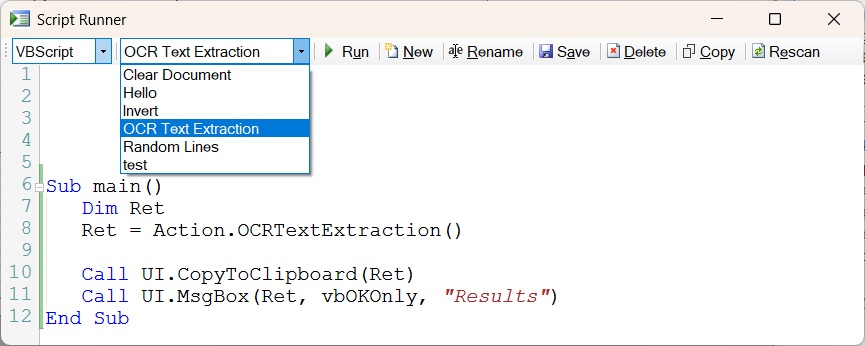
- Seamless Script Management: Create, rename, save, and delete your scripts directly from the interface. Your custom scripts are neatly organized in your library and always ready to be applied to your images.
🛠️ How to Use the Script Runner
Automating your tasks is highly intuitive. Just follow these simple steps:
Step 1: Choose Your Language
Open the Script Runner and use the dropdown menu to select your preferred programming language. The editor will instantly adapt its colors and syntax highlighting to match your choice perfectly.
Step 2: Write or Load a Script
Click the New button to start a fresh script, or select an existing one from the programs list. You can write your code directly in the spacious editor. Standard keyboard shortcuts like Ctrl+S are fully supported for quick and easy saving!
Step 3: Run Your Code
Once your script is ready, click the Run button. Your code will execute immediately, interacting directly with your current image or selection. If you need to cancel the operation mid-way, simply click Stop.
Step 4: Manage Your Library
Keep your workspace tidy by using the built-in management buttons to Rename, Save, or Delete your scripts as your project evolves. You can also click the Copy button to quickly copy your entire code to the clipboard for sharing or external backup.
📚 Dive Deeper: The Scripting API
Now that you know how to operate the Script Runner interface, it’s time to write some powerful code! PhenoCapture AI provides a comprehensive built-in API that lets you manipulate pixels, control UI elements, and automate complex tasks.
To learn about the available commands, classes (like Region, Action, ImgProc, and UI), and to see practical code examples, please check out our detailed API companion guide:
👉 A Complete Guide to the PhenoCapture AI Scripting API
With the Script Runner and our powerful Scripting API, you can easily turn complex, repetitive editing steps into a single click, unlocking limitless possibilities and saving you valuable time!