🎭 A Complete Guide to Split Toning
PhenoCapture AI’s Split Toning tool is an ultra-fast cinematic color grading and pseudo-color enhancement filter that lets you tint dark shadows and bright highlights with two independent color hues. Whether you are crafting the iconic Hollywood “Teal & Orange” look on photographs or applying high-contrast false-color toning to monochrome scientific specimens, our 256-entry luminance LUT engine delivers instantaneous, zero-lag results.
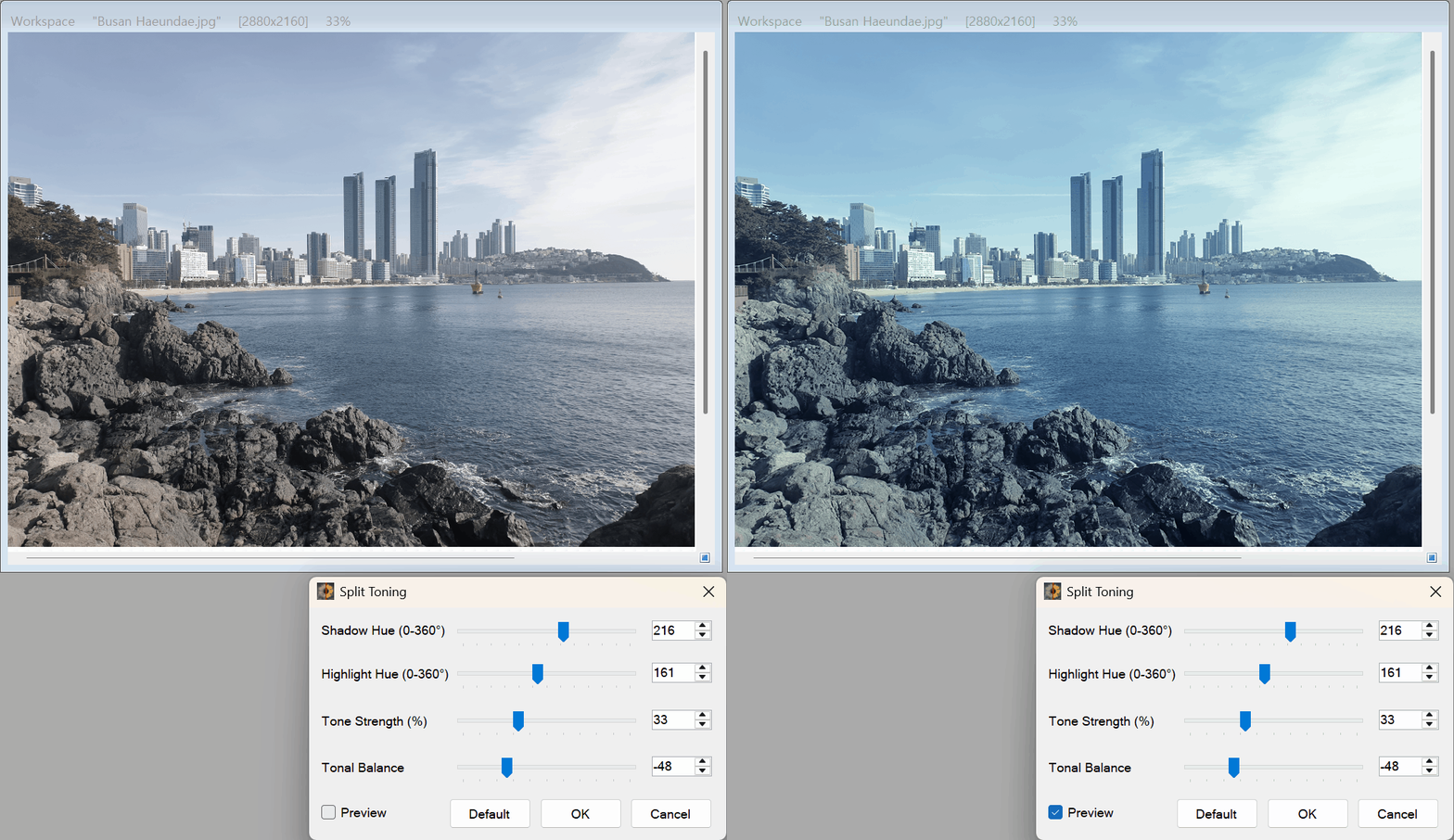
Here is everything you need to know about using Split Toning to transform the mood and visual contrast of your images.
💡 Key Features
- Independent Shadow & Highlight Color Wheels: Select any hue from 0° to 360° separately for your darks and brights—such as cooling down shadows with deep cyan-blue (210°) while warming up highlights with golden amber (35°).
- Luminance-Preserving Color Shift: Uses zero-sum chromatic vectors and a sine envelope so that tinting your midtones, shadows, and highlights never blows out pure whites or crushes pure blacks.
- Adjustable Tonal Crossover: Use the Tonal Balance slider to shift the dividing line between shadow and highlight colors toward either end of the histogram.
- Sub-Millisecond LUT Speed: Powered by a pre-computed 256-entry lookup table, real-time viewport previews update instantaneously even on ultra-high-resolution images.
- Smart Regional Masking & One-Click Default: Apply split toning selectively to masked regions or click Default anytime to restore the classic Teal & Orange preset.
🛠️ How to Use Split Toning
Grading your images with dual-tone color harmony takes just a few simple steps:
Step 1: Select Your Target Area (Optional)
Use any selection tool if you want to restrict the color grading to a specific subject or background area. Otherwise, the entire image will be graded.
Step 2: Enable the Live Preview
Open the Split Toning tool and verify that the Preview checkbox is ticked.
Step 3: Dial in Your Dual-Tone Palette
- Shadow Hue (0° to 360°): Sets the color tint applied to darker luminance regions (e.g., 0° = Red, 120° = Green, 210° = Teal/Blue, 270° = Violet).
- Highlight Hue (0° to 360°): Sets the color tint applied to brighter luminance regions (e.g., 35° = Golden Amber, 60° = Warm Yellow).
- Tone Strength (0% to 100%): Controls the overall saturation and intensity of both color tints.
- Tonal Balance (-100 to 100): Shifts the dominance between the two hues. Negative values expand the shadow color into the midtones, while positive values expand the highlight color.
(Tip: Click the Default button at any time to jump straight to the balanced 210° Teal / 35° Amber cinema preset!)
Step 4: Apply Your Changes
Click OK to commit the final color-graded image to your workspace.
With the Split Toning tool, achieving professional cinema color grading and high-visibility tonal separation is faster and easier than ever!