🗺️ A Complete Guide to Exporting Depth Maps to 3D STL
PhenoCapture AI’s Export Depth Map to 3D STL tool allows you to transform your standard 2D images into rich, topographical 3D models. This feature works hand-in-hand with our AI Depth Estimation tool. Powered by advanced AI depth analysis, this feature intelligently interprets your image and generates an industry-standard STL file that is ready for 3D rendering or 3D printing.
Here is everything you need to know to start generating 3D models from your workspace.
 |
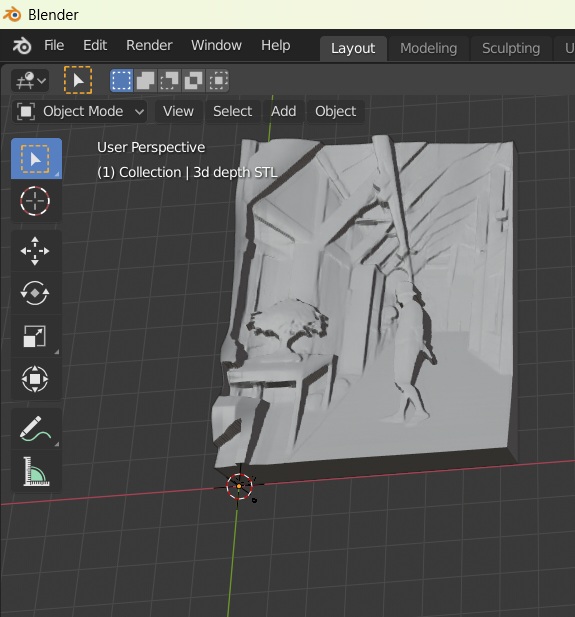 |
💡 Key Features
- AI-Powered Depth Estimation: Utilizing the AI Depth Estimation module’s integrated ONNX AI model (Depth Anything V2), the software automatically interprets the visual depth of your 2D image without requiring manual elevation mapping.
- Smart Regional Processing: Just like our other analytical tools, this feature fully supports regional selections. If you draw a shape on your workspace, the tool will smartly apply your mask and only calculate the depth map for your specific area of interest.
- Pre-Optimized Extrusion: The tool automatically configures the best physical parameters for your model, establishing a solid base thickness and a dynamic depth scale so your generated file has immediate structural integrity.
- Universal 3D Compatibility: Your results are directly saved as standard .stl files, making them instantly compatible with almost all modern 3D slicing software and CAD applications.
🛠️ How to Export your Image to 3D
Transforming your active image into a 3D model takes just a few clicks:
Step 1: Prepare Your Image
Ensure you have an image actively loaded into your main workspace. (Note: The tool will alert you if no image is present to export.)
Step 2: Define Your Region (Optional)
If you only want to convert a specific portion of your image into 3D, use the selection tools to draw a boundary around your target area. The export engine will automatically respect this mask.
Step 3: Initiate the Export
Navigate to the menu and click Export Depth Map to 3D STL.
Step 4: Save Your File
A standard save window will appear. Choose your desired folder destination on your computer, type in a name for your new 3D model, and click Save.
Step 5: AI Processing
Once you click save, your cursor will change to a loading icon while the AI engine processes the visual depth data. Because this utilizes advanced neural networks, it may take a few moments depending on your computer’s performance and the size of the image.
Once processing is complete, a prompt will appear confirming that The 3D STL file has been successfully exported. Your new file is now ready to be opened in your favorite 3D viewer!