✨ A Complete Guide to the Auto White Balance Tool
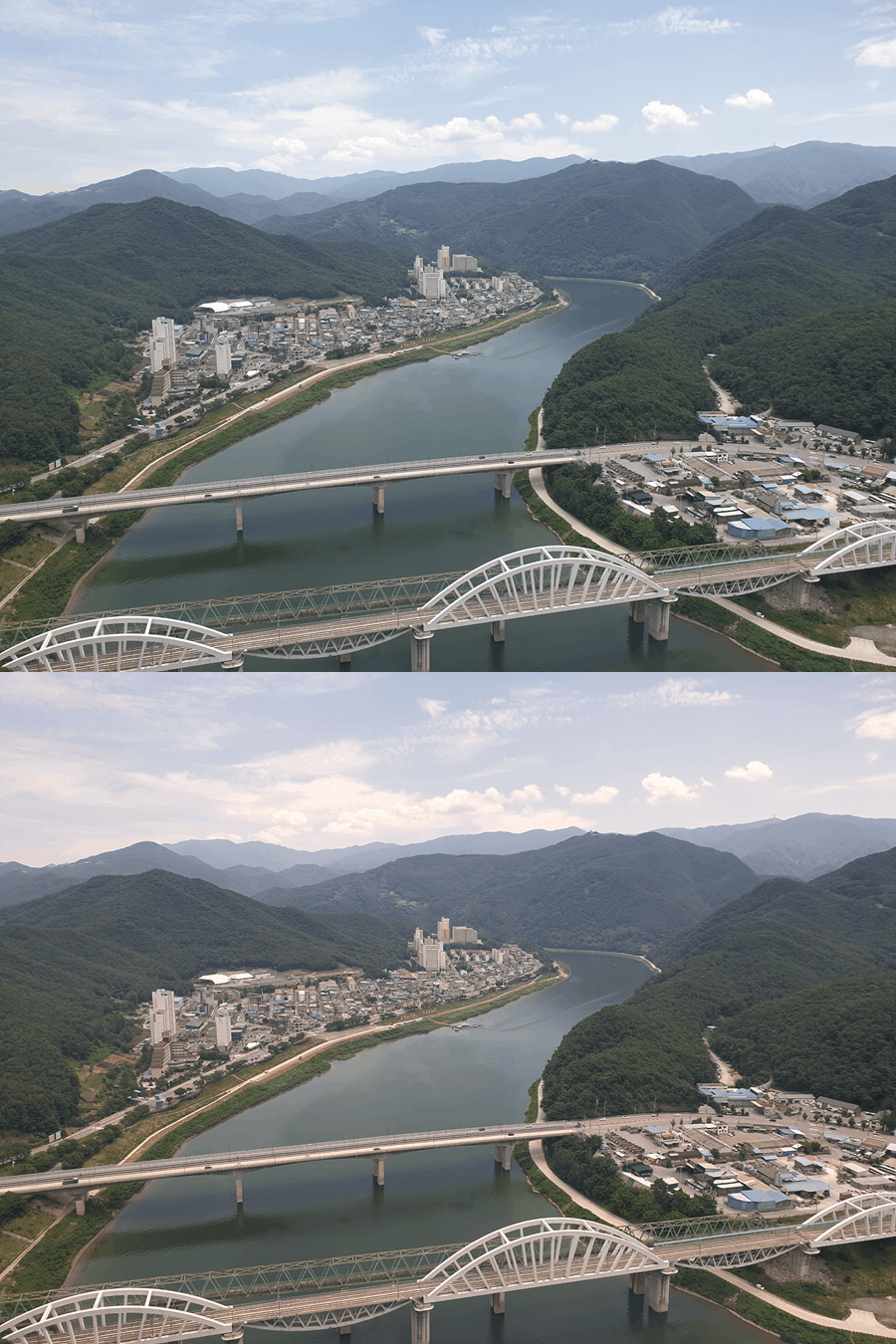
PhenoCapture AI’s Auto White Balance tool is an intelligent feature designed to instantly correct unnatural color casts and temperature issues in your images. Utilizing the widely respected “Gray World” hypothesis, the algorithm analyzes the overall color distribution and independently adjusts the Red, Green, and Blue channels so that the average color of the scene balances out to a neutral gray.
💡 Key Features
- Gray World Algorithm: The tool works on the assumption that in a well-balanced photo, the average of all colors should be neutral gray. It analyzes the average brightness of the Red, Green, and Blue channels independently, and calculates a global neutral target (
avgGray). - Independent RGB Scaling: Once the target is found, the algorithm generates highly optimized, independent Look-Up Tables (LUTs) for each color channel. It applies unique scaling factors to R, G, and B separately to perfectly align them with the neutral target, instantly neutralizing unwanted warm (yellow/red) or cool (blue) color casts.
- Smart Regional Masking: Need to correct the white balance based on a specific neutral reference object (like a gray card or white background)? Draw a selection boundary! If a mask is active, the algorithm will calculate the Gray World target only using the pixels inside that mask, applying the perfect white balance correction based on your chosen reference point.
- Multi-Core Parallel Processing: Built for incredible speed. The tool leverages advanced parallel processing (TPL) to distribute the pixel-by-pixel color correction across your computer’s CPU cores, ensuring blazing-fast execution even on massive, high-resolution scientific images.
- Smooth Progress Tracking: For larger files, the engine intelligently reports its progress in ~10% intervals. This prevents UI freezing and keeps your workspace responsive while the algorithm crunches the data in the background.
- Seamless Undo Integration: Fully integrated with PhenoCapture AI’s built-in undo engine. You can safely test the Auto White Balance adjustment and instantly revert to the original state if needed!
🛠️ How to Use the Auto White Balance Tool
Step 1: Prepare Your Image and Mask (Optional)
Ensure your image is loaded into the main workspace. If you want the algorithm to balance the colors based on a specific area (such as a known white or gray background object), use the advanced selection tools to draw your mask boundary around it. Otherwise, the tool will analyze the entire image.
Step 2: Apply Auto White Balance
Navigate to the menu and click on Auto White Balance.
Step 3: Let the Engine Work
The software will instantly calculate the independent RGB averages, generate the scaling factors, and parallel-process the color correction across your image. You can monitor the progress bar for larger files. Once complete, your beautifully color-corrected image will appear in the workspace immediately. If you wish to compare it with the original, just use your standard Undo shortcut!