Effortless Color Swapping in PhenoCapture AI
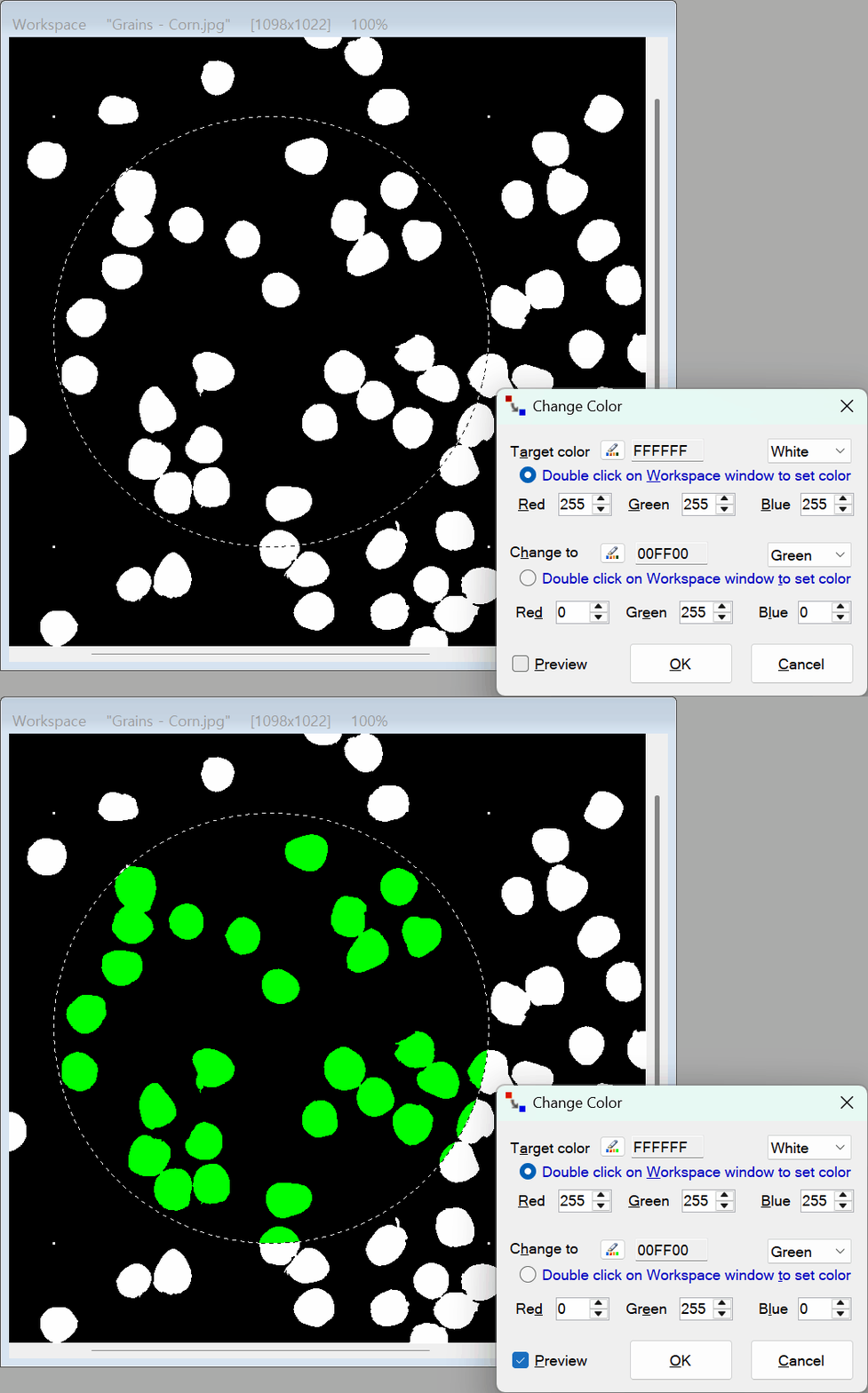
Whether you need to change the color of a specific object in a photograph, update the branding colors of a logo, or modify a background, PhenoCapture AI’s Change Color tool makes it incredibly straightforward. You do not need to be a professional designer to make precise, targeted color replacements.
Backed by a high-speed, real-time preview engine, this tool allows you to swap out colors instantly and accurately, seeing the results immediately as you tweak your settings.
💡 Key Features
- Targeted Color Replacement: Easily pick an exact color currently in your image (the Source) and define exactly what it should become (the Target).
- Multiple Selection Methods: PhenoCapture AI gives you complete flexibility in how you pick your colors. You can use standard RGB values, direct Hex codes, quick presets (like Black, White, Red, Green, or Blue), or visually select them using the built-in Color Picker dialog.
- Ultra-Fast Real-Time Preview: Just like other adjustments in PhenoCapture AI, the Change Color tool uses an optimized parallel processing engine. This means your color swaps are previewed on your image without any lag, even on large files.
- Selective Editing: If you only want to change the color of a specific object (for example, a red shirt, but not a red car in the same background), simply make a selection on the canvas first. The color change will only apply inside that specific boundary.
🛠️ How to Change Colors
Swapping colors is a quick, intuitive process:
Step 1: Select the Original Color
In the settings window, locate the first color section (the color you want to replace). You can manually enter the RGB or Hex values, choose a common color from the preset dropdown, or click the Color Picker button to visually select the exact shade you want to change.
Step 2: Choose the New Color
Next, go to the second color section (the color you want it to become). Just like in the first step, use the RGB inputs, Hex code, preset dropdown, or Color Picker to define your brand new color.
Step 3: Preview and Apply
Make sure the Preview checkbox is enabled so you can see the color swap happening in real-time on your main workspace. Once the new color looks perfectly integrated into your image or design, click the [OK] button to finalize the transformation.
With PhenoCapture AI’s Change Color tool, recoloring graphics, fixing inconsistent product photos, and experimenting with new design palettes is faster and easier than ever!