Seamless Background Replacement with Chroma Key
Replacing backgrounds is no longer just for video editing or Hollywood blockbusters. With PhenoCapture AI’s Chroma Key tool, anyone can easily remove a solid background color—like a traditional green or blue screen—and seamlessly blend their subject into a completely new scene, or export the isolated cutout with a 100% transparent background.
Whether you are creating marketing materials, designing a composite photo, or simply having fun placing yourself in different locations, this tool provides professional-level compositing with an incredibly simple interface.
💡 Key Features
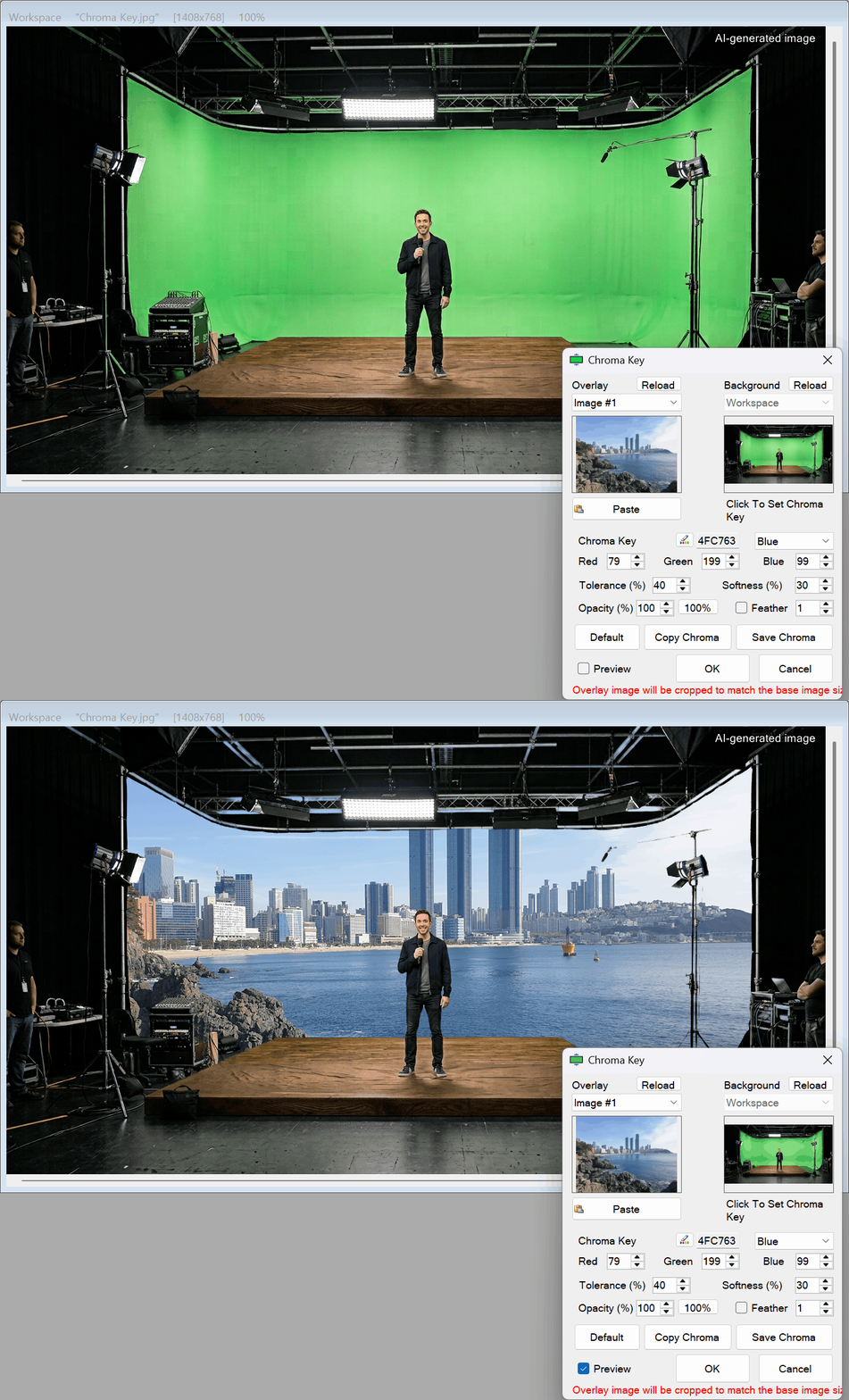
- Intuitive Color Picking: You don’t have to guess the exact shade of your background. Simply click directly on the color you want to remove right inside the image preview. You can also use quick presets (like Green or Blue) or enter specific RGB and Hex codes.
- Precise Tolerance & Softness Control: Fine-tune how aggressively the background color is removed. Adjust Tolerance to control the purity threshold of the keyed color, and use Softness to create a smooth transparency roll-off along color transitions—complete with automatic color despill on semi-transparent edges.
- Smooth Edge Feathering: A common issue with background removal is harsh, jagged edges. PhenoCapture AI includes a built-in distance-based Feathering option that softens the physical borders of your subject, ensuring they blend naturally into their new environment.
- Adjustable Opacity: Control the overall transparency of your foreground subject. This is perfect for creating creative double-exposure effects, ghosting, or subtle watermarks.
- One-Click Default Reset: Experimenting with different settings is completely risk-free. Click the [Default] button at any time to instantly restore Tolerance, Softness, Opacity, and Feathering back to their optimal factory values.
- Flexible Image Sources: Getting your images into the tool is effortless. You can drag and drop files from your computer, paste them directly from your clipboard, or select images already loaded in your workspace.
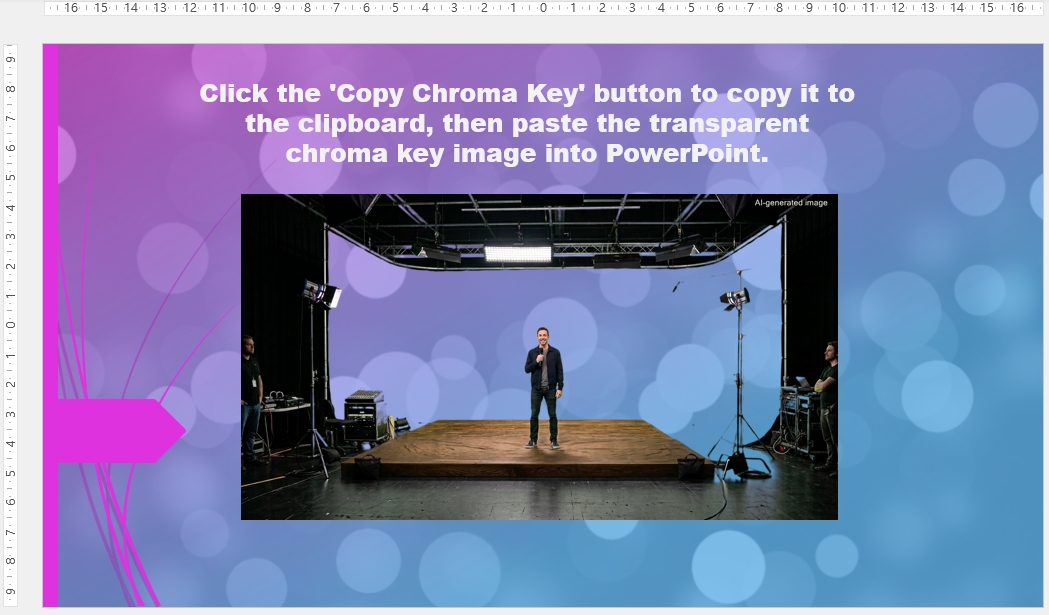
- Transparent Clipboard Export: Need just the cutout without a new background? Use the [Copy Chroma] button to send your subject with a fully transparent background directly to your clipboard. This is perfect for seamlessly pasting into presentations like PowerPoint or Word documents.
- Save as Transparent Image File: Click the [Save Chroma] button to export your background-removed cutout directly to your local drive as a high-quality, 32-bit transparent PNG or GIF file. The tool automatically suggests an organized filename and remembers your last saved directory for fast batch workflows.
- Live, High-Speed Preview: Thanks to the optimized parallel rendering engine, every adjustment you make to the color, tolerance, softness, feathering, or opacity is updated instantly on your screen, allowing you to fine-tune the perfect cutout in real-time.
🛠️ How to Use the Chroma Key Tool
Creating a perfect composite image takes just a few quick steps:
Step 1: Load Your Images
Open the Chroma Key tool and define your two layers. Select your overlay (the foreground subject with the solid background) and your base (the new background scene). You can easily drag and drop your image files directly into the preview boxes.
Step 2: Pick the Color to Remove
Identify the color you want to make transparent. The easiest way is to just click on that color directly within the image preview box. Alternatively, you can select a standard color from the preset dropdown menu.
Step 3: Refine Color Range, Edges, and Opacity
Fine-tune your cutout using the precision controls for a seamless composite:
- Tolerance & Softness: The default settings (Tolerance: 40, Softness: 30) work great for most standard green or blue screens. Lower the Tolerance to remove a wider range of uneven background shades, or increase it to protect foreground colors. Adjust Softness to smooth out the transparency transition between the background color and your subject.
- Feathering & Opacity: Check the Feather option and slightly increase the radius to soften the outer boundary where the two images meet. If you want the foreground subject to be slightly see-through, lower the Opacity value.
- Quick Reset: If you ever want to start fresh after testing different combinations, simply click the [Default] button to restore the recommended baseline parameters.
Step 4: Preview and Apply
Make sure the Preview checkbox is ticked so you can see the two images combined on your main canvas. Once you are happy with how the subject blends into the new background, click the [OK] button to finalize your composition.
Alternative: Copy or Save with a Transparent Background
Sometimes you don’t want to merge the subject with a new background inside the software—you simply want the isolated transparent cutout:
- Copy to Clipboard: Click the [Copy Chroma] (or [Copy Chroma Key]) button to instantly process the image and copy it with its 32-bit transparent background directly to your clipboard, allowing you to easily paste it into applications like PowerPoint, Word, or Adobe Photoshop.
- Save to File: Click the [Save Chroma] button to export the transparent cutout directly to your computer as a PNG or GIF file. PhenoCapture AI automatically detects your source image’s filename to suggest a clean default name (e.g., [YourFilename]_ChromaKey.png) and remembers your last-used folder so you can save multiple cutouts effortlessly!
With PhenoCapture AI’s Chroma Key tool, you have everything you need to extract subjects, export transparent graphics, and build creative composites in a matter of seconds!