📂 A Complete Guide to the Drag & Drop Image File Box
PhenoCapture AI’s Drag & Drop Image File Box is the ultimate time-saver for managing multiple images at once. Whether you are analyzing a large batch of microscopic scans or just organizing a folder of photographs, this tool allows you to instantly load, preview, and manage massive lists of files without ever touching a traditional “File Open” menu.
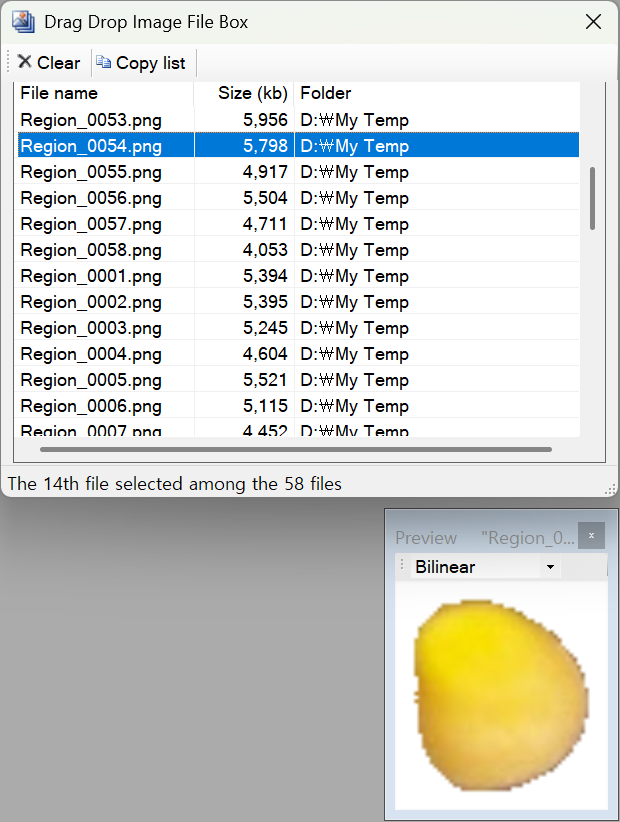
Here is everything you need to know about rapidly loading and managing your image batches.
💡 Key Features
- Universal Drag & Drop: Load dozens or even hundreds of images in a single second. Simply drag files or entire folders from your computer directly into the box. It fully supports standard formats including JPG, JPEG, BMP, PNG, GIF, and TIFF.
- Instant Image Preview: You don’t need to guess which file is which. Clicking on any file name in your list will automatically open a crisp, high-quality Preview Window for that specific image.
- Smart Scanning Control: Did you accidentally drag a massive folder with thousands of files? No problem! A Stop Scanning button appears during the loading process, allowing you to safely halt the import at any time.
- One-Click List Export: Need a record of all the files you are working on? Click the Copy List button to instantly copy all the file paths to your clipboard, ready to be pasted into Excel, Notepad, or an email.
🛠️ How to Use the Drag & Drop File Box
Managing large batches of images is incredibly intuitive. Follow these simple steps:
Step 1: Load Your Images
Open the Drag & Drop File Box. Grab your image files or a whole folder from your computer and drop them directly into the window. The status bar at the bottom will instantly update to show you the total number of successfully added files.
Step 2: Preview Your Files
To inspect an image before working on it, simply click its name in the list. The Image Preview window will pop up immediately, displaying the image and updating the status bar to show exactly which file number you are currently viewing.
Step 3: Manage Your List
Use the toolbar at the top to easily control your workflow:
- Click Copy List to grab the text data of all loaded file paths.
- Click Clear to instantly wipe the board clean so you can start fresh with a new batch of images.
(Tip: You can press the Escape (ESC) key on your keyboard at any time to quickly hide the file box and return to your main workspace!)
With the Drag & Drop Image File Box, handling massive image datasets is fast, organized, and completely effortless!