📁 A Complete Guide to the File Manager
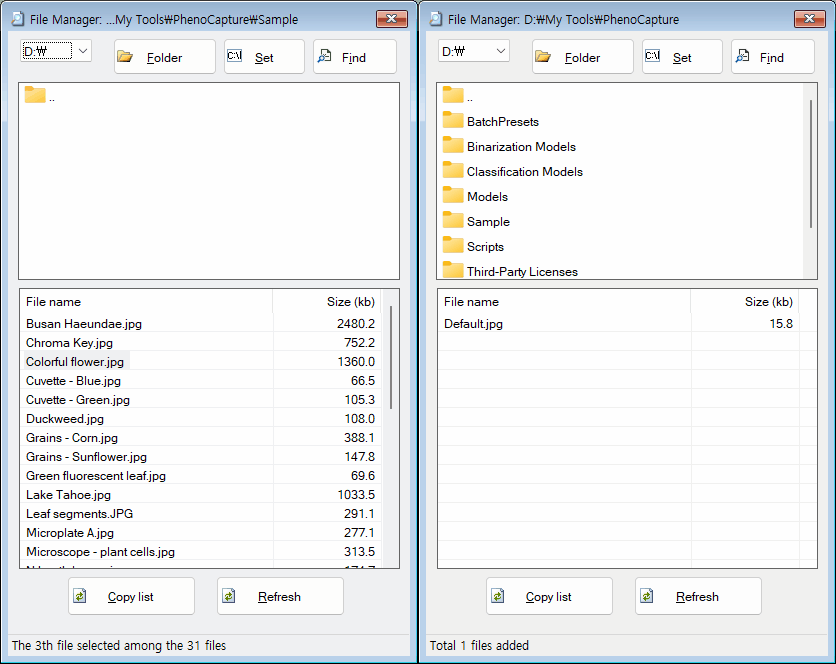
PhenoCapture AI’s File Manager is a built-in, highly optimized file explorer designed specifically for your workflow. Instead of constantly minimizing the software to search through Windows Explorer, you can navigate your hard drives, search for specific files, and preview your images instantly—all without ever leaving the application.
Here is everything you need to know about navigating and managing your image collections efficiently.
💡 Key Features
- Smart Auto-Loading: The moment you open the File Manager, it intelligently searches for a default “Sample” folder. If it finds one, it instantly loads those images so you can start working immediately without clicking through multiple directories.
- Dedicated Image Filtering: Say goodbye to cluttered folders! The File Manager automatically hides irrelevant files (like documents or system files) and only displays valid image formats (JPG, PNG, BMP, TIFF, GIF), keeping your workspace clean and focused.
- Instant High-Quality Preview: You don’t need to open files one by one to see what they are. Simply click on any image in the list, and it will immediately pop up in the Image Preview window in perfect high resolution.
- Quick Search & Export: Looking for a specific scan or photo? Use the Search feature to find files by name instantly. You can also click Copy List to grab the names and paths of every file in the folder, which is perfect for pasting into reports or spreadsheets!
🛠️ How to Use the File Manager
Navigating through your folders and finding the perfect image takes just a few intuitive clicks. Follow these steps:
Step 1: Navigate Your Folders
Use the Drive Dropdown to select your hard drive (e.g., C: or D:), then click through the Folder Tree to find where your images are saved.
- Tip: If you know the exact path, click the Text Input button to type or paste the folder location directly!
Step 2: Preview Your Images
Once you select a folder, all compatible images will appear in the right-hand list. Click on any file name. The Preview Window will instantly appear, showing you exactly what the image looks like before you bring it into your main workspace.
Step 3: Search for Specific Files
If your folder has hundreds of images and you only need one, click the Search button. Type in a part of the file name, and the manager will instantly locate it for you.
Step 4: Copy the File List (Optional)
Need a record of all the images you are working with? Click the Copy List button. The entire list of images in your current folder will be copied to your clipboard, ready to be pasted into Excel or an email!
With the built-in File Manager, organizing, finding, and loading your important images is completely seamless and distraction-free!