🎨 Fill Region: Highlight or Conceal Areas Instantly
PhenoCapture AI’s Fill Region feature allows you to seamlessly fill specific parts of your image with any color of your choice. Whether you need to highlight an important subject, apply a translucent tint to a background, or completely block out sensitive information, this tool provides the flexibility you need in a few simple clicks.
It is perfectly suited for everyday tasks like redacting personal details on documents, designing stylish graphic overlays, or creating focus effects for presentations.
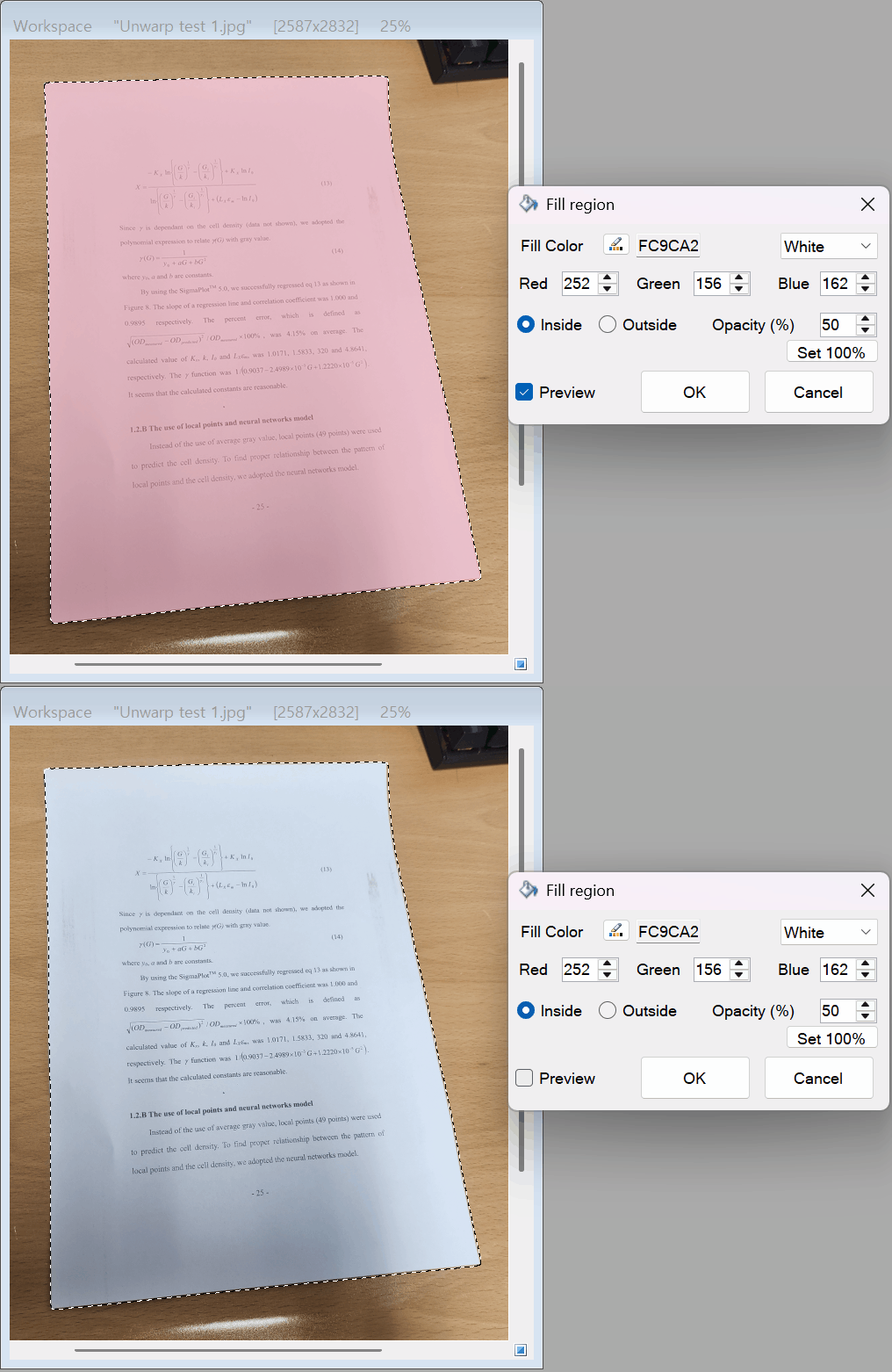
💡 Key Features
- Inside or Outside Fill: You have total control over the target area. Choose to fill the exact region you selected, or invert the effect to fill everything outside the selection, instantly drawing attention to your main subject.
- Versatile Color Selection: Easily pick the perfect color using convenient presets, precise RGB sliders, Hex codes, or a visual color picker.
- Adjustable Opacity: Set the opacity to 100% to completely hide and redact information, or lower the opacity to create a beautiful, see-through color tint that acts like a digital highlighter.
- Real-Time Smart Preview: No more guesswork. The live preview updates instantly as you adjust colors and opacity, allowing you to see the exact final result before applying it.
🛠️ How to Use the Tool
Adding a color fill to your images is incredibly intuitive:
Step 1: Choose Color and Opacity
Open the Fill Region settings and select your desired color using the presets or the color picker tool. Next, adjust the Opacity slider. Use a lower value for a translucent, glass-like highlight, or click the 100% button for a solid, opaque color block.
Step 2: Select the Fill Target
Decide where the color should go by selecting either Fill Inside or Fill Outside. Filling the inside colors your active selection, while filling the outside tints the entire background around it.
Step 3: Preview and Apply
Make sure the Preview box is checked to see your changes in real-time. Once the color, opacity, and positioning look perfect, simply click OK to apply the fill to your image.
With the Fill Region tool, emphasizing the right details or hiding unwanted parts of your image is fast and simple. Try combining a translucent outside fill with a dark color to make your main subject instantly pop!