🌐 FTP Image Upload & Auto-Capture: Your Automated Monitoring Hub
PhenoCapture AI’s FTP Image Upload tool transforms your webcam or workspace into a fully automated image capture and backup system. Whether you want to set up a simple motion-detecting security camera, create a time-lapse of a long project, or automatically upload your latest work to a web server, this feature handles it all seamlessly in the background.
It is perfect for remote monitoring, automated data backups, and sharing live updates with your team or online audience without needing complex external software.
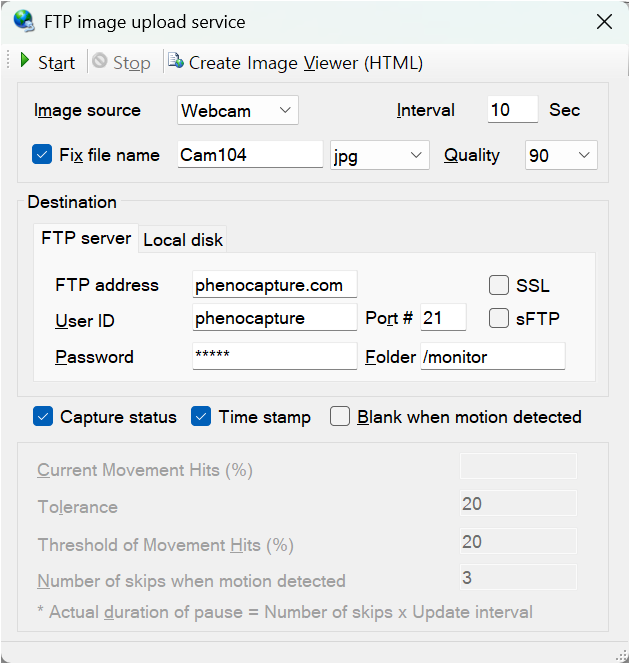
💡 Key Features
- Automated Time-Lapse & Saving: Set a custom timer to automatically capture images at regular intervals. You can save these images directly to a local folder on your computer or upload them automatically to a remote FTP server.
- Smart Motion Detection: The software can monitor your webcam feed for movement. You can easily adjust the sensitivity threshold and have the system visually flag images when motion is detected.
- Live Online Web Viewer: Instantly generate a custom HTML webpage. This allows you to view your automatically updating image feed directly from any standard web browser, making remote monitoring incredibly simple.
- Timestamps & Status Text: Keep your records perfectly organized by automatically stamping the current date, time, and camera connection status onto your images right before they are saved.
🛠️ How to Use the Tool
Setting up your automated capture and upload system is simple and highly customizable:
Step 1: Choose Your Source and Destination
First, select whether you want to capture live images from your connected webcam or directly from your PhenoCapture AI workspace. Next, choose your save destination: you can either select a local folder on your hard drive or enter your FTP server address and login details for remote uploading.
Step 2: Configure Automation Settings
Set your desired update interval (for example, capturing a new image every 10 seconds). In this step, you can also enable Motion Detection to monitor changes in the frame, and check the boxes to add automatic timestamps and status overlays to your final images.
Step 3: Start Capturing and Monitor Online
Click the start button to begin the automated process. PhenoCapture AI will run quietly in the background. If you are uploading to a web server, you can use the built-in HTML creator tool to generate a web page that automatically refreshes to show your latest uploaded image in real-time!
With the FTP Image Upload tool, automating your image workflow, creating time-lapses, and setting up remote monitoring is effortless. Set it up once, and let PhenoCapture AI do the heavy lifting for you!