✨ A Complete Guide to Gray from RGB Tools
PhenoCapture AI’s Gray from RGB tools offer a specialized way to perform structural and morphological analysis on your images. Instead of using a standard luminance calculation that blends all colors together, these tools allow you to isolate the exact intensity of a single color channel (Red, Green, or Blue) and instantly map it into a pristine, high-contrast grayscale image.
This is incredibly useful for scientific imaging, such as isolating specific fluorescent stains or separating distinct color-coded features from complex backgrounds!
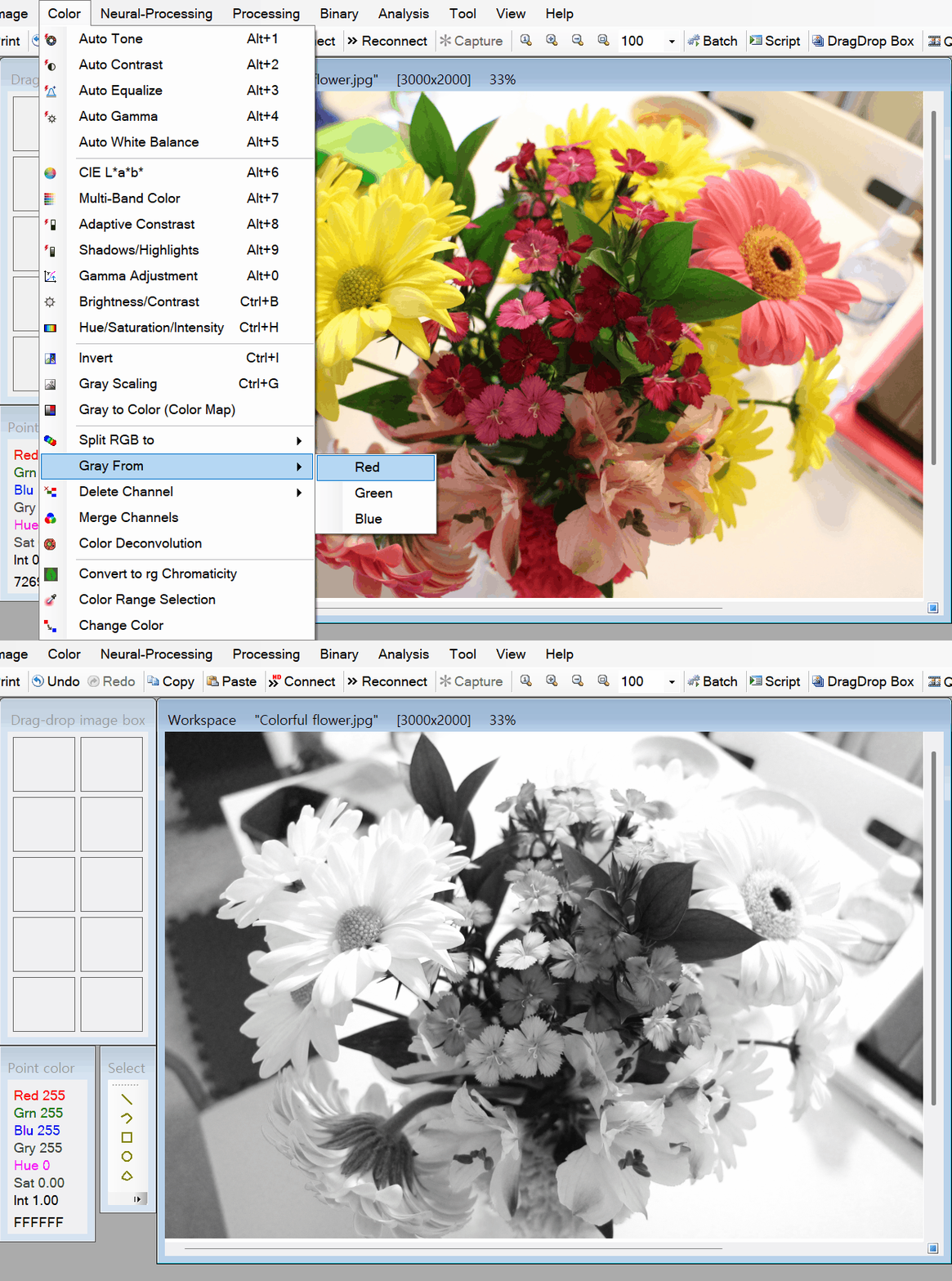
💡 Key Features
- Single-Channel Grayscale Extraction: The software provides three distinct extraction methods depending on your target:
- Gray from Red: Takes the intensity of the Red channel and maps it to Grayscale.
- Gray from Green: Takes the intensity of the Green channel and maps it to Grayscale.
- Gray from Blue: Takes the intensity of the Blue channel and maps it to Grayscale.
- Smart Regional Masking: Need to analyze the green-channel intensity of just one specific object? Draw a selection boundary! If a mask is active, the algorithm safely isolates and converts only your chosen area, leaving the rest of the original image untouched.
- Multi-Core Parallel Processing: Built for incredible speed. The engine uses advanced
Parallel.Formulti-threading to divide the pixel-by-pixel memory array mapping across all available CPU cores, ensuring instant results even on maximum-resolution images. - Intelligent Progress Tracking: For large datasets, the tool calculates the workload and reports its progress in smooth 10% intervals, ensuring the UI remains perfectly responsive.
- Seamless Undo Integration: Connected directly to PhenoCapture AI’s built-in undo engine, allowing you to instantly revert to your original full-color image with a simple shortcut after analyzing a specific channel.
🛠️ How to Use the Gray from RGB Tools
Step 1: Prepare Your Workspace and Mask (Optional)
Load your image into the main workspace. If you only want to extract the grayscale channel for a specific area, use the advanced selection tools to draw your mask boundary. If no mask is selected, the tool will process the entire image.
Step 2: Choose Your Target Channel
Navigate to the menu and select the specific color channel you want to isolate as a grayscale image:
- Click Gray from Red to isolate red intensities.
- Click Gray from Green to isolate green intensities.
- Click Gray from Blue to isolate blue intensities.
Step 3: Let the Engine Work
The software will instantly grab the exact byte value of your selected color channel for every single pixel and copy it to the red, green, and blue outputs, producing a perfectly balanced grayscale representation. Once complete, your workspace will update automatically. If you wish to check a different channel, simply use the standard Undo shortcut and try another option!