✨ A Complete Guide to the Gray Scaling Tool
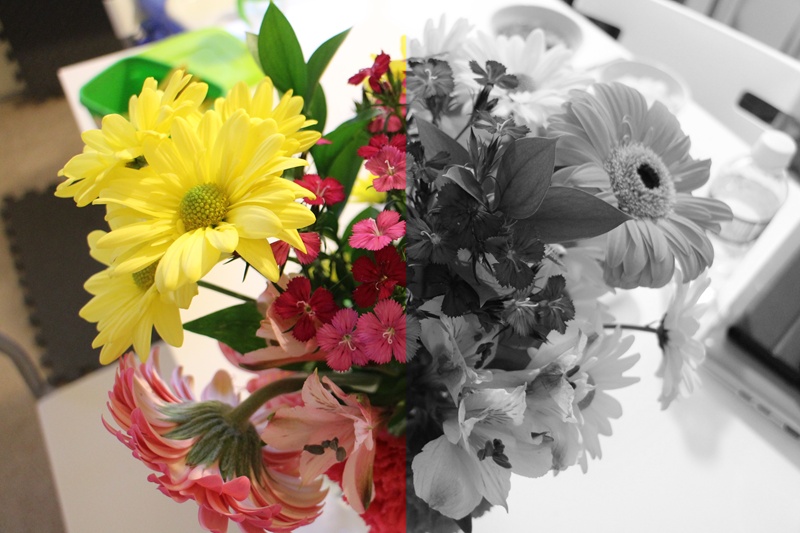
PhenoCapture AI’s Gray Scaling tool instantly converts your full-color images into beautiful, accurate black-and-white representations. By calculating the true perceptual luminance of the image based on human eye sensitivity, it delivers a much richer and more natural grayscale result than simple RGB averaging.
💡 Key Features
- High-Speed Perceptual Luminance Conversion: The algorithm calculates grayscale using the standard perceptual luminance formula that weights Red, Green, and Blue channels according to human vision. To achieve extreme speed, it replaces slow floating-point math with optimized integer bit-shift operations (
>> 8), ensuring lightning-fast conversions. - Extreme Memory Optimizations: Engineered for maximum efficiency, the engine bypasses standard GDI+ pixel overhead by locking raw memory buffers directly into localized byte arrays (
srcPixels,outPixels), resulting in near-zero memory-access latency. - Smart & Safe Regional Masking: Want to convert only a specific object while leaving the background in full color? Draw a selection boundary! The masking logic pre-copies the original color buffer and applies automatic boundary clipping to guarantee that unselected background areas remain 100% untouched.
- Multi-Core Parallel Processing: Built for heavy workloads, the tool leverages the Task Parallel Library (TPL) to distribute millions of pixel calculations across your CPU cores simultaneously.
- Smooth Progress Tracking: For large, high-resolution files, the engine intelligently throttles its progress updates to 5% intervals. This prevents UI bottlenecking and keeps your workspace responsive while the algorithm crunches data in the background.
- Seamless Undo Integration: Fully integrated with PhenoCapture AI’s built-in undo engine. You can safely apply the Gray Scaling adjustment and instantly revert to the original color state if needed!
📐 How Gray Scaling Works (Core Formula & Principles)
Why not simply average the Red, Green, and Blue channels as (R + G + B) / 3? Because the photoreceptor cells in the human eye do not perceive all colors equally—we are most sensitive to Green light, moderately sensitive to Red, and least sensitive to Blue. A simple average makes green foliage look unnaturally dark and blue skies look overly bright.
PhenoCapture AI solves this by combining the industry-standard ITU-R BT.601 Perceptual Luminance model with high-speed integer bit-shifting:
- 1. The Standard Perceptual Luminance Formula: To match human vision, true luminance (
Y) weights each channel as approximately 29.9% Red, 58.7% Green, and 11.4% Blue:Luminance = 0.299 · R + 0.587 · G + 0.114 · B - 2. High-Speed Bit-Shift Integer Approximation: Multiplying millions of pixels by decimals (floating-point numbers) is computationally expensive. Instead, PhenoCapture AI scales the weights by
256(where77 + 150 + 29 = 256) and performs a single bitwise right-shift by 8 bits (>> 8, which is mathematically equivalent to dividing by256in a single CPU clock cycle):Gray = (R × 77 + G × 150 + B × 29) >> 8This preserves exact perceptual contrast (
77/256 ≈ 0.301,150/256 ≈ 0.586,29/256 ≈ 0.113) while running orders of magnitude faster than standard decimal math!
🛠️ How to Use the Gray Scaling Tool
Step 1: Prepare Your Image and Mask (Optional)
Ensure your image is loaded into the main workspace. If you want to convert only a specific area to grayscale (creating a striking “selective color” effect or preparing a localized region for analysis), use the advanced selection tools to draw your mask boundary around it. Otherwise, the tool will target the entire image.
Step 2: Apply the Gray Scaling Filter
Navigate to the menu and click on Gray Scaling.
Step 3: Let the Engine Work
Thanks to the direct memory optimizations and bit-shift processing, the software will instantly convert your image. You can monitor the progress bar for massive files. Once complete, your newly converted grayscale image will appear in the workspace immediately. If you wish to compare it with the original, just use your standard Undo shortcut!