🎨 Hue, Saturation, Intensity (HSI): Master Your Image Colors
PhenoCapture AI’s Hue, Saturation, and Intensity (HSI) tool gives you complete, intuitive control over the colors in your photos and designs. Whether you want to make a dull landscape look vibrant, completely change the color of an object, or fix poor lighting, this tool allows you to transform the mood of your image with just a few simple sliders.
Instead of dealing with complex color curves, the HSI tool breaks down color correction into three easy-to-understand elements, making professional-level photo editing accessible to everyone.
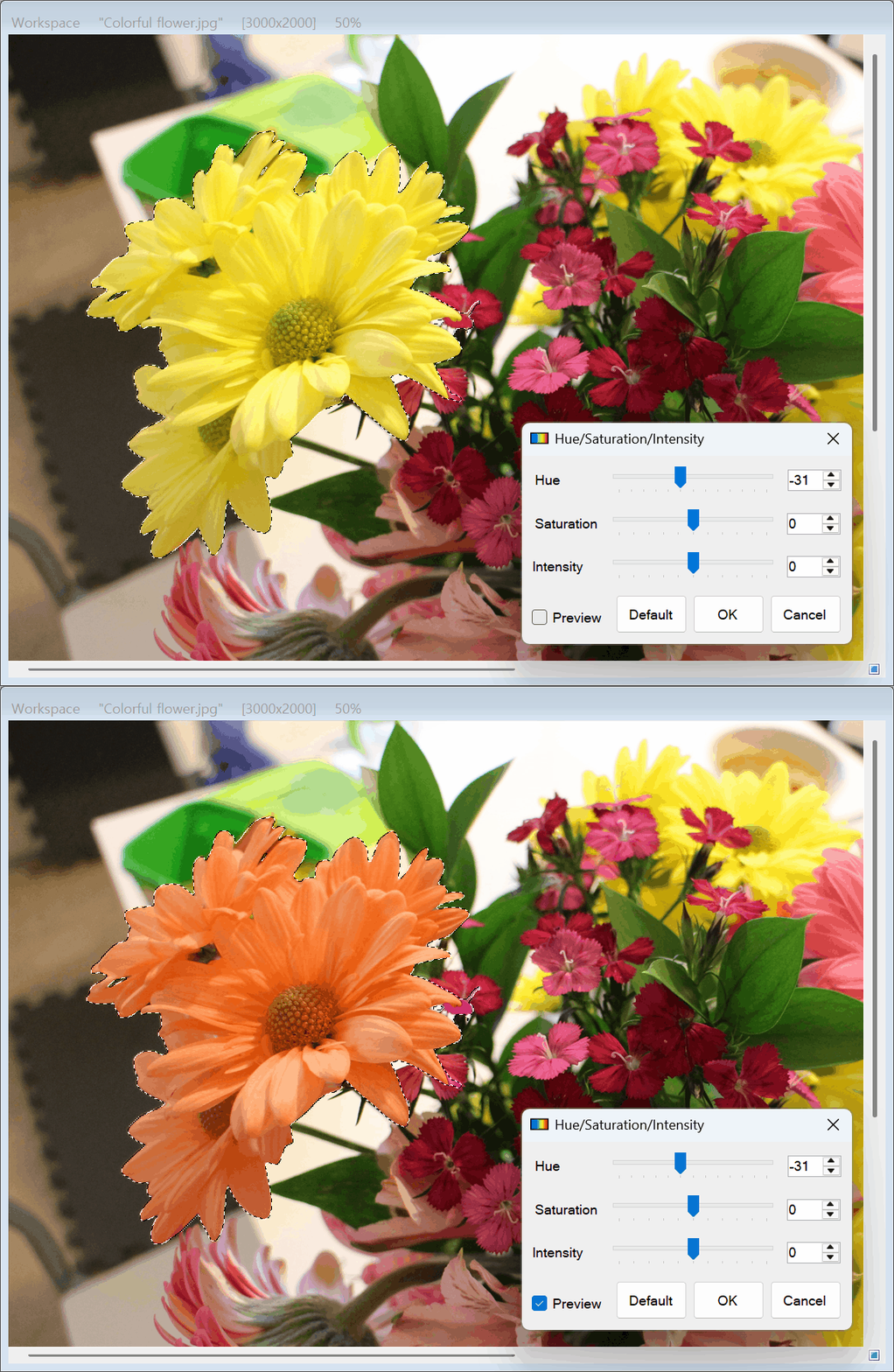
💡 Key Features
- Hue (Color Shift): Shift the entire color spectrum of your image. This is perfect for completely changing the color of a specific object—like turning a blue car green or a yellow flower pink—without affecting the natural textures.
- Saturation (Color Richness): Control how vibrant or muted your colors appear. Boost the saturation to make sunset colors pop and look more vivid, or lower it to create a moody, desaturated, or near-black-and-white effect.
- Intensity (Lightness): Adjust the overall brightness of the colors. If your photo was taken in a dark room or looks too washed out from bright sunlight, tweaking the intensity will help you achieve the perfect lighting balance.
- Real-Time Preview Engine: Thanks to a highly optimized processing engine, every adjustment you make on the sliders is instantly reflected on your canvas. No lag, no waiting—just real-time visual feedback.
- Targeted Editing (Mask Support): Want to make only the background black-and-white while keeping the main subject in full color? Use the selection tools to isolate specific areas, ensuring your HSI adjustments only apply exactly where you want them.
🛠️ How to Use the Tool
Achieving the perfect color balance is quick and straightforward:
Step 1: Enable the Live Preview
Open the HSI tool and ensure the Preview checkbox is ticked. This allows you to watch your image transform in real-time as you move the sliders, ensuring you get the exact look you want.
Step 2: Adjust the Sliders
Use the Hue, Saturation, and Intensity sliders (or type exact numbers into the boxes) to fine-tune your image:
- Move the Hue slider to change the actual colors.
- Increase Saturation for richer colors, or decrease it for a faded look.
- Adjust Intensity to fix the lighting.
(Tip: If you go too far and want to start over, simply click the Default button to instantly reset all values back to zero!)
Step 3: Apply Your Changes
Once you are perfectly satisfied with how your image looks in the preview, simply click the OK button. The color adjustments will be permanently applied to your image or the selected area.
With the HSI Color Adjustment tool, you have the power to breathe new life into dull photos, creatively recolor designs, and achieve the perfect visual tone with ease!