📄 A Complete Guide to Office File Preview & Import
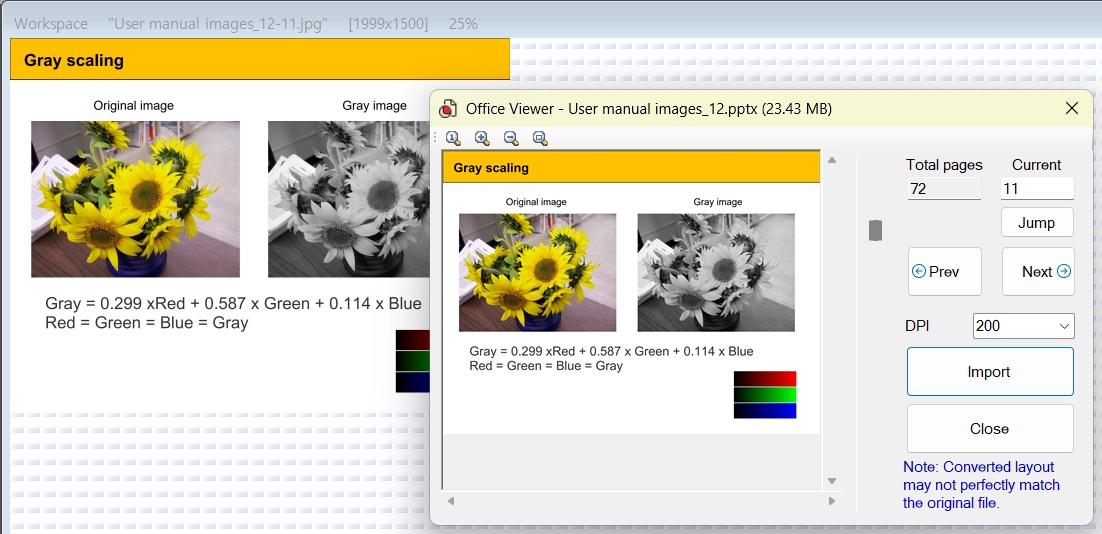
PhenoCapture AI’s Office Preview is an incredibly powerful tool that allows you to directly open, view, and extract high-quality images from Microsoft Office documents (Word, Excel, and PowerPoint). Powered by the industry-leading Syncfusion® Essential Studio® document rendering engine, PhenoCapture AI achieves near-native visual fidelity—accurately preserving complex layouts, typography, tables, and vector charts just as they appear in the original Microsoft Office suite. You don’t need to take messy screenshots or even have Microsoft Office installed on your PC—simply drag your document into PhenoCapture AI, select the perfect page, and import it directly into your workspace.
Here is everything you need to know to extract perfect, publication-ready graphics from your Office files.
💡 Key Features
- Universal Office Support: Seamlessly load .docx (Word), .xlsx (Excel), and .pptx (PowerPoint) files directly into the viewer without requiring external Office software.
- True-to-Original Rendering Fidelity (Powered by Syncfusion®): Built upon Syncfusion’s advanced Document SDK, the import engine reproduces intricate document structures, embedded shapes, scientific tables, gradients, and font styles with exceptional accuracy that closely matches the original Office documents.
- Adjustable DPI & Quality: Make your text and charts crystal clear. You can adjust the DPI (Dots Per Inch) on the fly from 50 (fast and low-res) up to 600 (ultra-crisp for academic publication and printing). The viewer instantly re-renders the page to match your selected quality.
- Excel-Specific Formatting: Excel spreadsheets can be tricky to convert. The viewer gives you specialized controls to force the sheet to fit on a single page, switch to landscape mode, or limit how many rows are printed per page so your data never gets cut off.
- Seamless Extraction: You can extract any page directly into your PhenoCapture AI workspace by clicking Import, or simply by dragging and dropping the preview image straight onto your canvas.
🛠️ How to Use Office Preview
Extracting the perfect page from your document is fast and intuitive. Follow these simple steps:
Step 1: Open Your Document
Simply drag and drop an Office file (like a Word document, an Excel spreadsheet, or a PowerPoint presentation) directly onto the PhenoCapture AI workspace. The software will detect the file and immediately open the Office Preview window.
Step 2: Navigate and Set the Quality
Once the document is loaded:
- Use the Page Scrollbar or the Prev/Next Page buttons to find the exact page or slide you want to extract.
- Click the DPI dropdown and select a higher number (like 300 or 600) if you need the text and vector diagrams to look perfectly crisp for publication or deep zoom analysis.
Step 3: Configure Excel Options (If Applicable)
If you opened an Excel (.xlsx) file, an extra Options panel will appear:
- Check Fit to Page to squeeze a wide spreadsheet onto a single viewing page.
- Check Landscape if your data is wider than it is tall.
- Adjust the Rows per Page to prevent massive spreadsheets from becoming unreadable.
After tweaking these settings, click Apply to instantly re-render the document with pinpoint precision.
Step 4: Import the Page
When you are looking at the perfect page, you have two easy ways to move it to your main workspace:
- Click the Import button at the top to automatically load the page and close the preview window.
- Or, simply Click and Drag the image from the preview window straight onto the main PhenoCapture AI workspace!
🙏 Special Thanks & Acknowledgment
We would like to express our sincere gratitude to Syncfusion, Inc. for generously providing the Syncfusion® Essential Studio® Community License. By integrating Syncfusion’s enterprise-grade document processing libraries, PhenoCapture AI is able to deliver remarkably accurate, high-resolution Word, Excel, and PowerPoint rendering that stays true to the original Microsoft Office documents.
With the Office Preview tool, turning complex documents, slides, and spreadsheets into high-quality, editable images is completely effortless!