🪄 Resize Canvas: Expand Your Creative Space
PhenoCapture AI’s Resize Canvas tool allows you to easily change the overall dimensions of your image workspace without altering, stretching, or distorting your original photo. Whether you need to add blank margins for text annotations, create a polaroid-style border, or fit your image into a specific presentation layout, this tool gives you complete control over your canvas boundaries.
By adjusting the canvas rather than the image itself, you can create the perfect framing for your work in seconds.
💡 Key Features
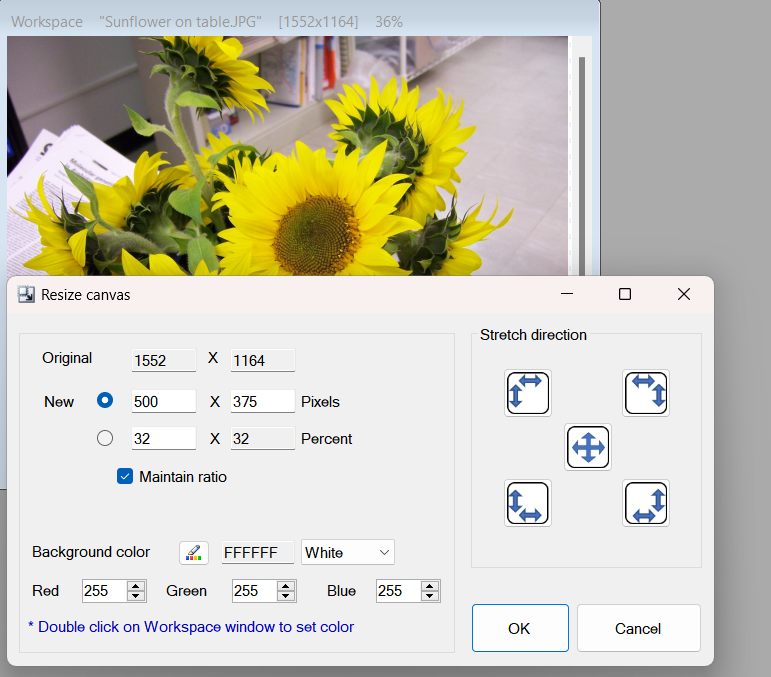
- Flexible Sizing Options: Adjust the canvas size using exact pixel dimensions or convenient percentage scaling to get the precise layout you need.
- Directional Anchoring: Choose exactly where your original image sits within the newly expanded canvas. You can pin your image perfectly to the Center, or align it to the Top-Left, Bottom-Right, or any other corner.
- Custom Background Colors: Seamlessly fill the newly created empty space with any color of your choice. Use the precise RGB values, select a quick preset (like White or Black), or use the visual Color Picker tool to match your design flawlessly.
- Aspect Ratio Lock: Maintain the exact proportions of your workspace with the “Maintain Ratio” option, allowing you to calculate new dimensions effortlessly without guessing.
🛠️ How to Use the Tool
Expanding your canvas and adding beautiful borders is a very straightforward process:
Step 1: Set New Dimensions
Open the Resize Canvas tool. You will see your current image size displayed. Enter your desired new width and height in the text boxes. You can switch between Pixels or Percentages depending on your preference.
Step 2: Choose Anchor and Background Color
Select the anchor point to decide where your original image will be placed within the new canvas (e.g., Center or Top-Left). Then, use the color tools to pick a background color that will fill the newly added empty space.
Step 3: Apply the Changes
Once your dimensions, anchor point, and background color are set, simply click the OK button. Your image will instantly be placed onto the newly sized canvas with your chosen background color!
With the Resize Canvas tool, preparing your photos and scans for any layout, presentation, or web upload is an absolute breeze. Enjoy a more flexible and creative editing workspace!