📐 Resize: Perfectly Scale Your Images
PhenoCapture AI’s Resize tool gives you complete control over the dimensions of your images. Whether you need to shrink a large photo for web uploading, scale up a graphic for printing, or adjust a document to exact pixel specifications, this tool ensures your images retain their quality and proportions effortlessly.
With an intuitive interface and professional-grade rendering algorithms, adjusting your image size has never been easier or more reliable.
💡 Key Features
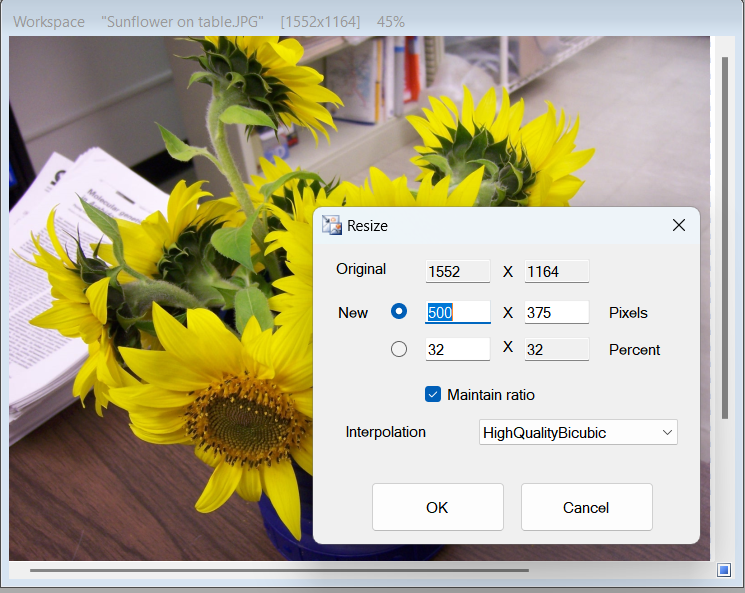
- Pixel-Perfect or Percentage Scaling: Choose your preferred way to adjust. You can enter the exact width and height values in pixels, or simply scale your image by a percentage for quick, proportional adjustments.
- Maintain Aspect Ratio: Keep your images from stretching or squashing. By keeping the aspect ratio locked, the tool automatically calculates the correct height when you change the width (and vice versa), ensuring your image looks natural.
- Advanced Interpolation Modes: Ensure your resized images stay crisp and clear. The tool offers professional resampling algorithms to handle the pixels during the size change. It defaults to “High Quality Bicubic,” which provides the smoothest and sharpest results for everyday photos and graphics.
- Smart Safety Limits: Built-in size validation prevents you from accidentally shrinking an image to an unusable size or expanding it beyond safe processing limits. The system will instantly alert you if an invalid dimension is entered.
🛠️ How to Use the Tool
Resizing your image is a quick and straightforward process:
Step 1: Choose Your Sizing Method
Open the Resize tool. At the top, you will see your image’s original dimensions for reference. Choose whether you want to adjust the size by specific Pixels or by Percent.
Step 2: Enter New Dimensions
Type your desired width or height into the input boxes. If the Maintain Ratio box is checked, you only need to enter one number—the software will instantly and automatically calculate the other value to keep your image perfectly proportioned.
Step 3: Select Quality and Apply
For the best visual results, leave the interpolation dropdown set to its default high-quality setting. Once your dimensions are set and you are ready, simply click the OK button to instantly apply the new size to your canvas.
With the Resize tool, adjusting your images for any format, platform, or project is fast and foolproof. Enjoy perfectly scaled graphics without sacrificing quality!